The Complete User Manual
RBCopilot Field
Field reporting that just works — even with no signal.
A step-by-step, beginner-friendly guide for road crews: install the app, connect to the office, and file a complete daily report in under a minute.
rbcfield.com · Edition 1.0 · May 2026 · Confidential
Start Here
How to use this manual
RBCopilot Field is the phone app your crew uses on the job site. This guide assumes you've never used it. Every screen is shown as a real phone picture, with plain-English steps. You don't need signal to use the app — and you don't need to read this cover to cover.
The colored boxes you'll see
✅TIP — a shortcut that saves you time.
⭐PRO MOVE — a power-user trick.
ℹ️GOOD TO KNOW — background that makes things click.
⚠️WATCH OUT — something not to skip.
The one big idea
Everything works offline. You can write reports, take photos and log quantities with zero bars. The app saves it on your phone and sends it to the office by itself the moment you get signal. Never wait, never lose work.
WORKS OFFLINE
SYNCS AUTOMATICALLY
INSTALLS LIKE A NATIVE APP
Contents
What's inside
0Getting the App on Your PhoneWelcome · Install · the two ways to start
1Connecting to the OfficePaste the project key
2Signing In & Your WorkspaceLogin · create your own workspace
3Your JobsThe job list
4Inside a JobJob Home · Plans & Documents
5The Daily Work ReportWeather · photos · quantities · tickets · problems
6Work Items, People & ChatPay items · crew · messaging
7Reports, Summary & PDFHistory · roll-up · one-tap PDF
8Reviewing & TeamReview Center · roles
9Sync, Notifications & SettingsThe offline queue · alerts · settings
00
Chapter 0
Getting the App on Your Phone
No app store needed. Open a link, add it to your home screen, and you're done — it opens full-screen like any other app and works offline.
In this chapter- The Welcome screen
- Installing the app
- Connect vs. Work independently
0.1 · Welcome & Install
Open the app & add it to your phone
rbcfield.com
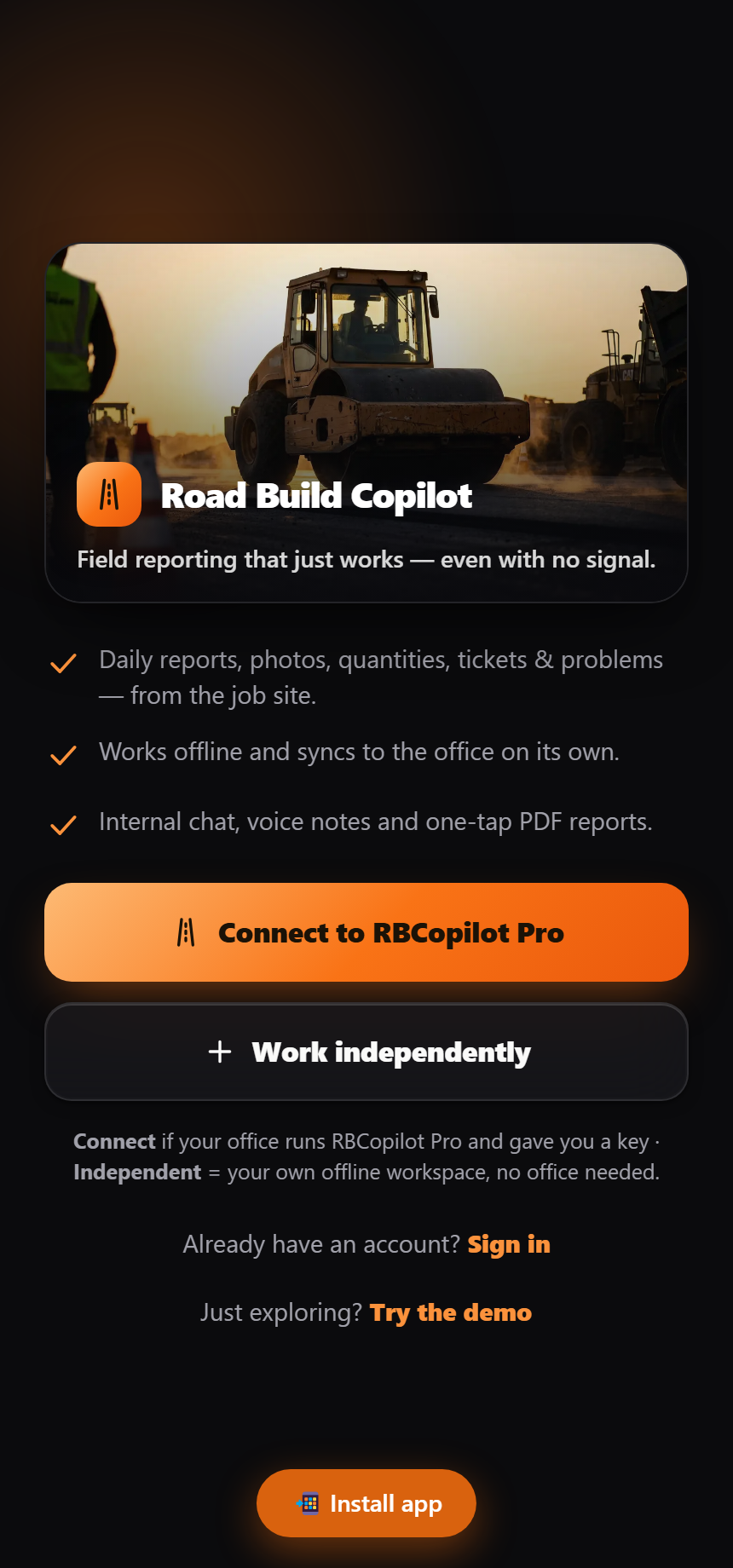
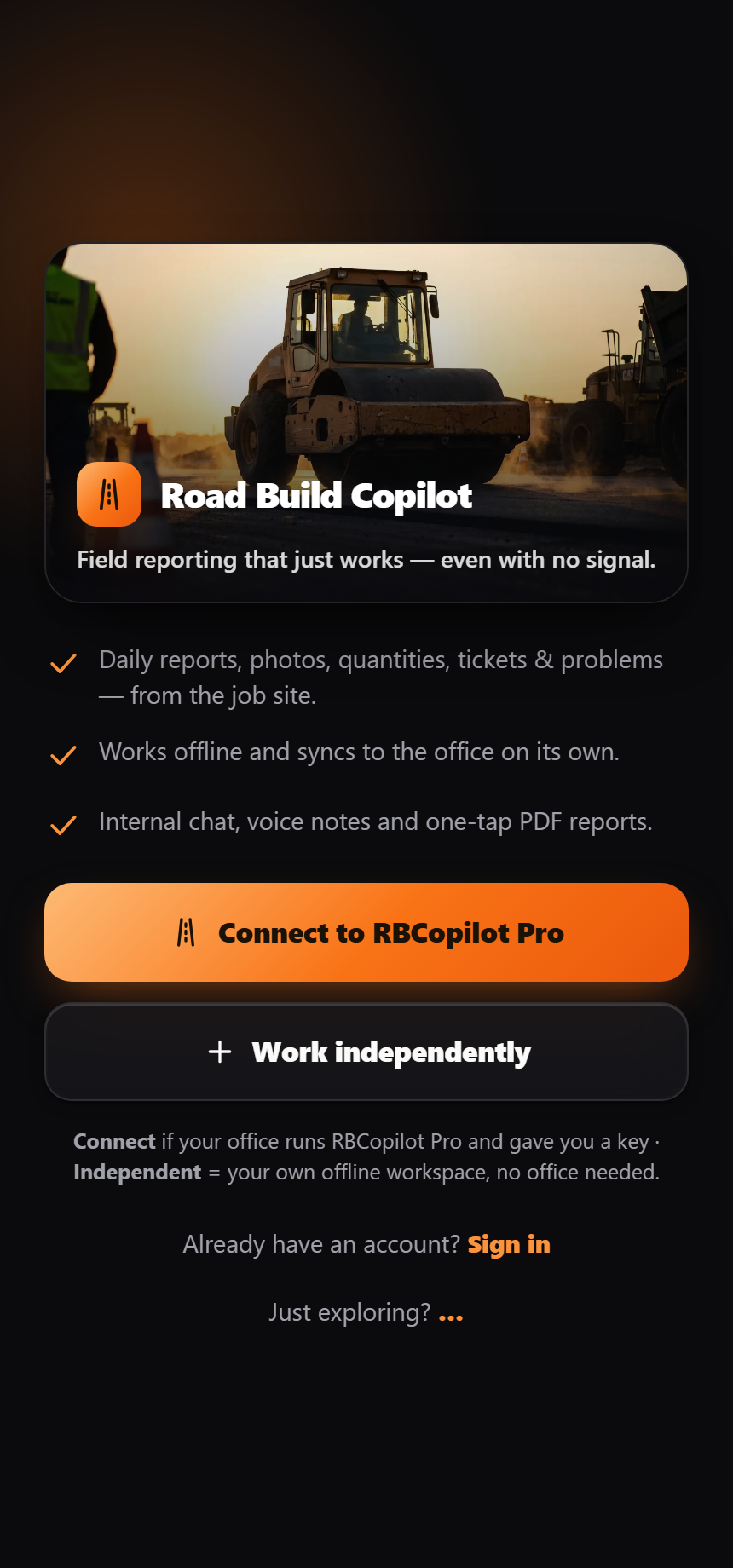
What it is: the first screen you see. From here you install the app and choose how to start. On Android/Chrome an “Install app” button appears; on iPhone, tap Share → “Add to Home Screen.”
Welcome — two clear ways to start, plus Sign in and Try the demo.
- On your phone's browser, open rbcfield.com.
- Tap Install app (Android) or Share → Add to Home Screen (iPhone).
- Open it from your home screen — it now runs full-screen and works offline.
ℹ️GOOD TO KNOW — Choose “Connect to RBCopilot Pro” if your office gave you a key, or “Work independently” to run your own offline workspace with no office needed.
01
Chapter 1
Connecting to the Office
If your office runs RBCopilot Pro, they'll send you a project key. Paste it once and the whole job loads itself — no setup.
In this chapter- Paste the project key
- The green “Connected” light
1.1 · The project key
Connect with one key
Welcome → Connect to RBCopilot Pro
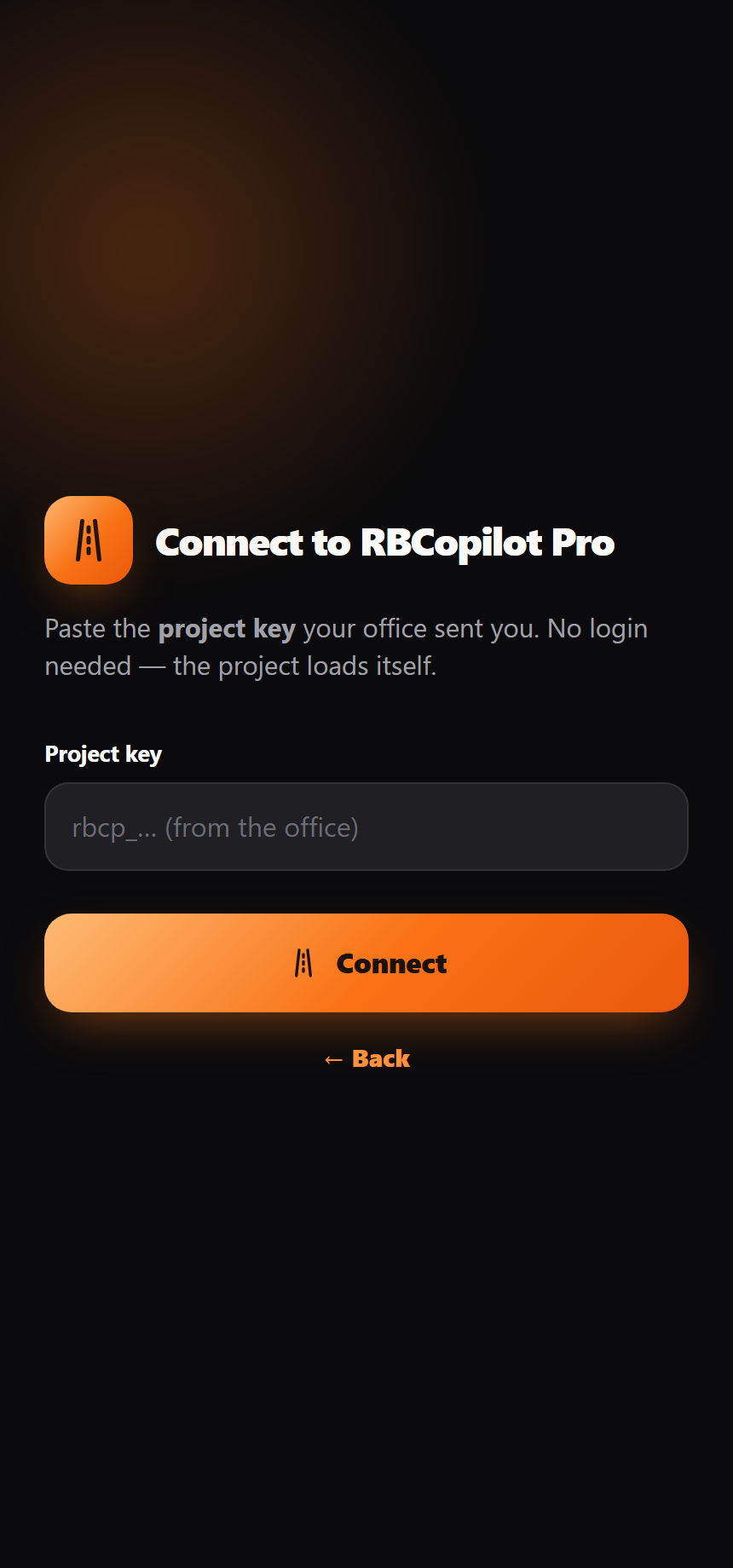
What it is: the office sends you a key like rbcp_… (by text, email or phone). You paste it here — no login needed — and the project arrives already filled in with its pay items and plans. Then you set your own password.
Paste the key — a green light confirms you're connected.
Then create your own username & password.
- Tap Connect to RBCopilot Pro on the Welcome screen.
- Paste the project key your office sent you and tap Connect.
- Wait for the green ✓ Connected light — it shows the project name.
- Fill in your name, email and password, then tap Enter project. The job loads.
⭐PRO MOVE — One key per project, so jobs never get mixed up. From now on, your daily reports flow straight back to the office.
02
Chapter 2
Signing In & Your Workspace
Each company has its own private workspace with its own login. Returning crews sign in; new independent users create one.
In this chapter- Sign in
- Create your own project (independent)
2.1 · Sign in / Create
Sign in or start independent
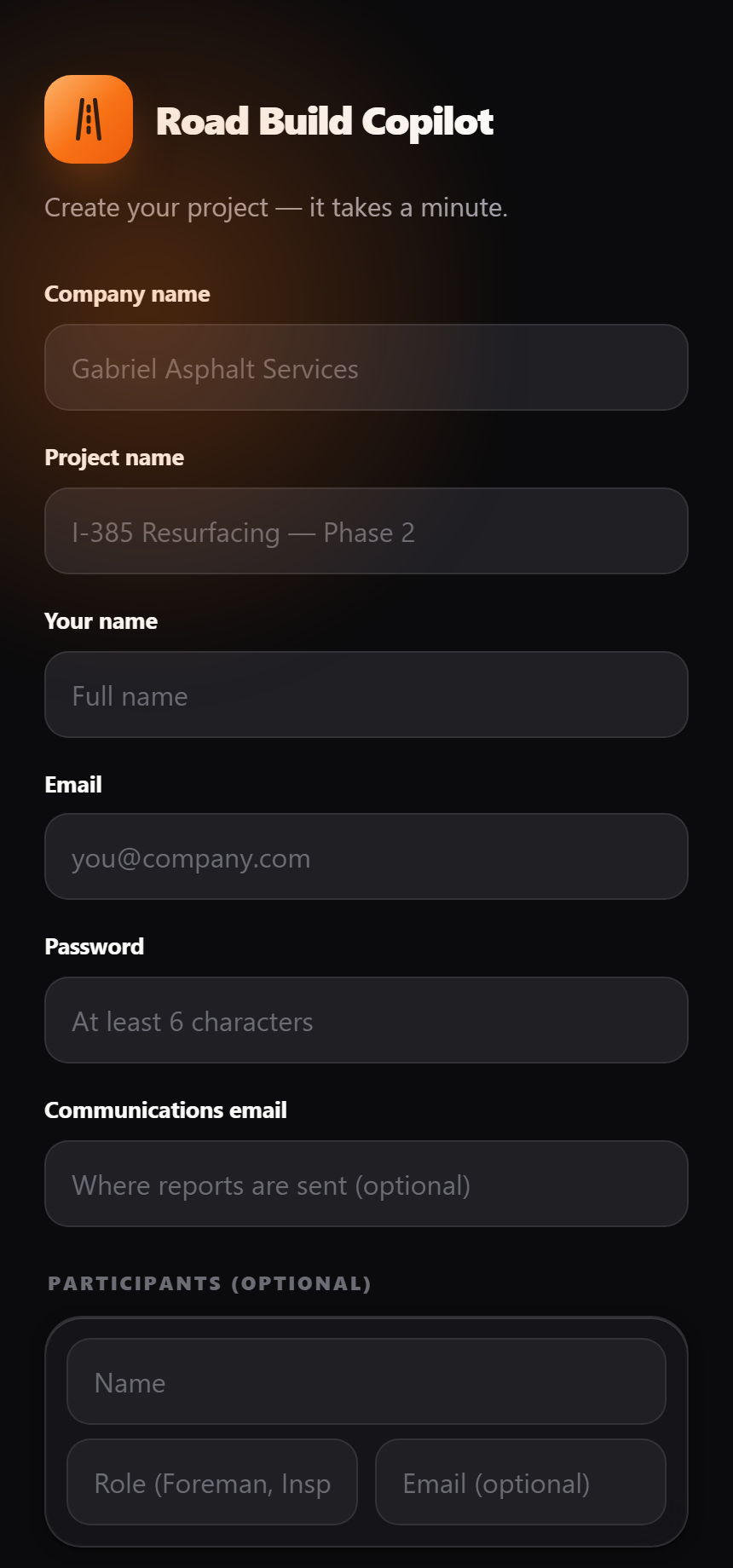
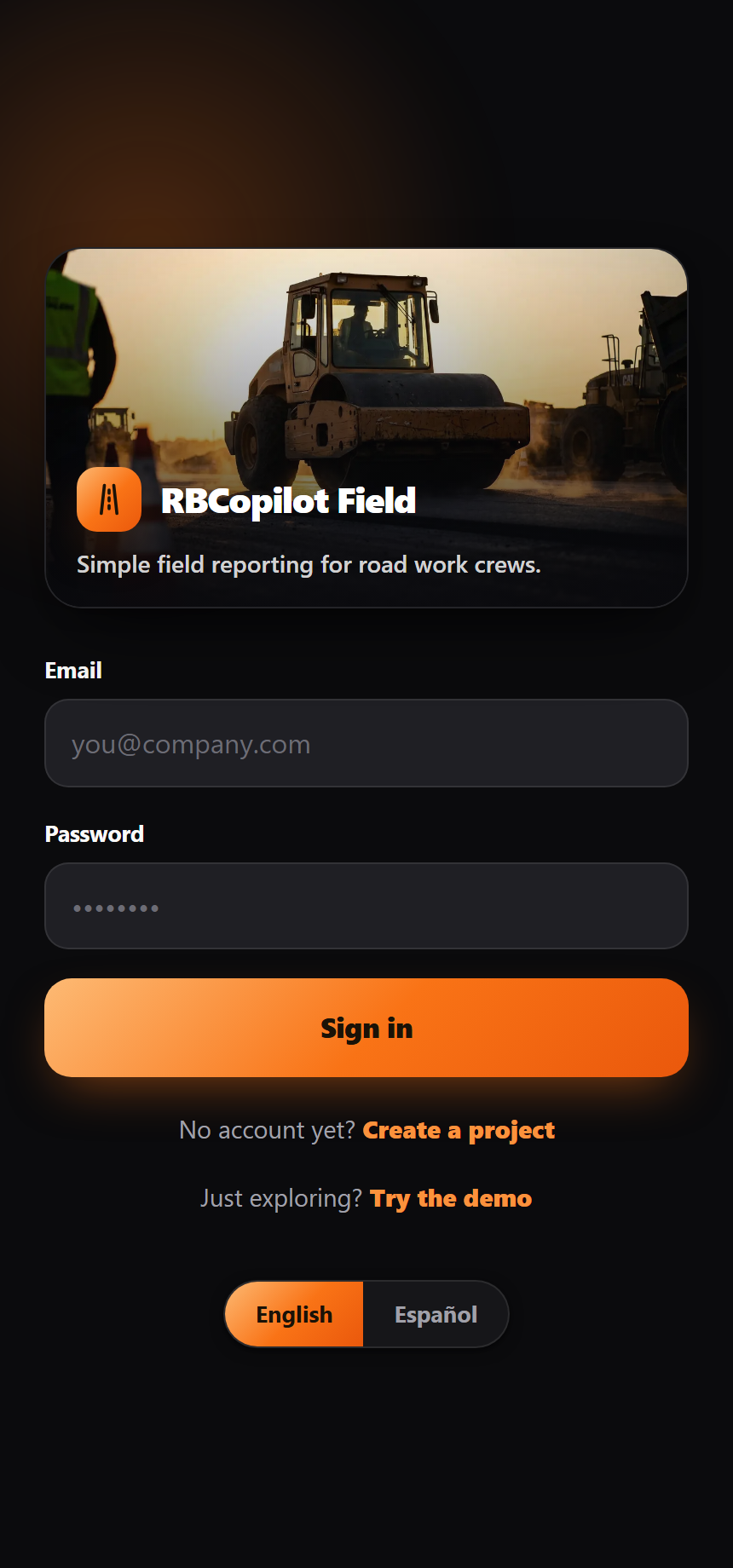
Sign in takes your email and password. If you don't have an office, choose “Work independently” → Create your project: enter your company, the project, your details and (optionally) your crew — all on one screen.
Sign in with your email & password.
Create your project — the independent path.
✅TIP — Just exploring? Tap “Try the demo” on the Welcome screen for a sample workspace with example data, no signup.
03
Chapter 3
Your Jobs
Every project on your phone, in one list. See at a glance which jobs came from the office and which still need to sync.
3.1 · My Jobs
The job list
Home tab
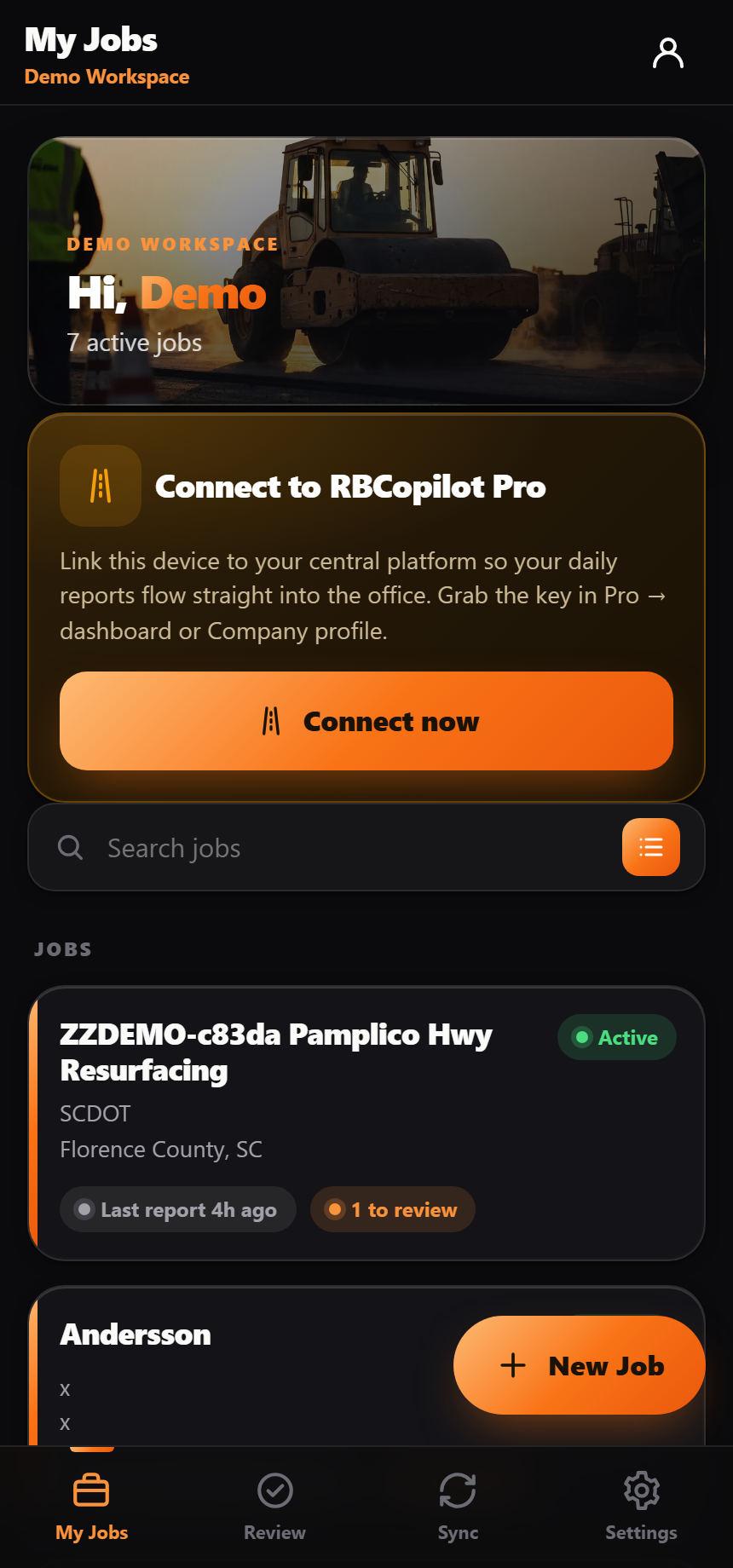
What it is: your home screen. Each card shows the job name, customer and location, when the last report was filed, and badges: “📋 From office” for dispatched jobs and “Unsynced” when your phone is holding changes not yet sent.
My Jobs — tap a card to open it; use the search box to filter.
- Tap any job card to open it.
- Use search to find a job by name.
- Watch for the Unsynced badge — it clears once your phone reaches signal and syncs.
04
Chapter 4
Inside a Job
The Job Home is your cockpit for one project — start today's report, open plans, and reach photos, quantities, tickets and problems.
In this chapter- Job Home
- Plans & Documents
4.1 · Job Home
The job cockpit
What it is: open a job and you see its header (customer, location, station), a Plans & Documents section to open the office's plan sheets, a big “Start today's Work Report” button, and tiles for Photos, Quantities, Tickets and Problems.
Job Home — Plans, today's report, and the four tracking tiles.
- Open Plans & Documents to view the plan sheets on your phone.
- Tap Work Report to start today's report (Chapter 5).
- Use the tiles to jump to Photos, Quantities, Tickets or Problems.
05
Chapter 5
The Daily Work Report
The heart of the app. One screen captures the whole day: weather, crew, equipment, photos, quantities, tickets and problems — then turns into a PDF.
In this chapter- The report builder, section by section
- Photos · Quantities · Tickets · Problems · Voice
5.1 · The report builder
Fill today's report
Job Home → Work Report
What it is: one scrollable form with simple sections. Fill as much as the day needs — it all saves instantly on your phone, signal or not.
Daily Work Report — weather, crew, equipment, photos, quantities, tickets & problems.
- Date & Weather — set the day, weather and temperature.
- Crew & Equipment — headcount and equipment + hours.
- Photos — snap geo-tagged site photos (location is saved automatically).
- Quantities — log what you placed (item, unit, amount) — this is what you get paid for.
- Tickets — capture material delivery tickets.
- Problems — flag delays, surprises or extra work, with a severity.
- Voice Notes — too busy to type? Record a voice note instead.
⚠️WATCH OUT — Log quantities the day you place them. They're the basis of your pay estimate; reconstructing them later loses money.
✅TIP — When the report is done, tap Submit. One tap also makes a PDF (report + photo log + quantities) you can share.
06
Chapter 6
Work Items, People & Chat
Know what you're building, who's on the job, and keep the crew talking — all inside the project.
In this chapter- Work Items (pay items)
- People · Internal Chat & voice
6.1 · Items, People & Chat
Work Items · People · Chat
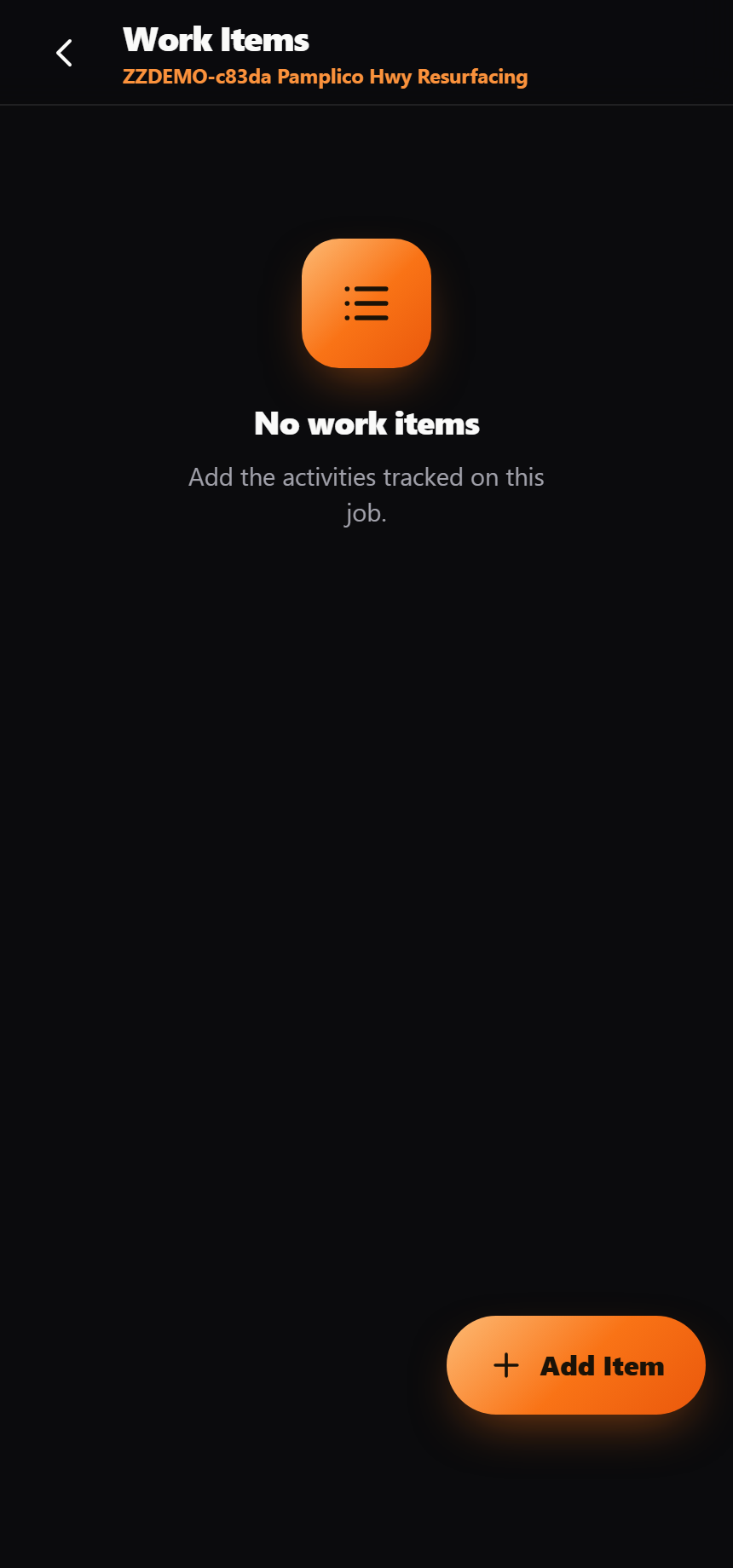
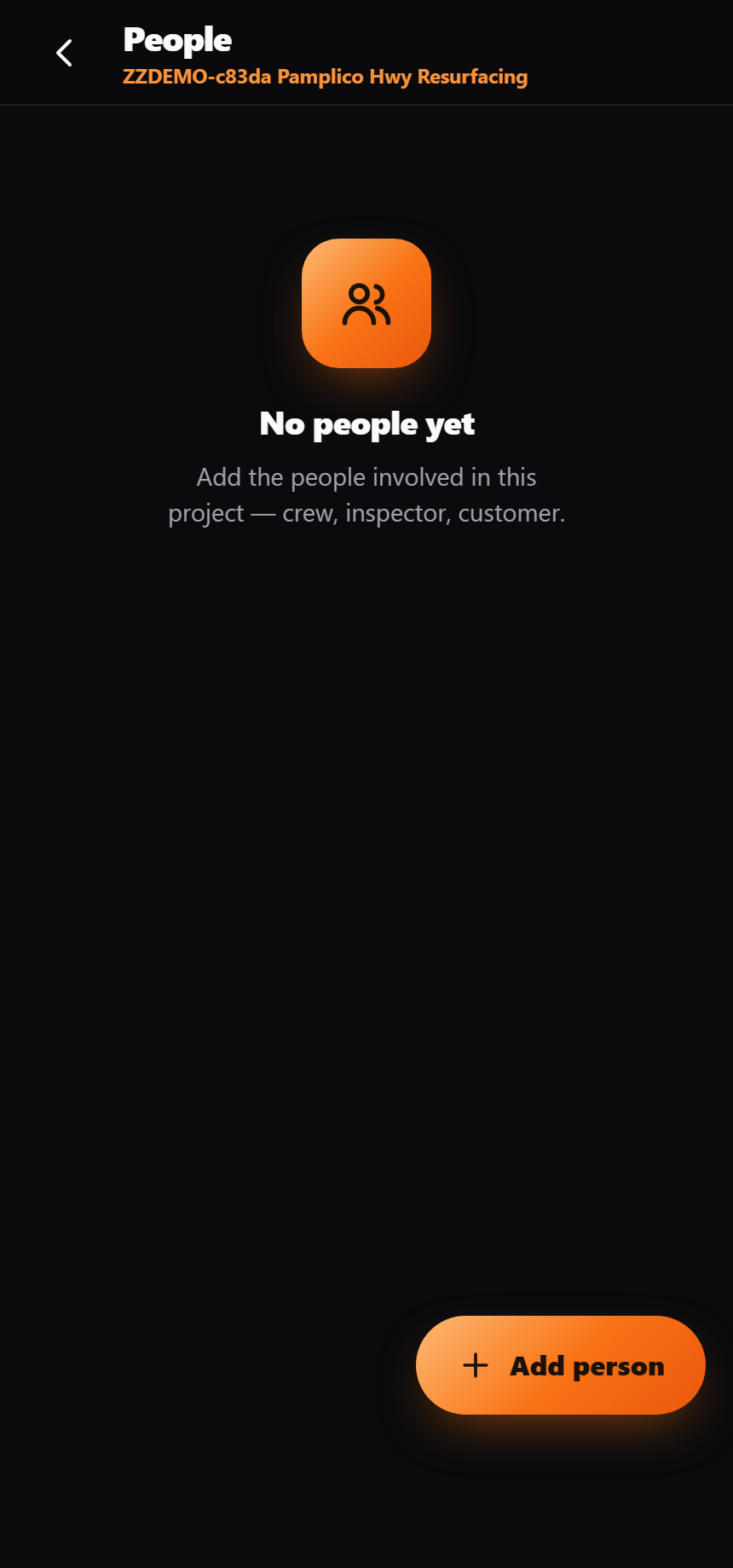
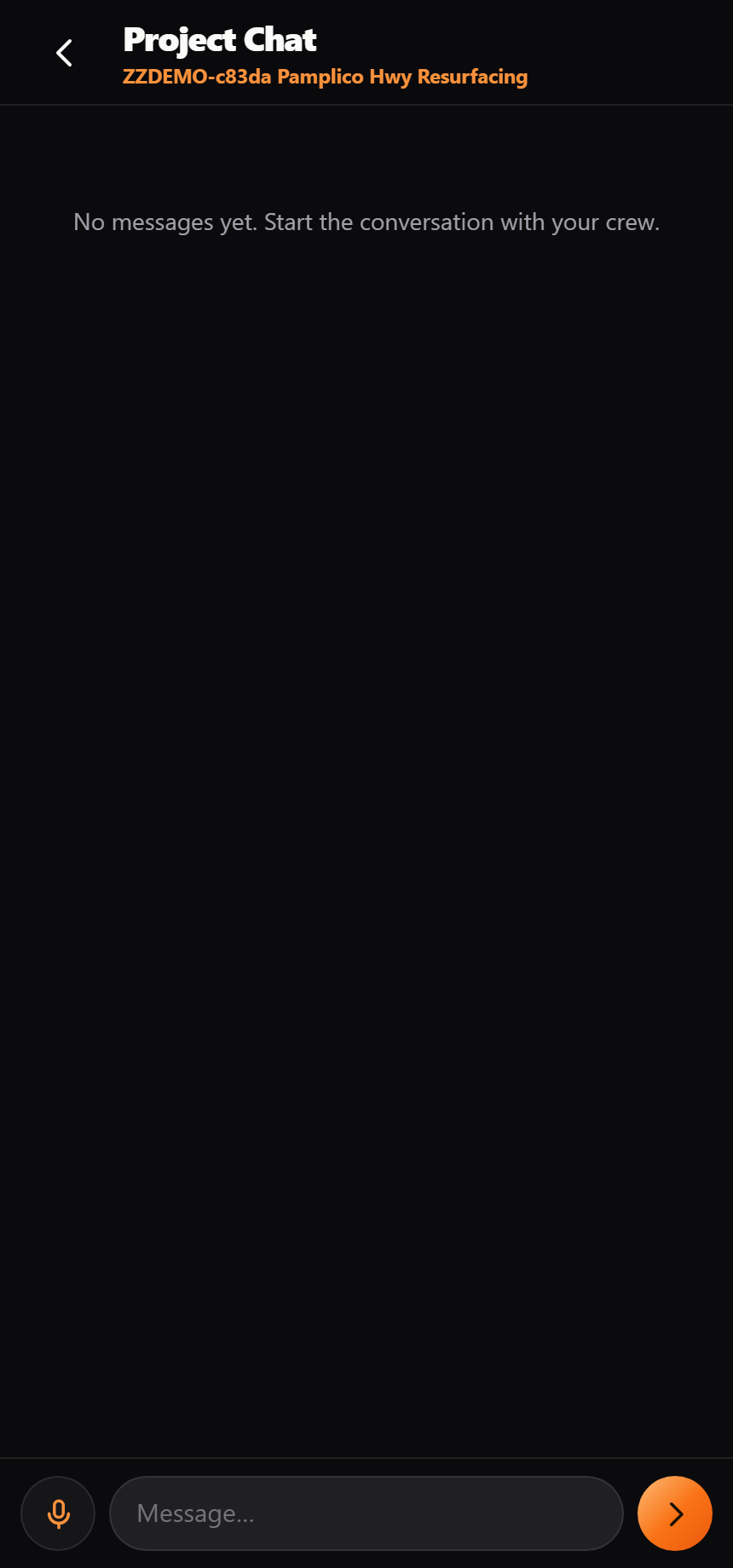
Work Items are the job's pay items (pre-loaded from the office). People is the project roster — foreman, inspector, customer. Chat keeps crew messages (text and voice) inside the project instead of in personal texts.
Work Items — the pay items you report against.
People — who's on this job.
Chat — crew messaging & voice.
07
Chapter 7
Reports, Summary & PDF
Look back over the job's reports and get a clean roll-up of work completed.
In this chapter- Job Reports list · Job Summary
7.1 · History & roll-up
Job Reports & Summary
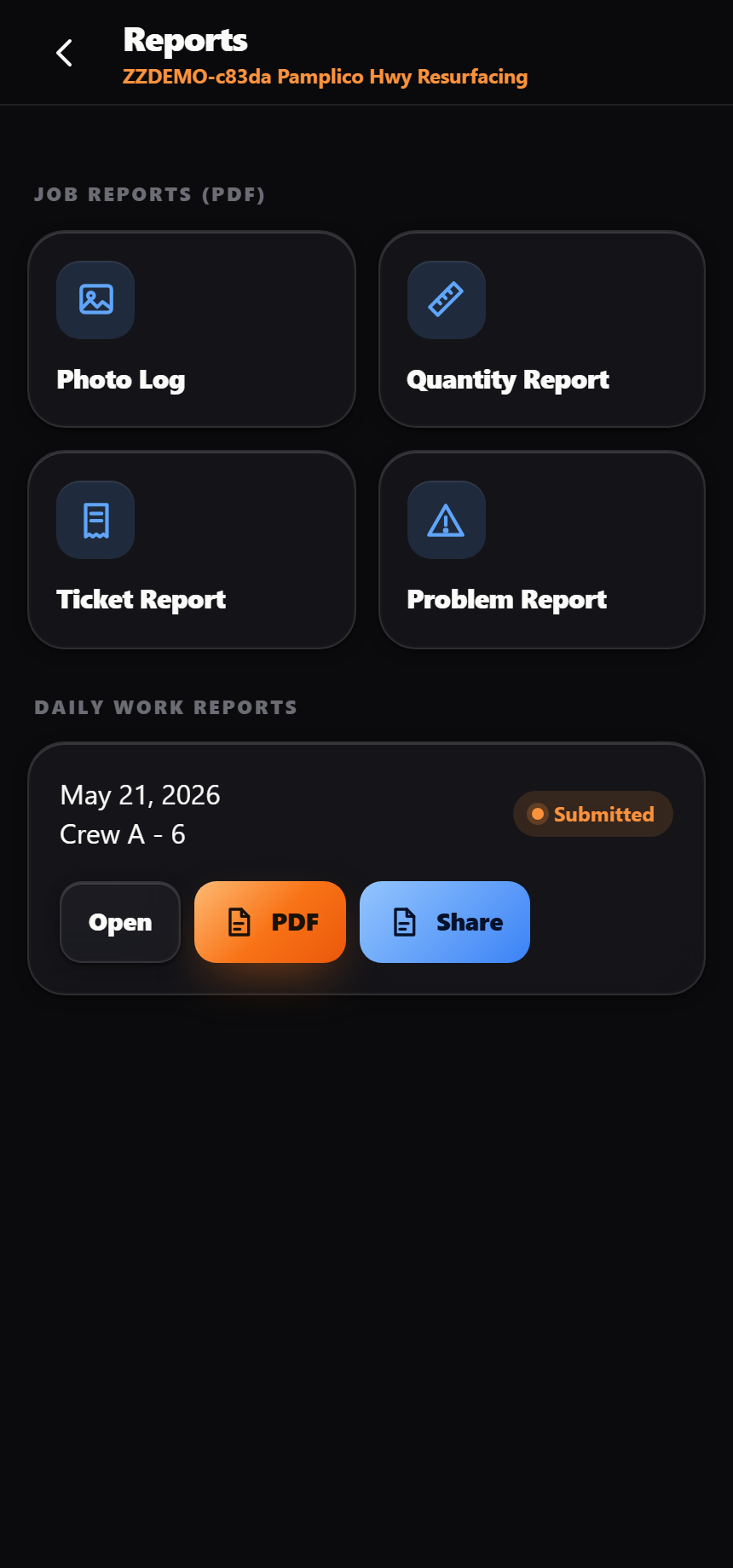
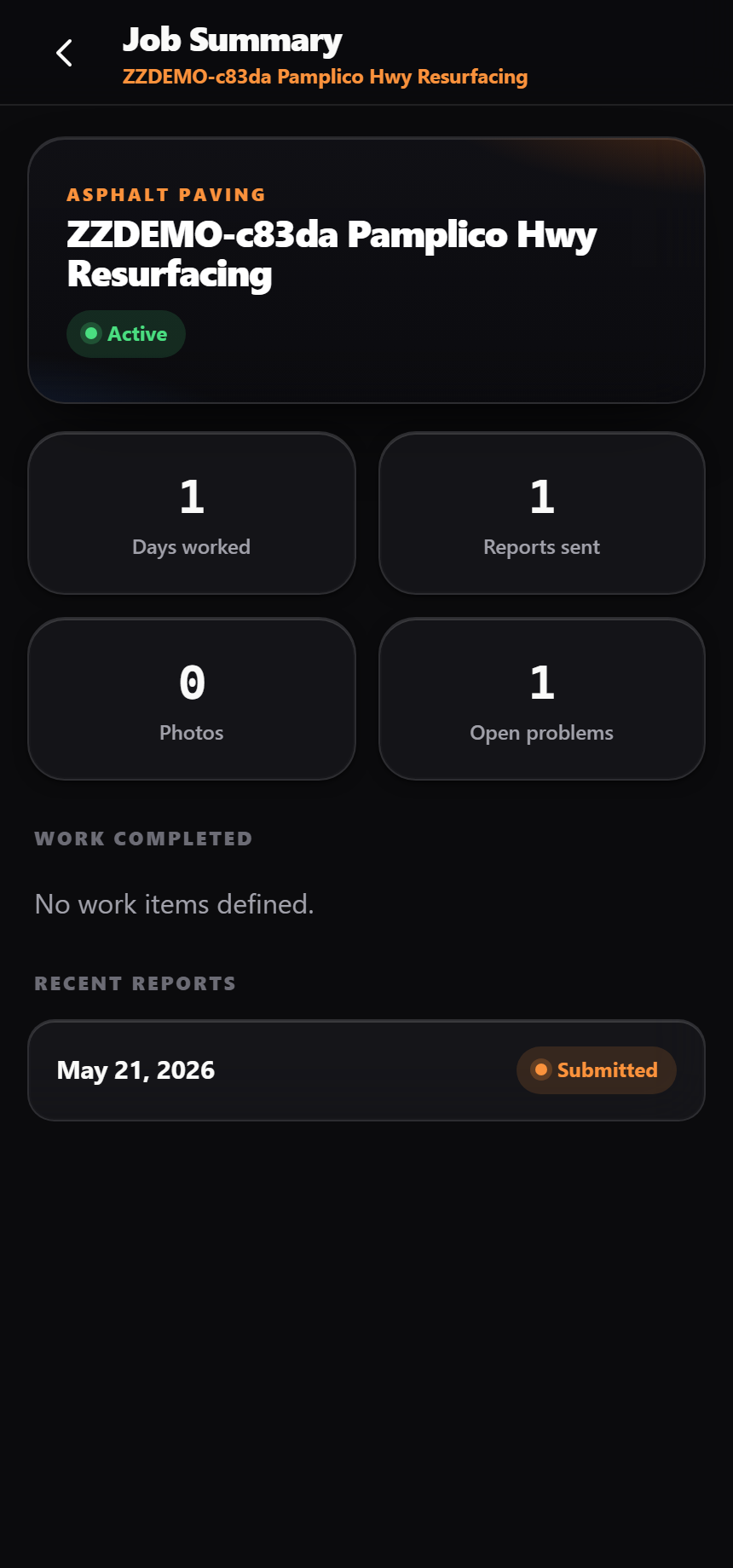
Job Reports lists every daily report for the project with its status (Draft → Submitted → Reviewed). Job Summary rolls up work completed and recent reports for a quick “where do we stand.”
Job Reports — every report, with status.
Job Summary — work completed & recent reports.
ℹ️GOOD TO KNOW — A report's status tells you where it is: Draft (still yours), Submitted (sent for review), Reviewed (signed off by the office).
08
Chapter 8
Reviewing & Team
Supervisors can review crews' reports right from their phone, and admins control who can do what.
In this chapter- Review Center
- Team & roles
8.1 · Review & roles
Review Center & Team
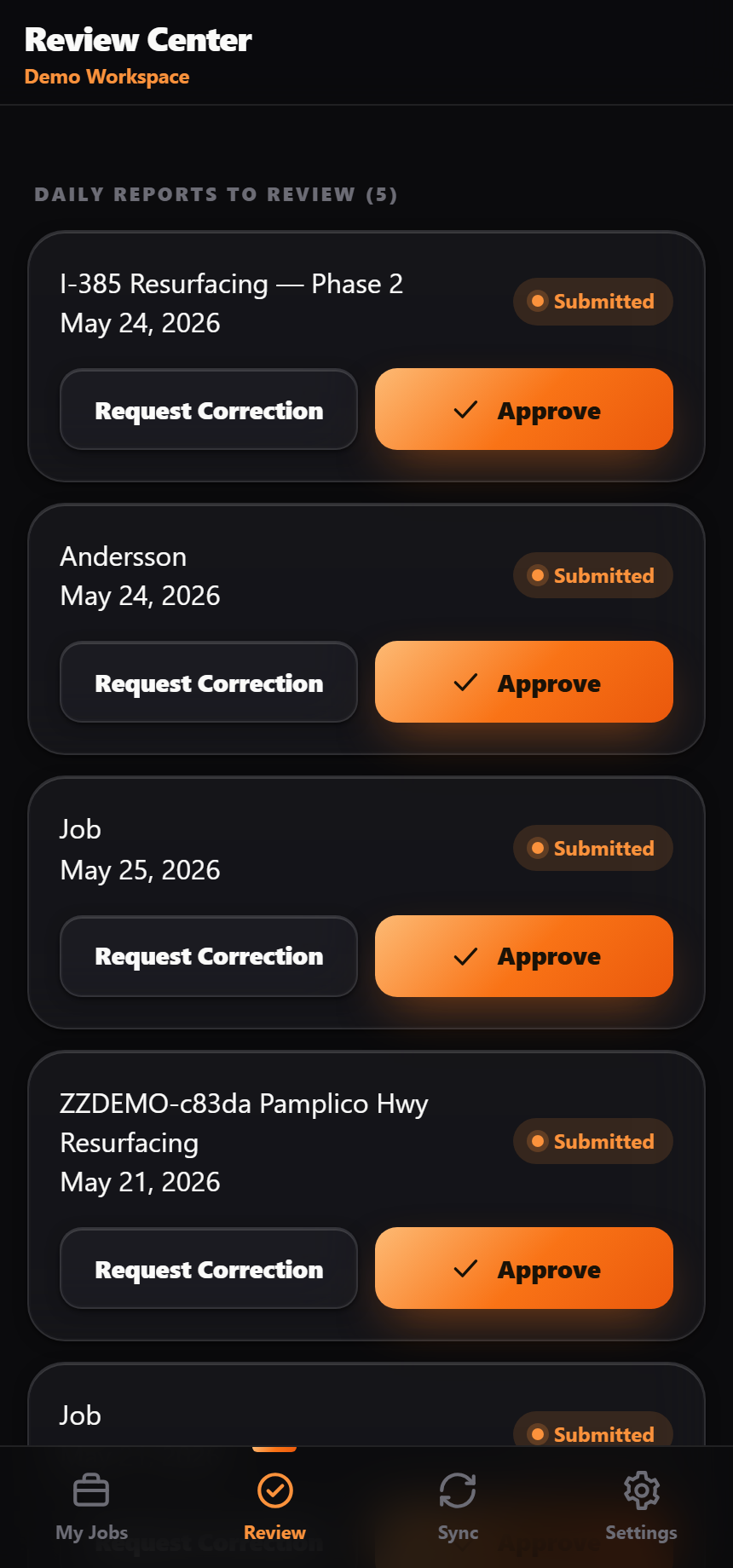
Review Center is the office-on-a-phone: a queue of daily reports to review and open problems. A supervisor can approve a report or request a correction back to the crew. Team lets an admin set each person's role (who can review vs. who only files reports).
Review Center — approve or send back for correction.
Team — members & roles (needs signal to load).
09
Chapter 9
Sync, Notifications & Settings
See exactly what's waiting to upload, get alerted to new jobs, and tweak the app to your taste.
In this chapter- Sync Status · Notifications · Settings
9.1 · Sync, alerts & settings
Sync Status · Notifications · Settings
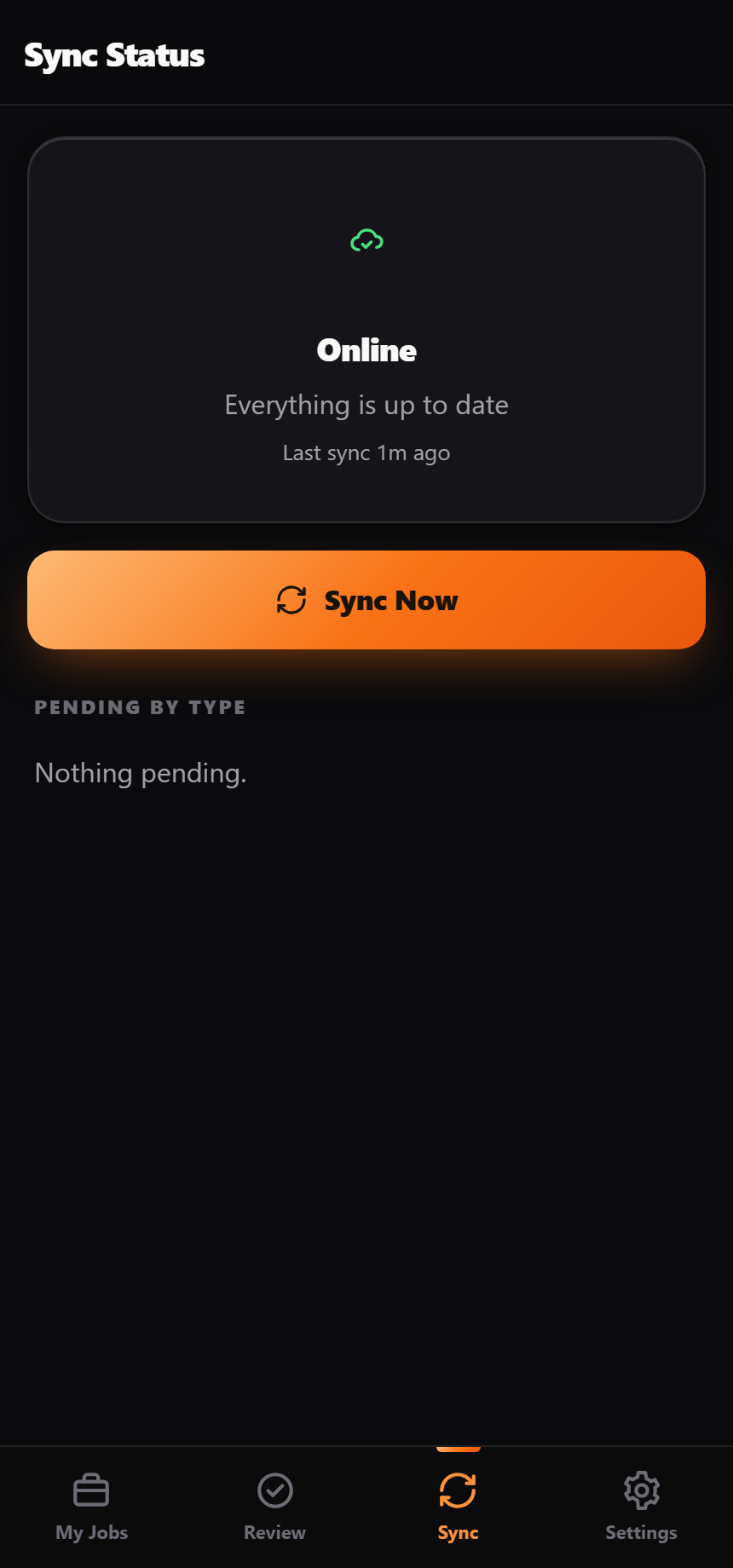
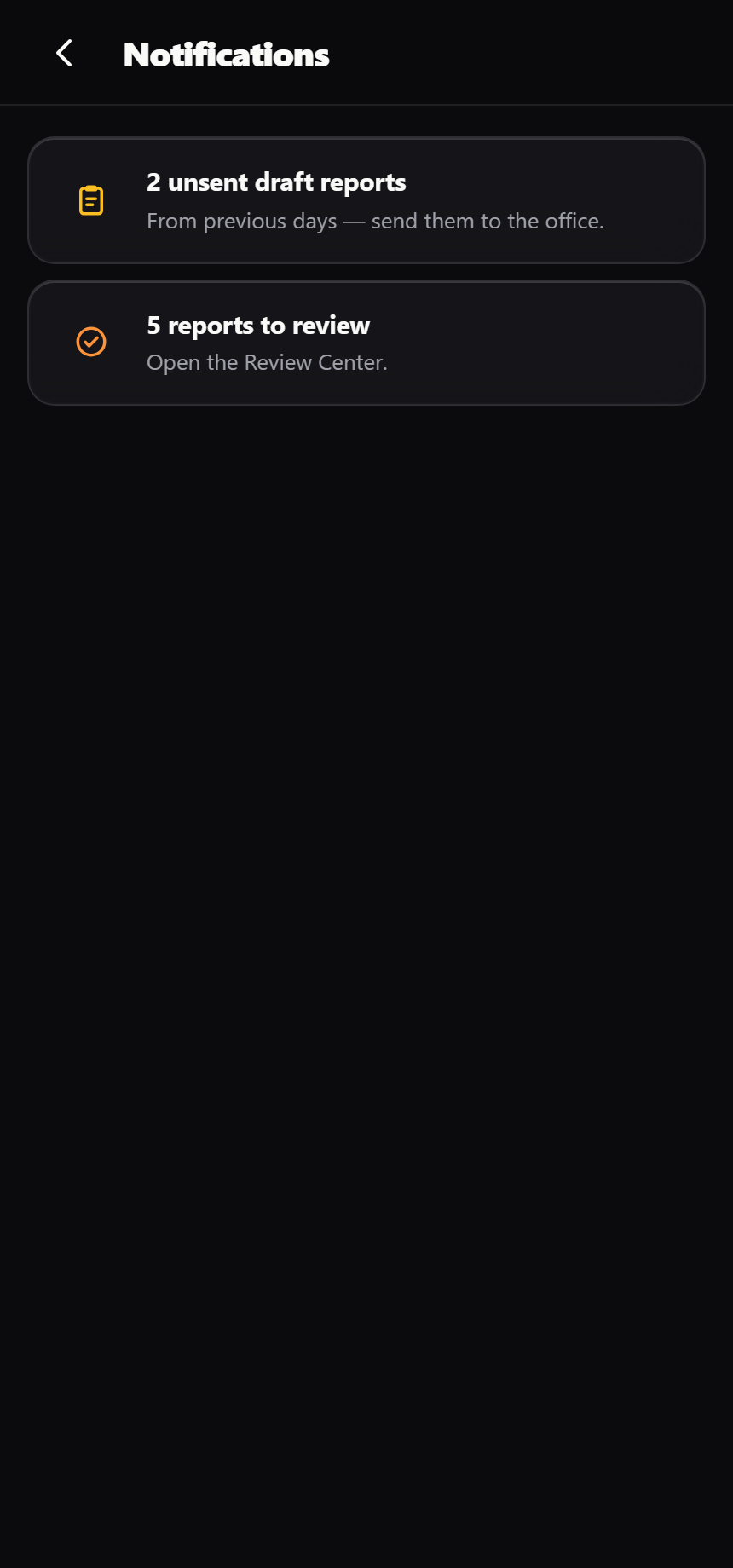
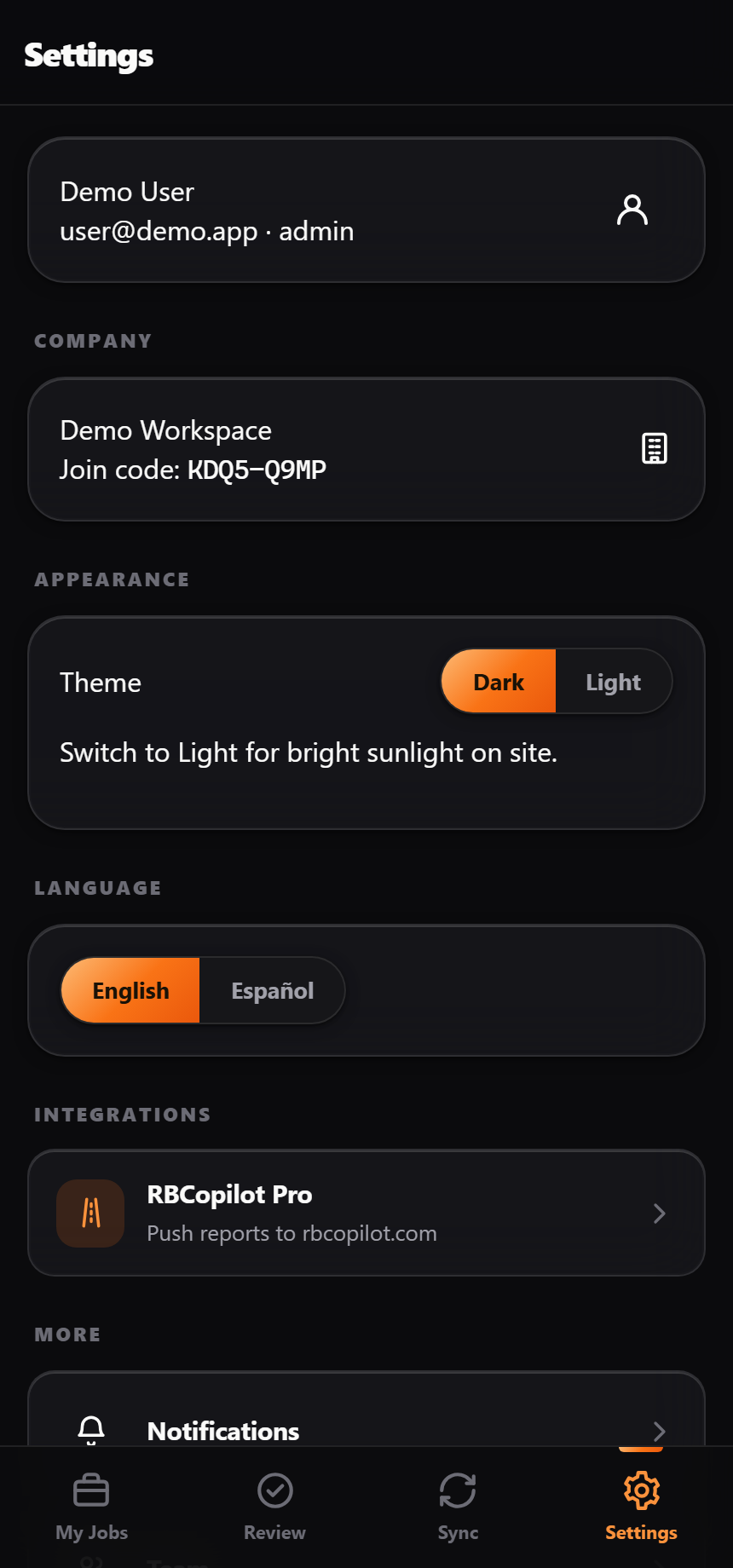
Sync Status shows what's pending by type (reports, photos, quantities…) and lets you sync now — full transparency into the offline queue. Notifications alerts you to new jobs from the office and reports to review. Settings covers your company, theme, language (English/Español), and the connection to Pro.
Sync Status — the offline queue.
Notifications — new jobs & reviews.
Settings — company, language, connection.
✅TIP — You don't normally need to touch Sync — it runs by itself. Use the Sync screen only to confirm everything's uploaded before you leave a site.
You're ready for the field
That's the whole app.
You now know every screen in RBCopilot Field — installing it, connecting with a key, and filing a complete daily report with photos, quantities, tickets and problems, even with no signal. Keep this guide handy and jump back to any chapter anytime.
Your daily routine: open the job → Work Report → weather, crew, photos, quantities → Submit. Drive into signal and it syncs to the office on its own.
RBCopilot Field — Field reporting that just works.
rbcfield.com · Edition 1.0 · May 2026 · Confidential