Road Construction Copilot
Hundreds of things happen on a road job every day. Today all of it lives in paper, loose photos, and people's memory; when it's time to get paid or file a claim, the proof is missing. Road Construction Copilot saves every event as evidence and automatically connects it to payment, claims, quality, and documents. The app has two worlds (switch at the top left): Compliance Copilot — the job in execution, this guide — and Bid Pipeline — bidding.
Part 0 · Getting started
Sign in (Login)
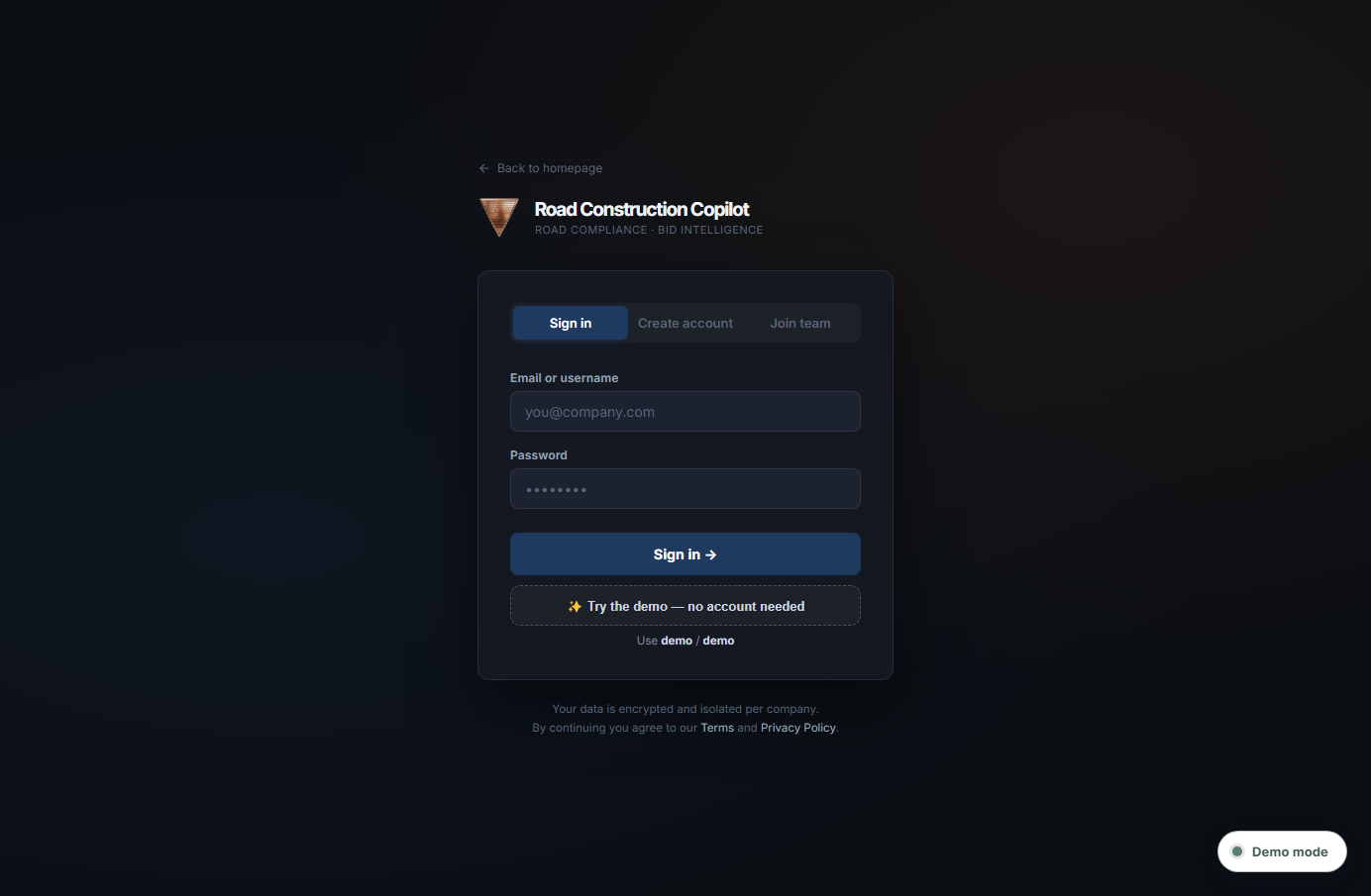
How to sign in (step by step)
- 1. Open your browser and go to
rbcopilot.com. - 2. On the login screen, the fast way: click the Demo button (it signs you in automatically).
- 3. Manual way: username demo, password demo → Sign in.
How to get around the app
The 4 zones of the screen
- Sidebar (left): your map, grouped into Workspace, Modes, AI Specialists, Documentation, Operations, Insight.
- Work area (center): where everything happens.
- Top bar: "Jump to a page" search, language EN/ES, Upload, New.
- "Demo mode" pill (bottom right): the AI status.
The world switch
At the top left, the "Switch to Bid Pipeline" button toggles between the two worlds. For this guide, make sure you're in Compliance Copilot (the "Currently in" box confirms it).
Part 1 · The concept that ties everything together
The universal "Field Event"
Everything that happens on the job is saved as the same base record (an "Event"). Whether it's a photo, a verbal instruction, or a material ticket, they all share the same fields (project, date/time, who, role, station, work front, pay item, activity, description, photos, crew, equipment, material, cost impact, time impact, responsible party, status, and links to RFI/Notice/CO/Claim/Pay Estimate). That's why no one re-enters information between modules.
The 14 event types
| Icon | Type |
|---|---|
| 📋 | Daily Report |
| 📷 | Geo Photo |
| ⚠️ | Field Issue |
| 🗣️ | Verbal Instruction |
| ❓ | Quick RFI |
| 💵 | Force Account |
| 🎫 | Material Ticket |
| 🌧️ | Weather Delay |
| 🧪 | Failed QC Test |
| 🚩 | NCR |
| ⚖️ | Quantity Dispute |
| 🗂️ | Missing Document |
| 👷 | Inspector Direction |
| 📑 | Claim Potential |
The 13 workflow states
Each event has a status that says where it is in the process (logged with date, time, and a note in its history):
| State | Meaning |
|---|---|
| Draft | Draft |
| Submitted | Sent to the PM |
| PM Review | Under review |
| Needs Documentation | Routed to Documents |
| RFI Created | An RFI was generated |
| Notice Required | Formal notice required |
| Change Order Pending | Change order pending |
| Claim Potential | Possible claim |
| Sent to Payment | Sent to payments |
| Included in Pay Estimate | Included in the estimate |
| Accepted / Rejected | Accepted / Rejected by the owner |
| Closed | Resolved and closed |
👷 Superintendent
Logs the event with photo and location.
🎛️ Project Manager
Reviews it and decides (RFI, Claim, Payment…).
💵 ⚖️ 🗂️ 📊
Becomes payment, claim, document, or an owner KPI.
Part 2 · Workspace
Dashboard
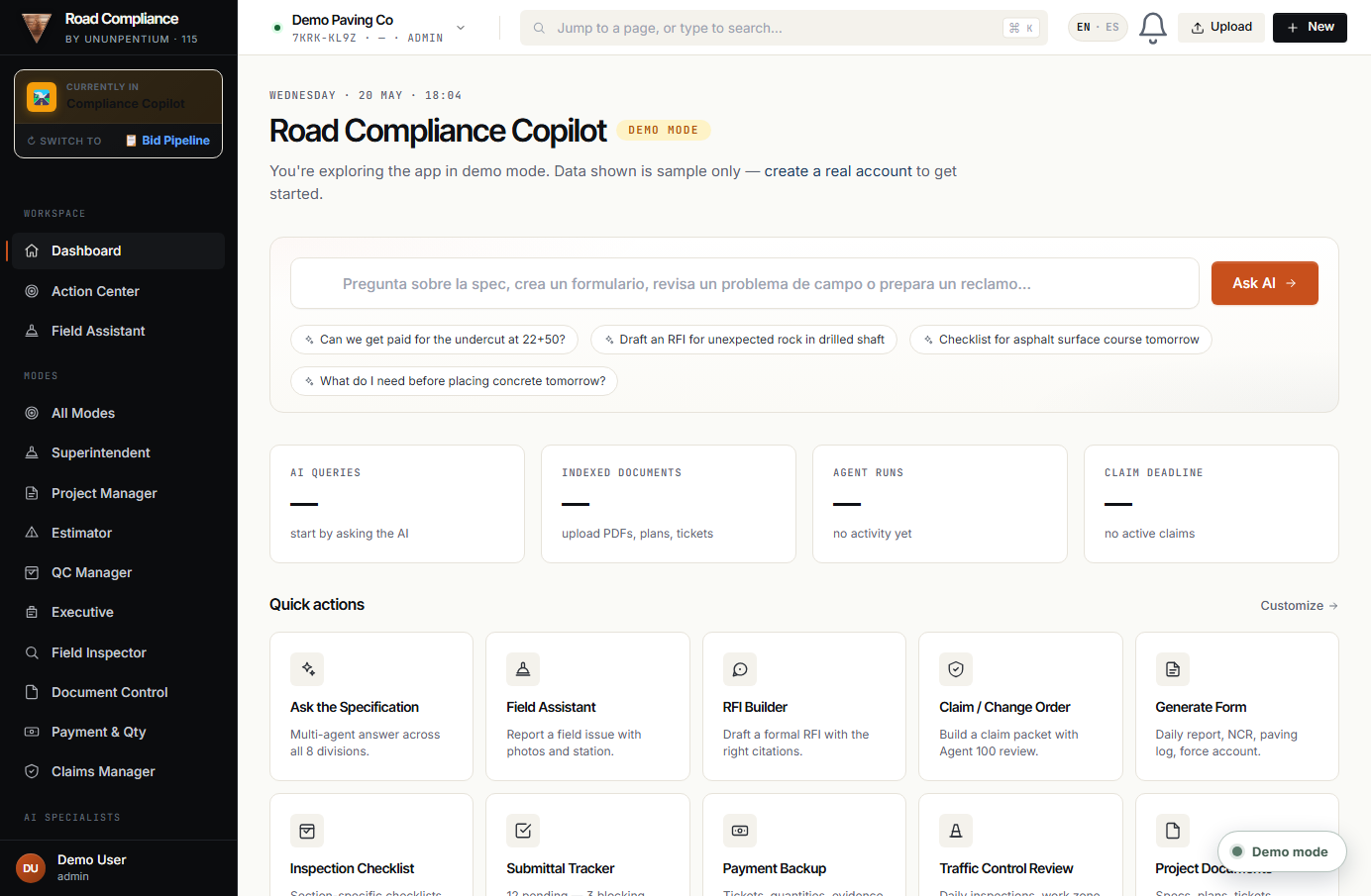
What it is
The first thing you see when you log in. An overall summary + the Ask AI box + quick actions.
What each part does
- ⚡Ask AI: ask the specification in plain language.
- 📦Quick actions: shortcuts to the most-used features.
- 📊Cards: AI queries, documents, agent runs, claim deadline.
Action Center
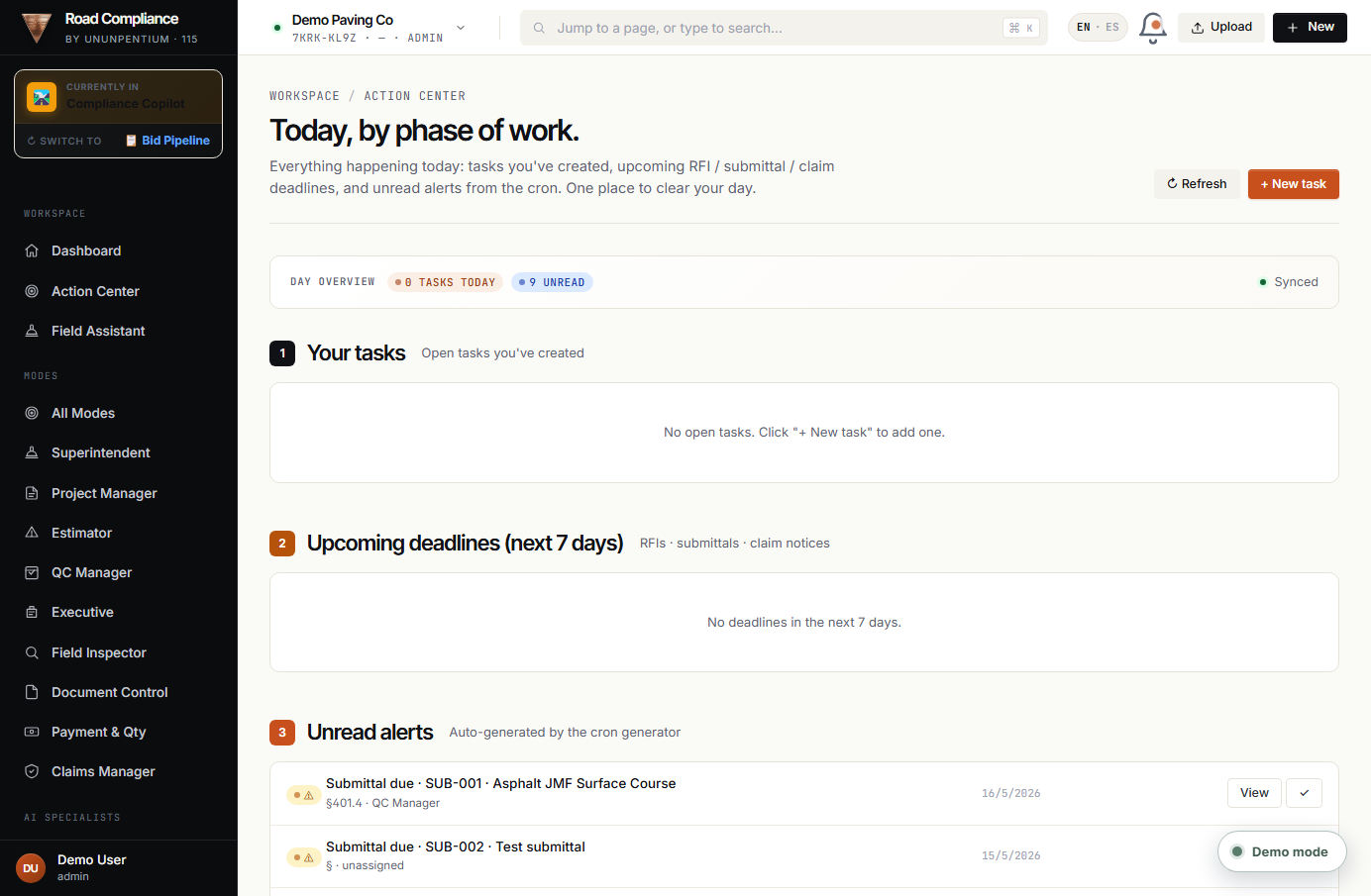
What it is
The "clear your day" screen: it gathers everything that needs your attention today, organized by work phase.
What each part does
- ① Your tasks: open tasks you created ("+ New task").
- ② Upcoming deadlines (7 days): RFIs, submittals, notices coming due.
- ③ Unread alerts: alerts generated automatically by the system (cron).
Field Assistant
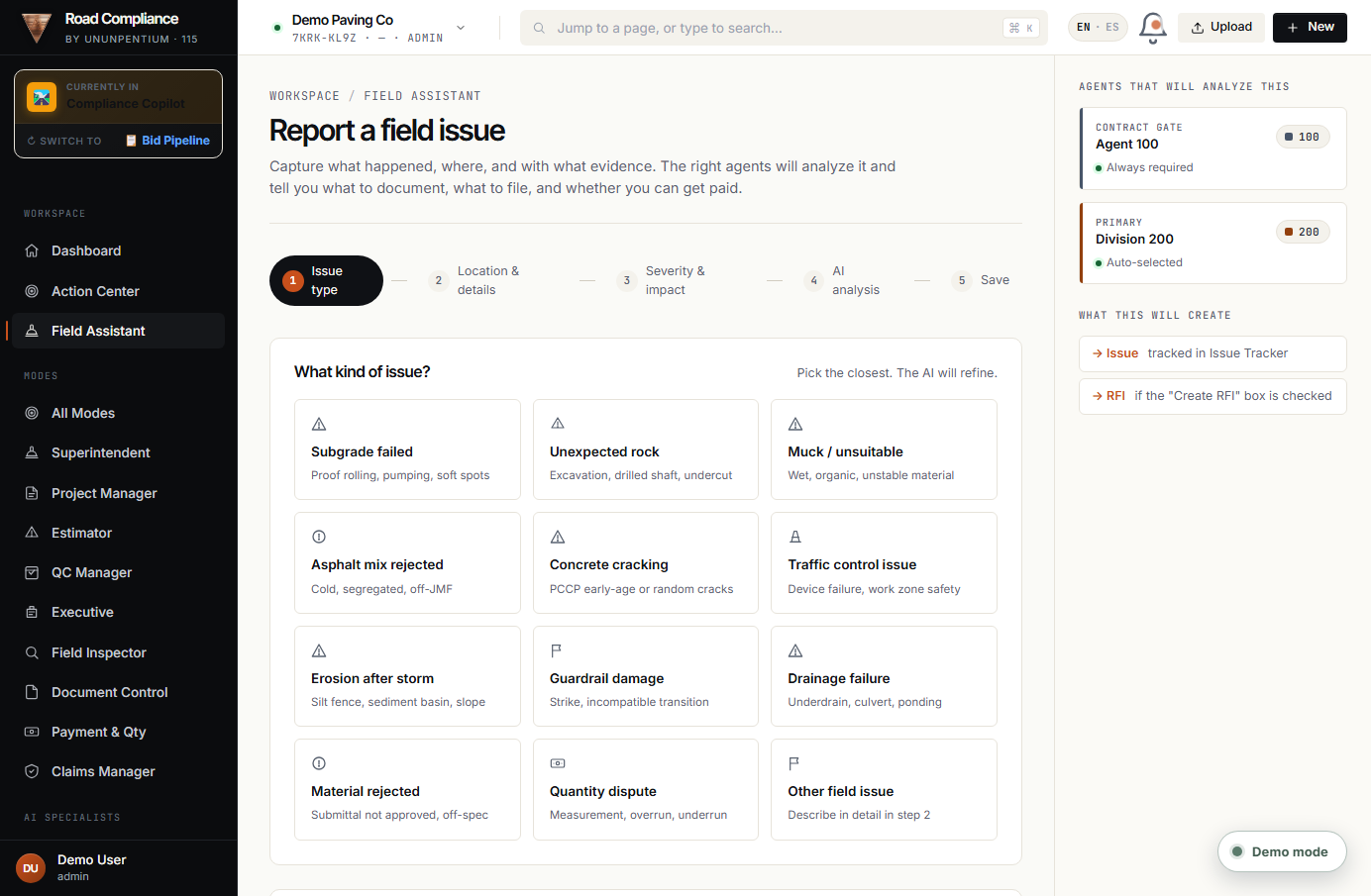
What it is and what it's for
A guided assistant for logging what happens on the job with AI help: you describe the situation and it helps you generate the right RFI, report, or event, with the spec citations. It's the "conversational" version of field capture.
Part 3 · The 9 Modes
All Modes
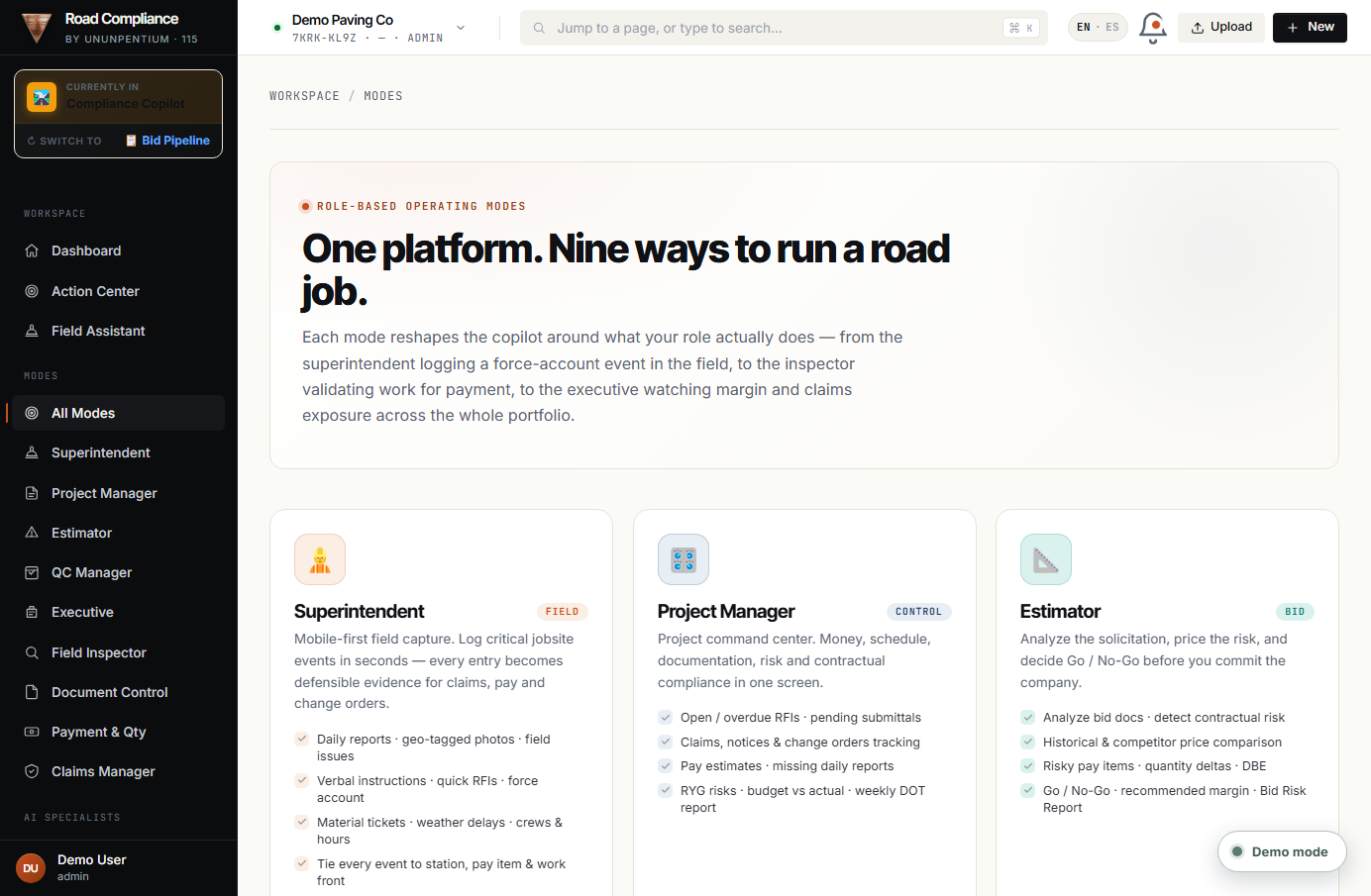
What it is
The modes menu. A "Mode" is the app reorganized around your role: 👷 Superintendent · 🎛️ PM · 📐 Estimator · 🔬 QC · 📊 Executive · 🔎 Inspector · 🗂️ Document Control · 💵 Payment · ⚖️ Claims. They all share the same data underneath.
Superintendent Mode
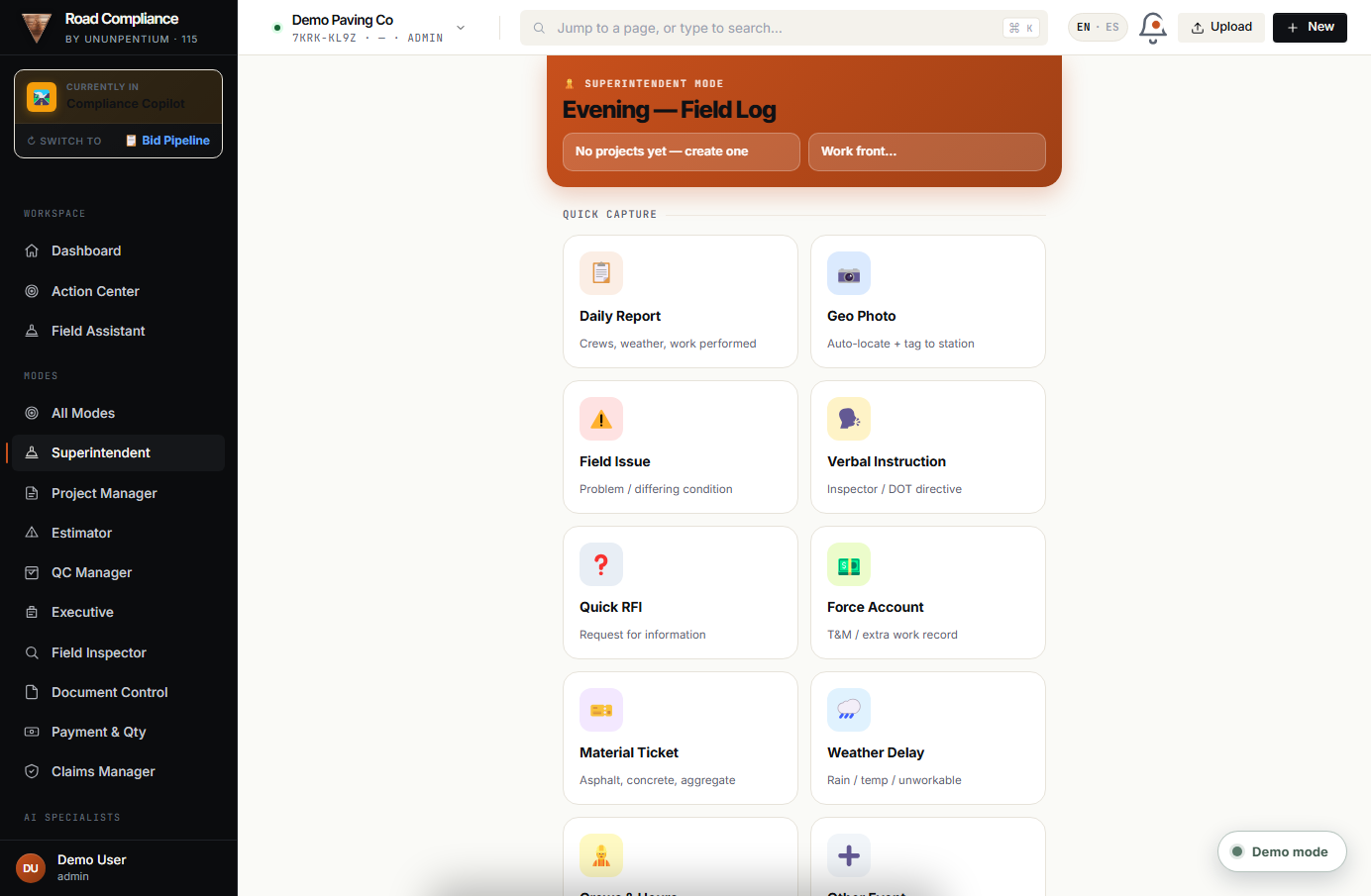
What it is
Field data entry (phone). Log what happens in seconds with photo and location.
The 10 tiles
- 📋 Daily Report · 📷 Geo Photo · ⚠️ Field Issue · 🗣️ Verbal Instruction
- ❓ Quick RFI · 💵 Force Account · 🎫 Material Ticket · 🌧️ Weather Delay
- 👷 Crews & Hours · ➕ Other Event
Project Manager Mode
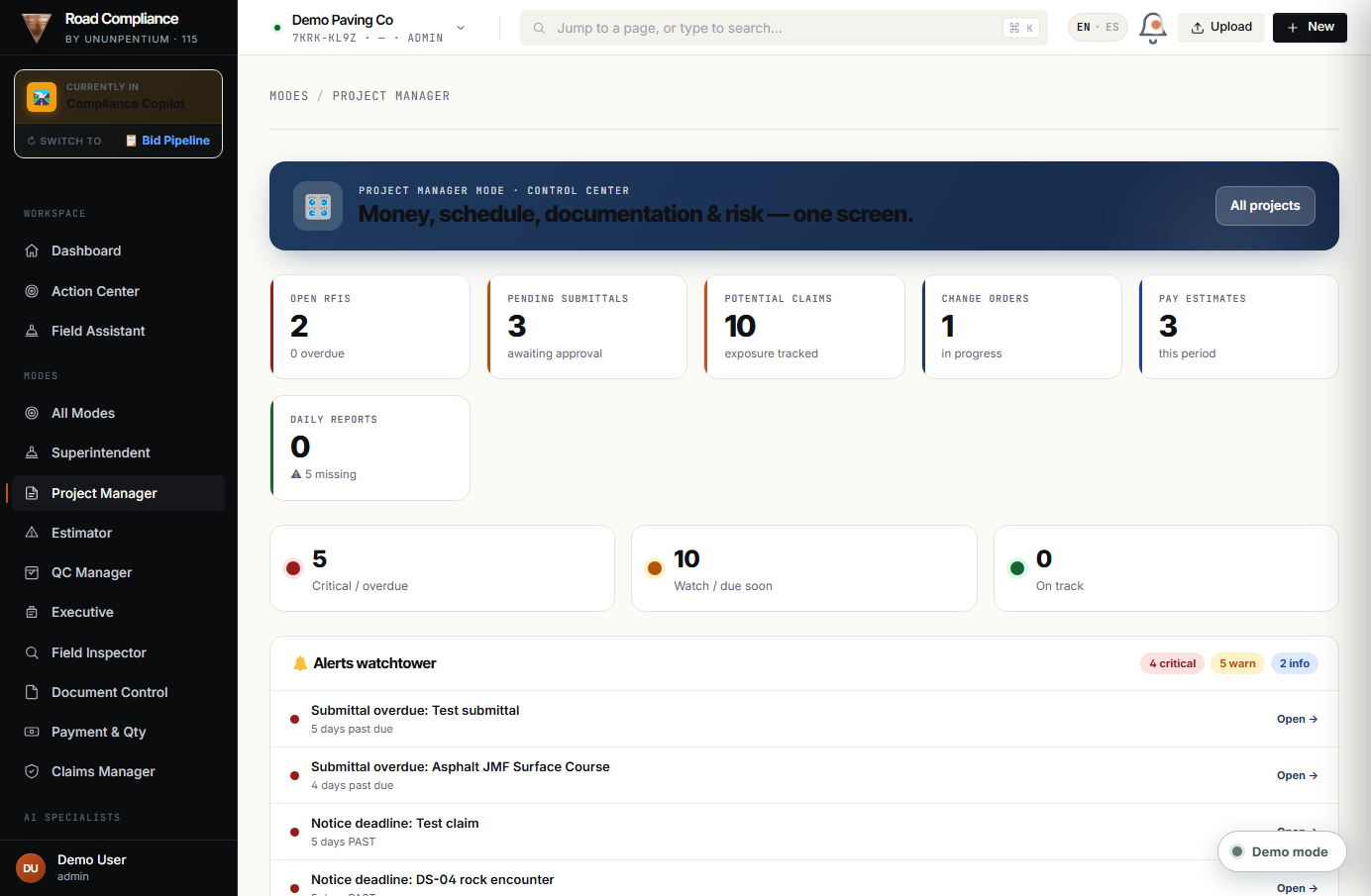
What it is
The brain of the job. The PM sees everything and decides on each field event.
What each part does
- 📊 KPIs · 🚦 RYG traffic light · 🔔 Alerts watchtower
- ⚡ Field events — approve/escalate: inbox with an "Action" button and 13 actions (RFI, Notice, Change Order, Claim, Send to Payment/Documents, Accept, Reject, Close…).
Field Inspector Mode
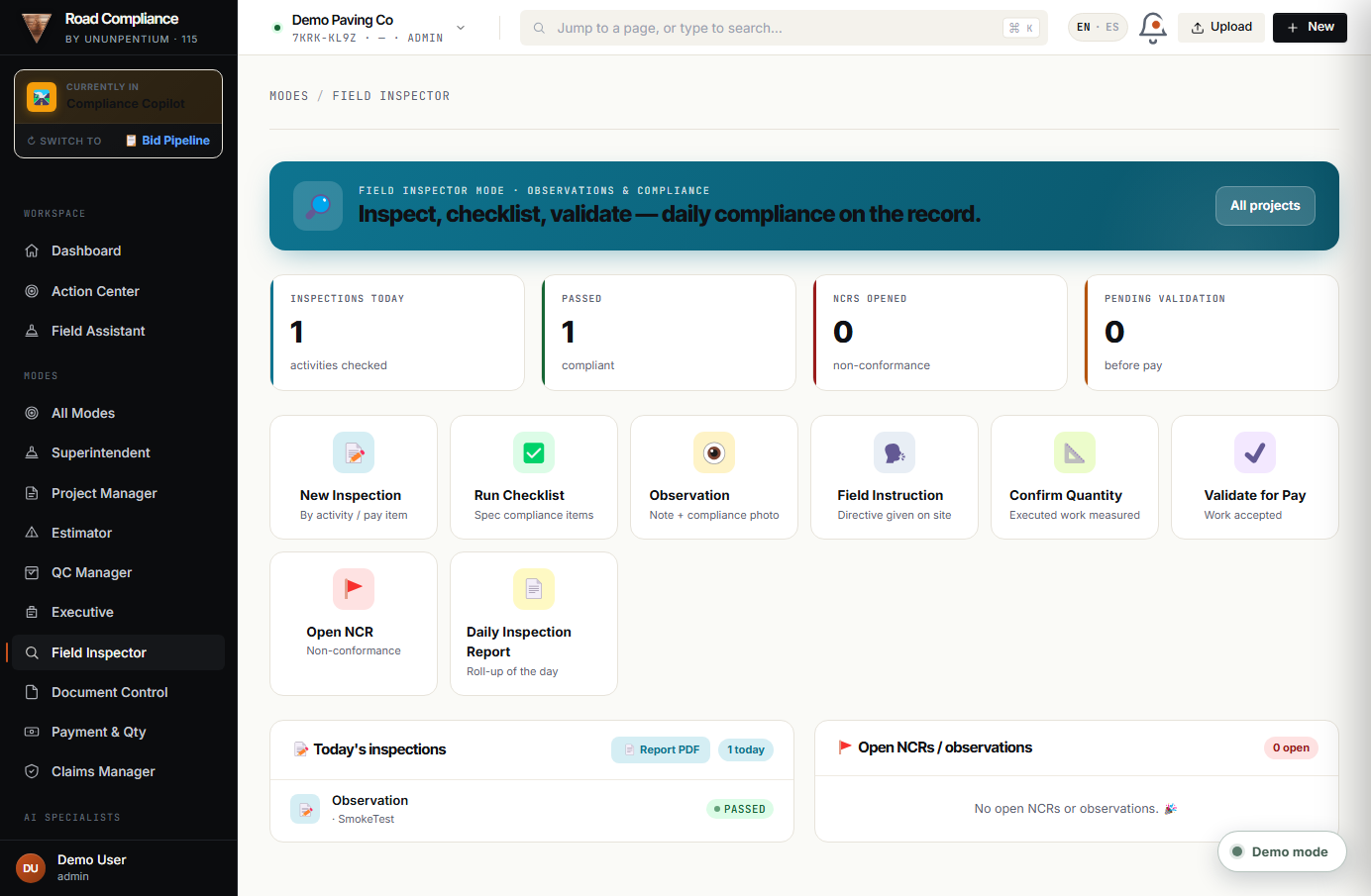
What it is
Internal inspection and validation against the spec; validate quantities before payment.
The 8 actions
- 📝 New Inspection · ✅ Run Checklist · 👁️ Observation · 🗣️ Field Instruction
- 📐 Confirm Quantity · ✔️ Validate for Pay · 🚩 Open NCR · 📄 Daily Inspection Report
QC Manager Mode
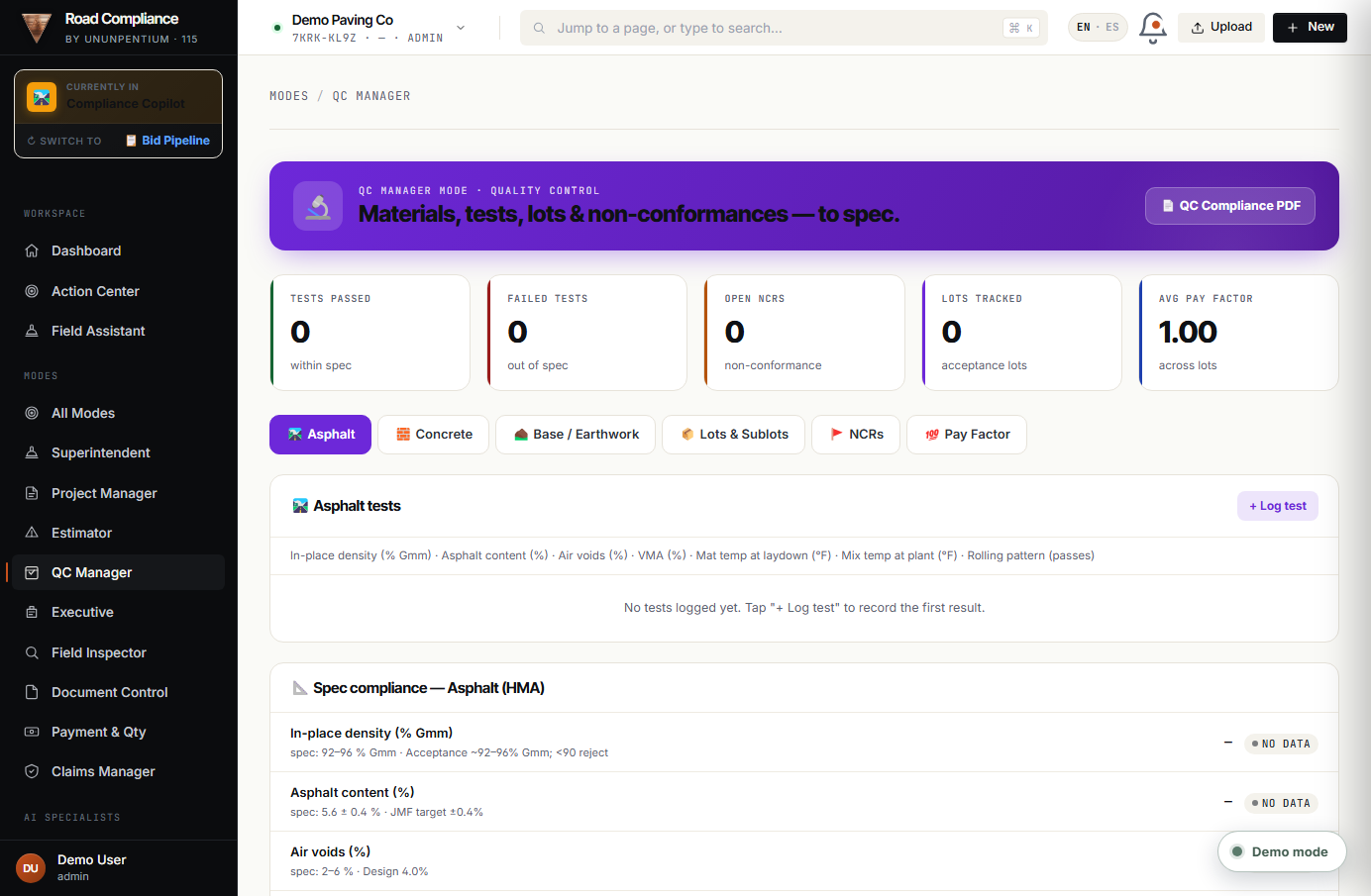
What it is
Quality control with spec intelligence: it knows the spec and judges pass/fail + pay factor by itself.
Tabs
- 🛣️ Asphalt · 🧱 Concrete · ⛰️ Base/Earthwork
- 📦 Lots & Sublots · 🚩 NCRs · 💯 Pay Factor
Document Control Mode
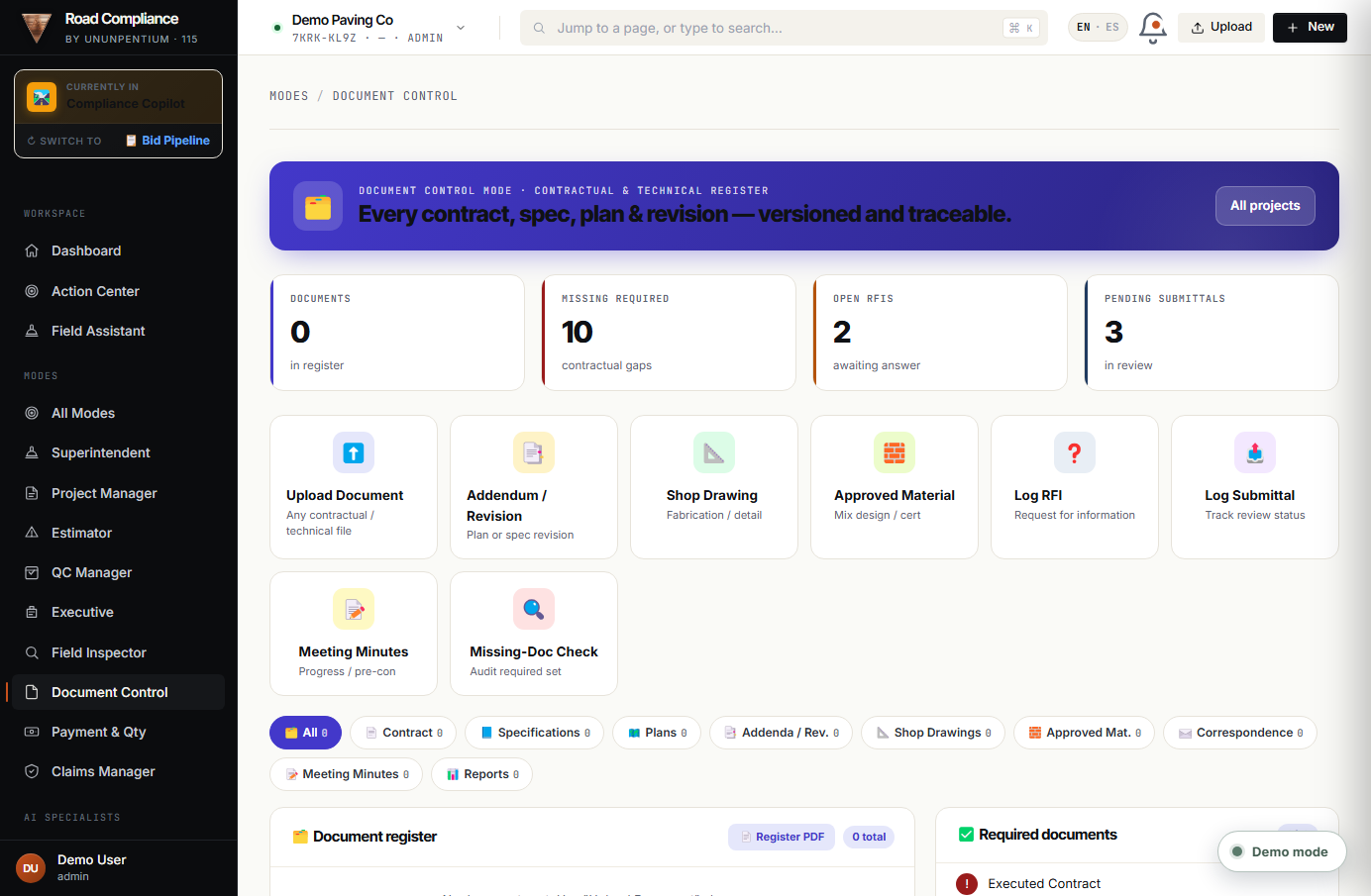
What it is
The contractual and technical file: contracts, specs, plans, addenda, RFIs, submittals, shop drawings, meeting minutes.
What each part does
- ⬆️ Upload Document + category chips.
- ✅ Required documents: audit of 10 required items (✓/✗).
- 📥 Field events — documents needed: with an "Attach doc" button.
Payment & Quantity Mode
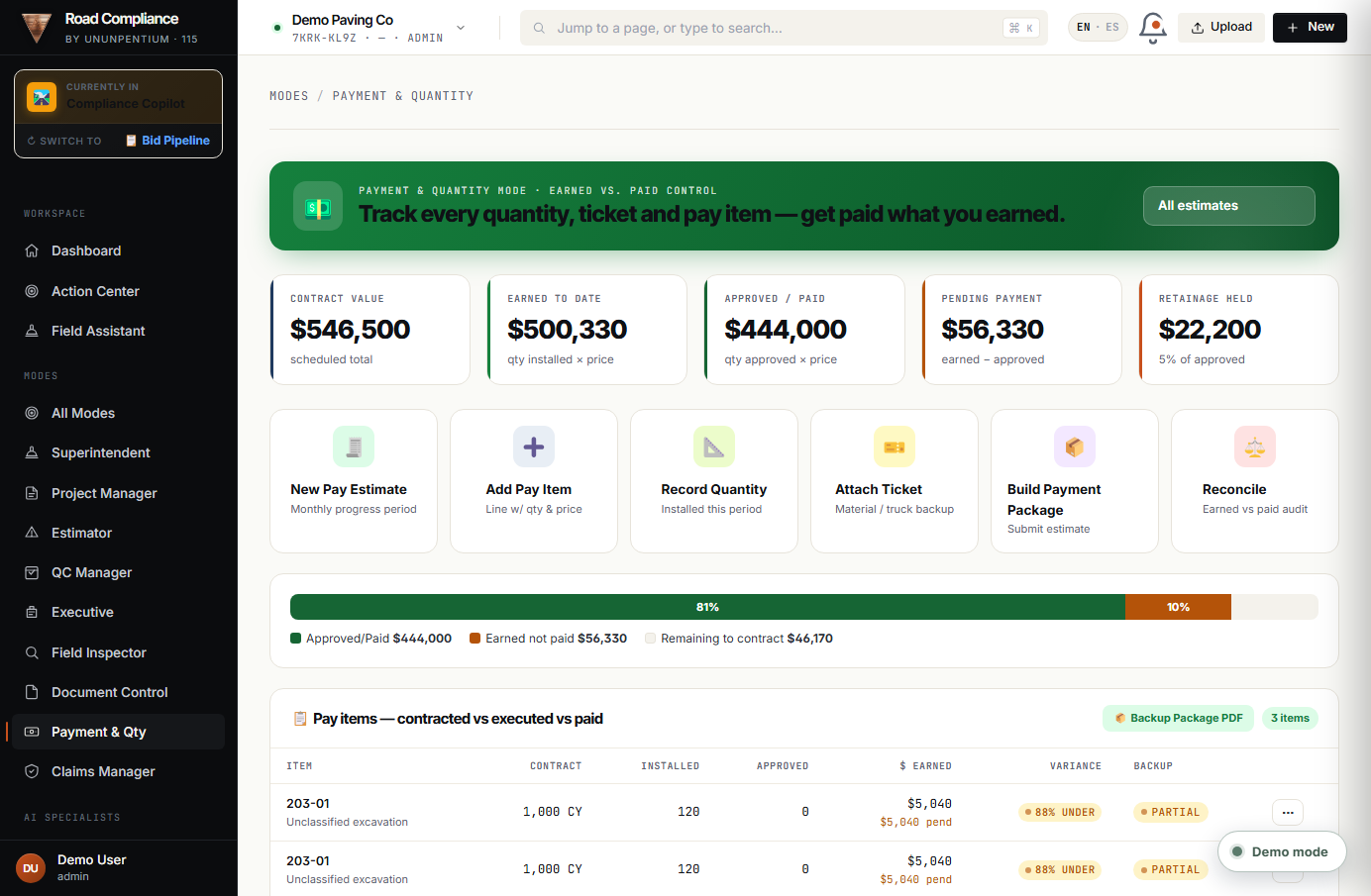
What it is
Money control: quantities, tickets, pay items, payments. Compares contracted vs installed vs paid.
What each part does
- 📊 KPIs (contract, earned, pending, retainage).
- ⋯ Per-item actions: Attach Backup · Flag Underpayment · Approve · Request Field Confirmation.
- 🎫 Field events → pay items · 💲 Cost inputs vs pay items (margin + escalation).
Claims Manager Mode
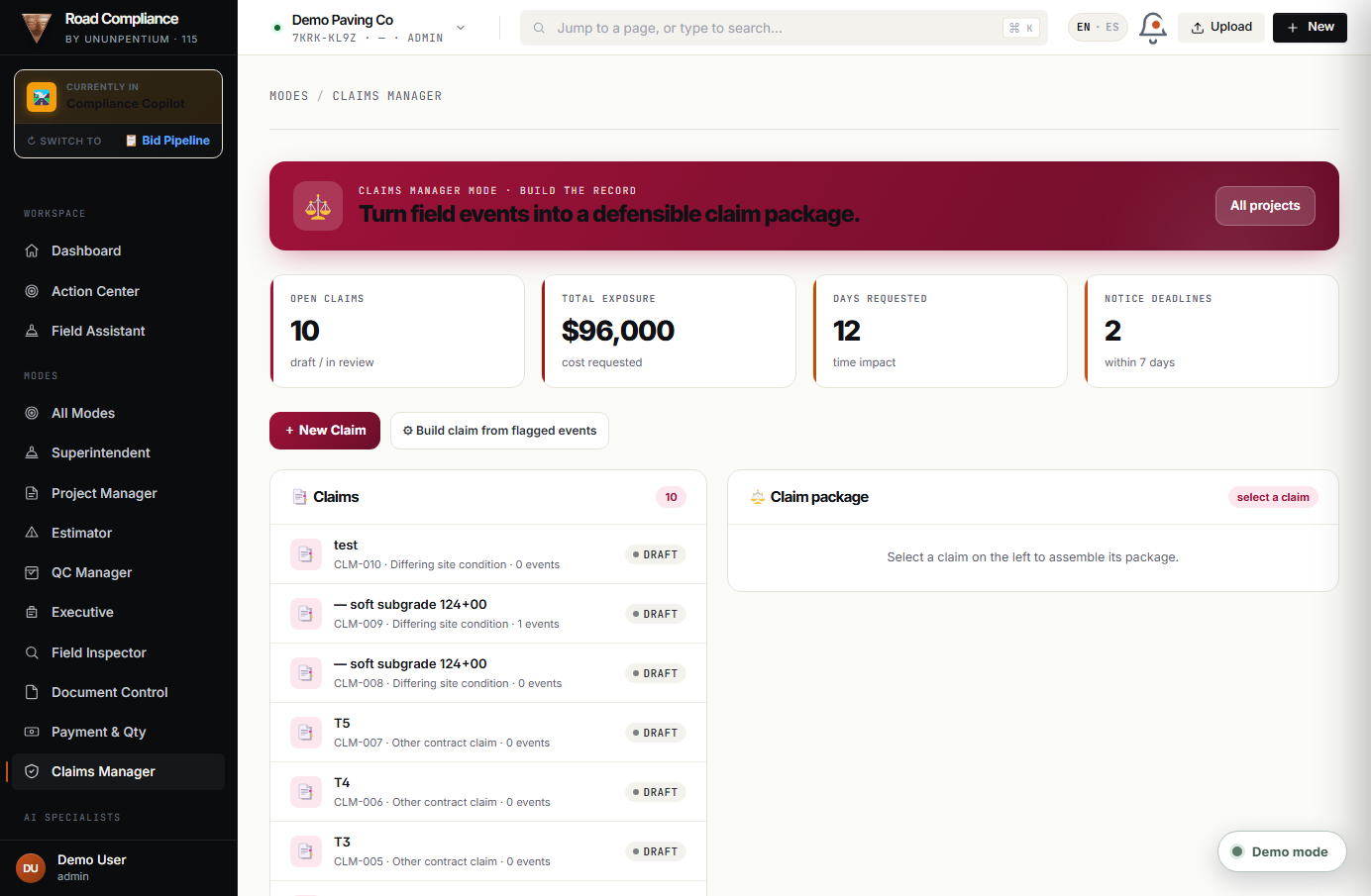
What it is
Turns field events into a defensible claim with timeline, evidence, and legal basis.
What each part does
- 📑 Claims · ⚡ Claim-potential events
- ⚖️ Claim package: Entitlement checklist (10 elements, auto-detects what's provable, "AUTO ✓"), notice deadline, timeline, RFIs, tickets.
Estimator Mode
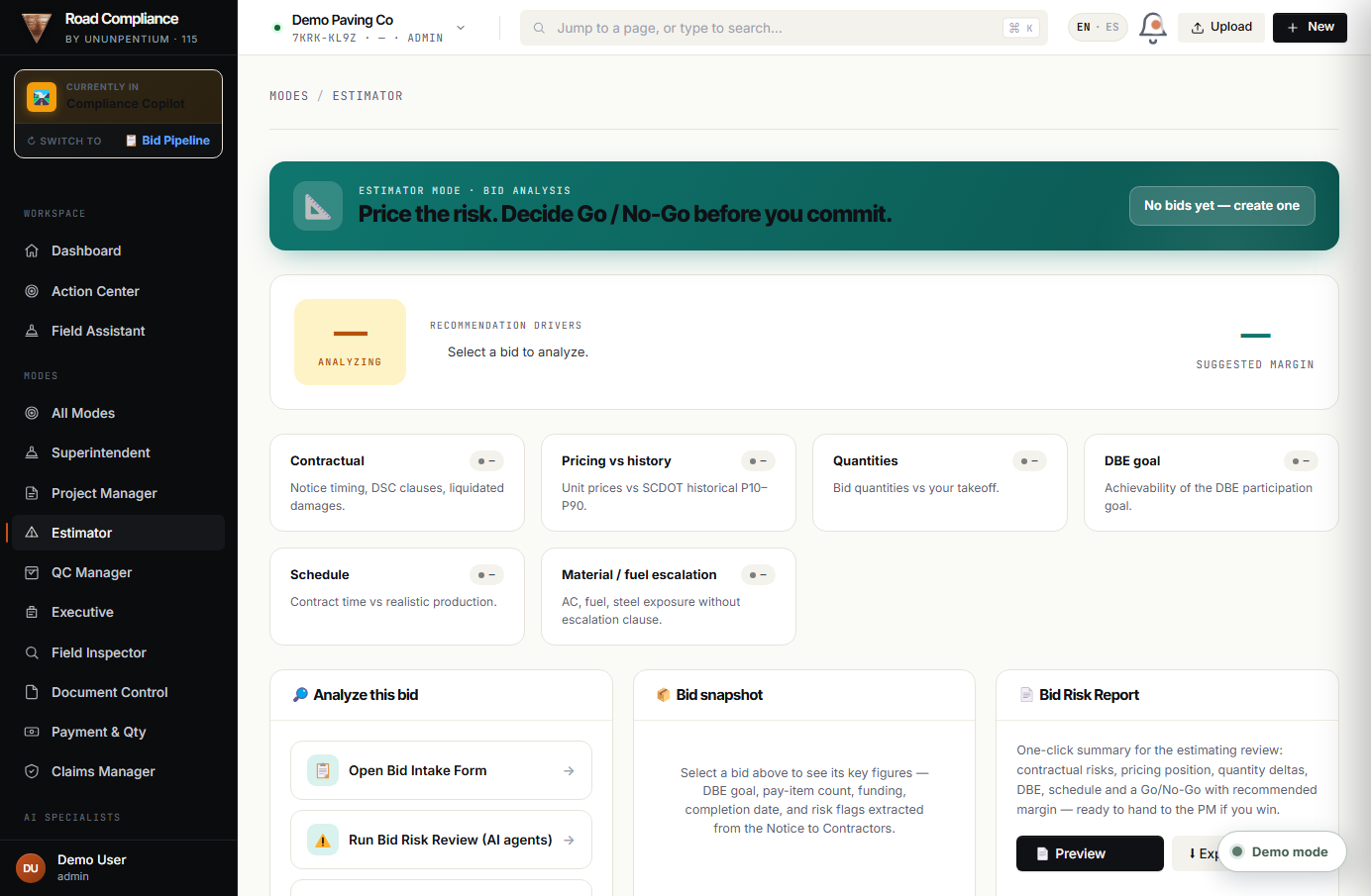
What it is
Decides whether to bid (Go/Caution/No-Go) and calculates cost exposure using quotes.
What each part does
- 🟢 Verdict + recommended margin.
- ⚠️ 6 risk cards (contractual, pricing, quantities, DBE, schedule, escalation).
- 📥 Material Quotes & Cost Inputs: upload supplier quotes.
Executive Mode
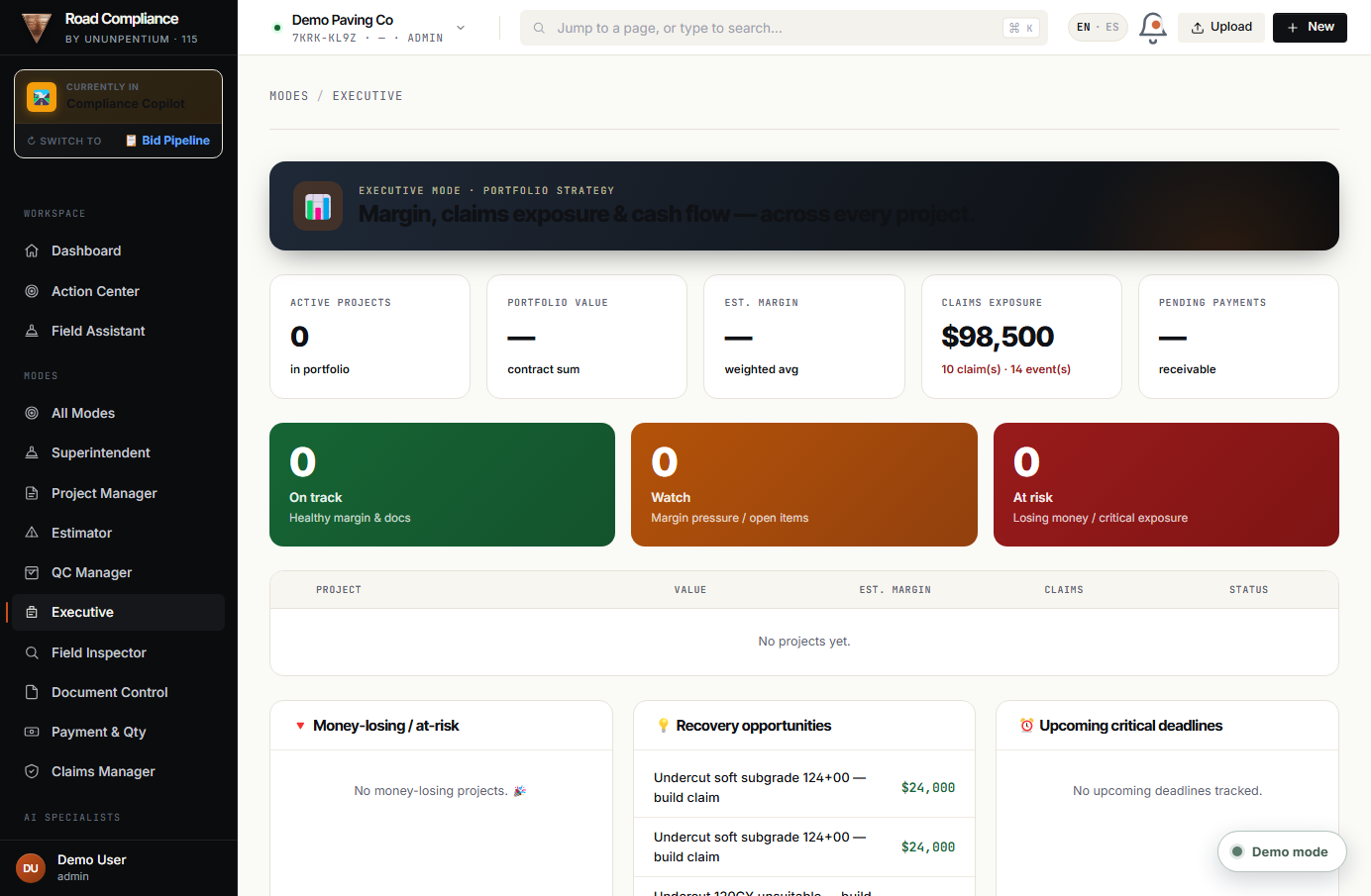
What it is
The owner's view: margin, claims exposure, pending payments, and per-project risk.
What each part does
- 📊 KPIs · 🚦 Portfolio traffic light
- 💡 Recovery opportunities · Money-losing / at-risk · critical deadlines.
Part 4 · AI Specialists
Agents by Division (Ask AI)
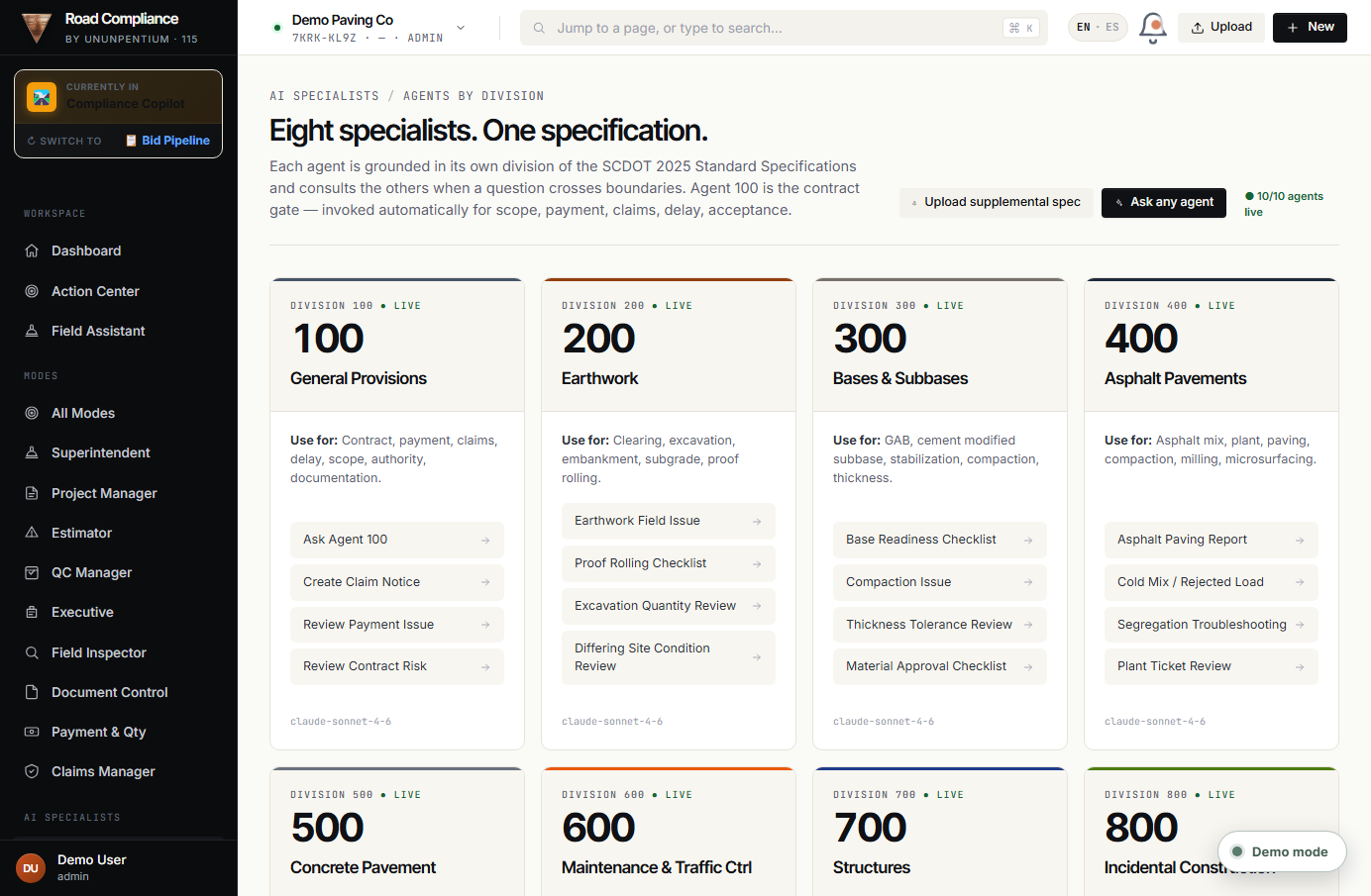
What it is
8 AI specialists, one per SCDOT spec division, that answer with citations to the standard.
The divisions
- 100 General · 200 Earthwork · 300 Bases · 400 Asphalt
- 500 Concrete · 600 MOT · 700 Structures · 800 Incidental
Specifications
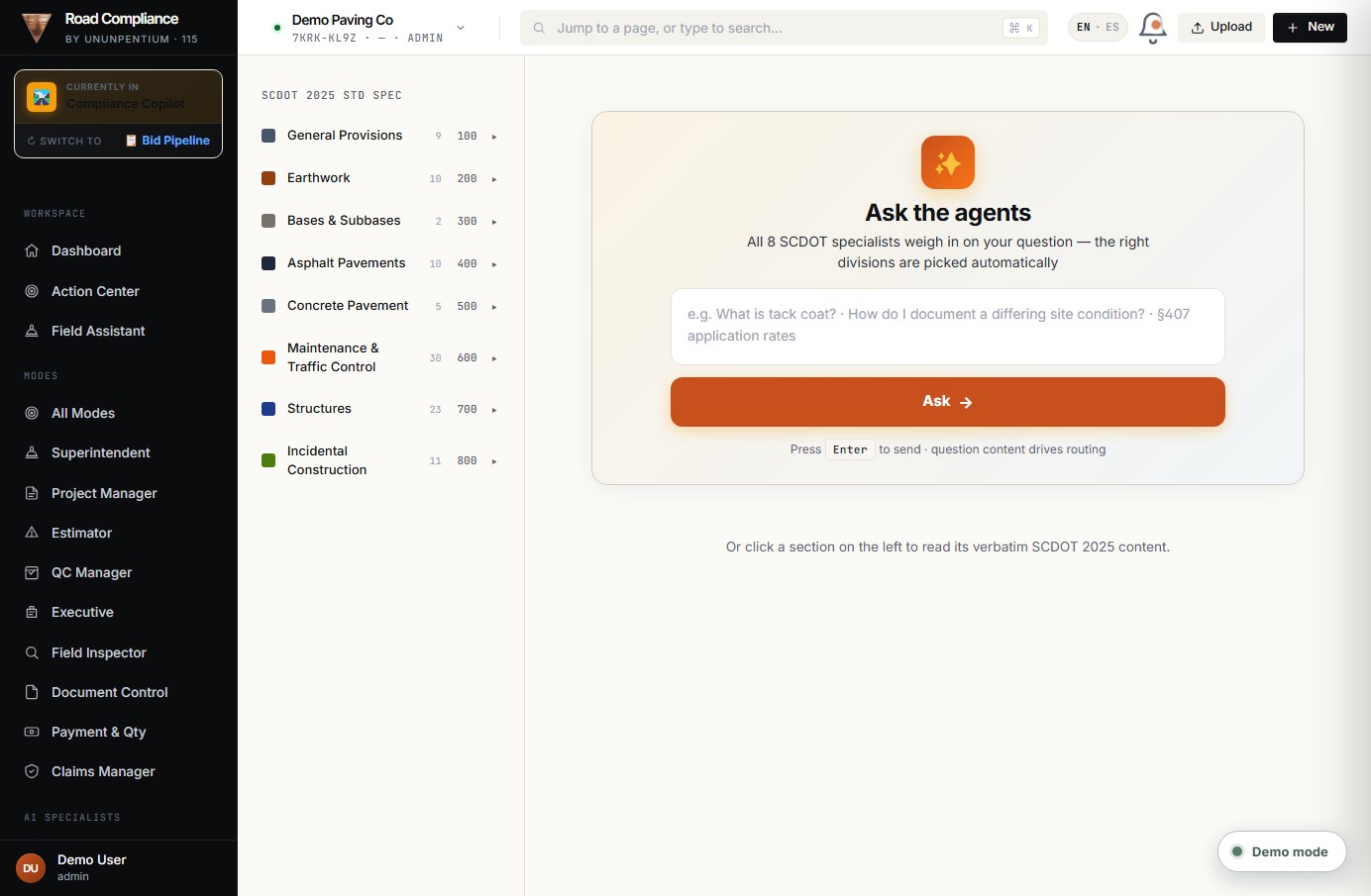
What it is and what it's for
To browse and consult the structure of the SCDOT specification (the 8 divisions, sections, and subsections). It's the "library" of the standard that feeds the AI agents and lets you jump straight to the section you need.
Part 5 · Documentation (list views)
These screens are the classic lists of each record type. Most are also created automatically from the Modes; here you view and manage them in list/table form.
Forms & Reports
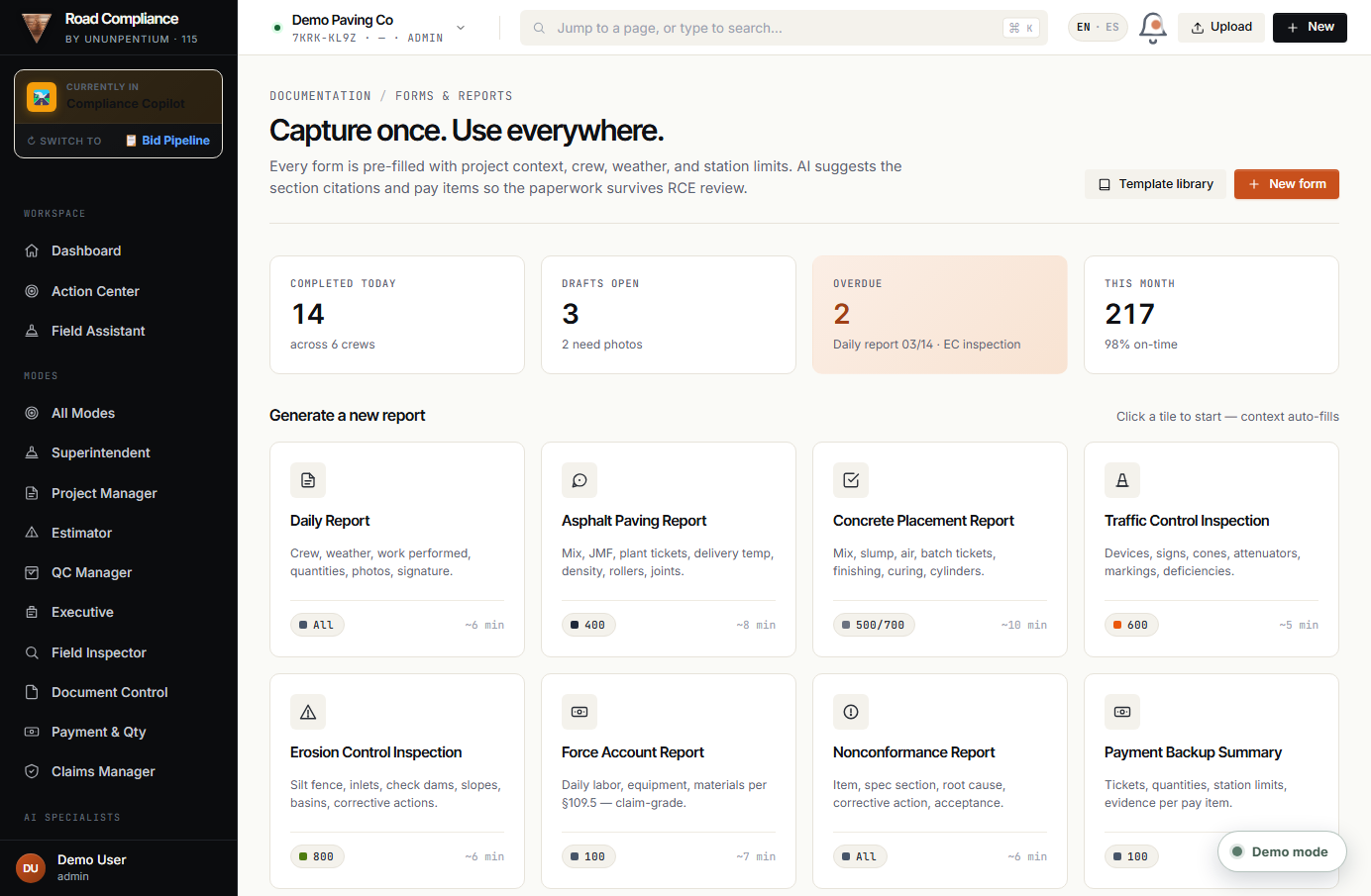
What it's for
The catalog of forms and reports (daily report, NCR, force account, payment backup, etc.). From here you generate or review the formal documents of the job.
RFIs
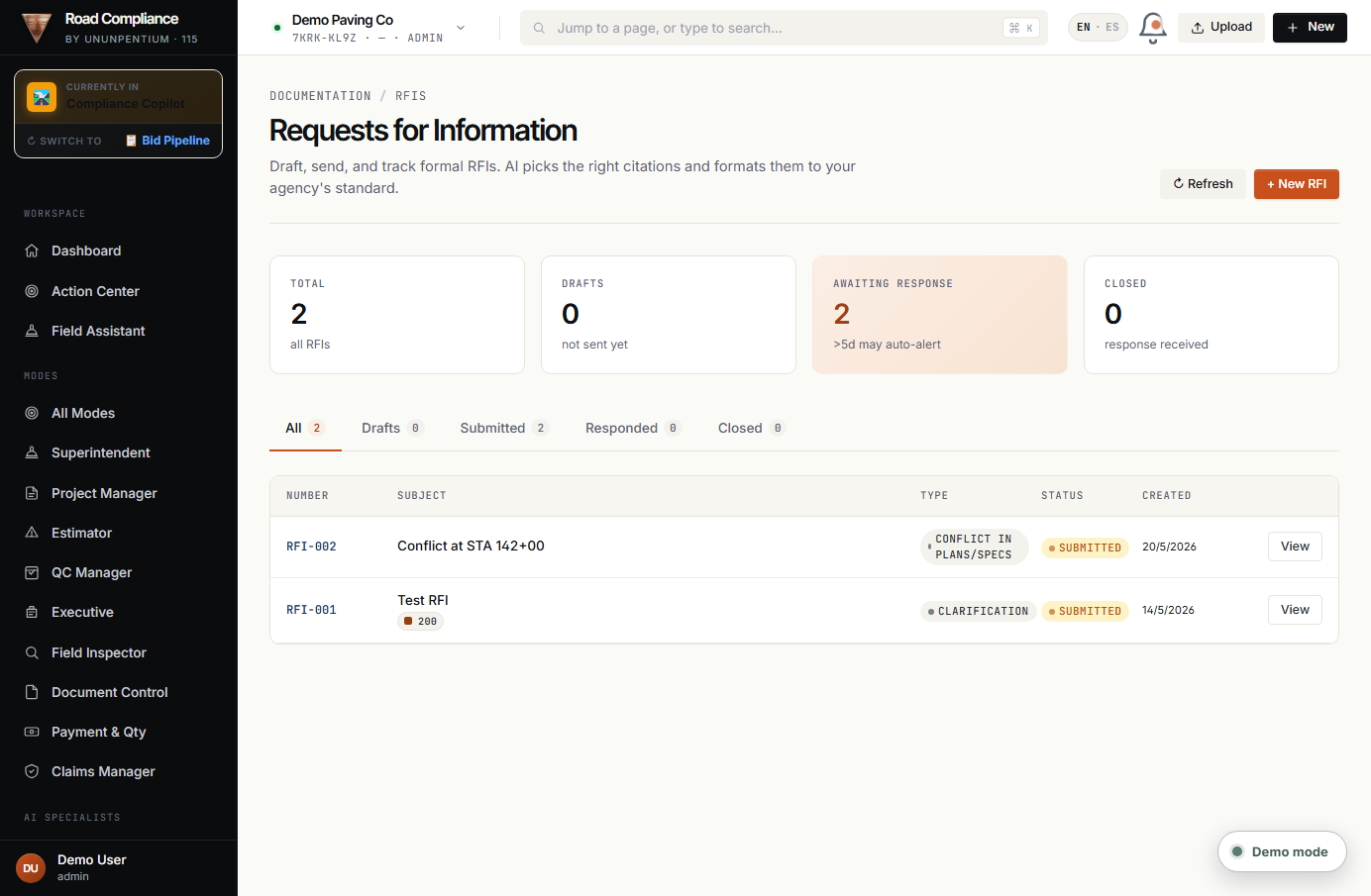
What it's for
View all requests for information (RFIs): open, overdue, and answered, with their number, station, and status. Many are born automatically when the PM creates an RFI from an event.
Claims & COs
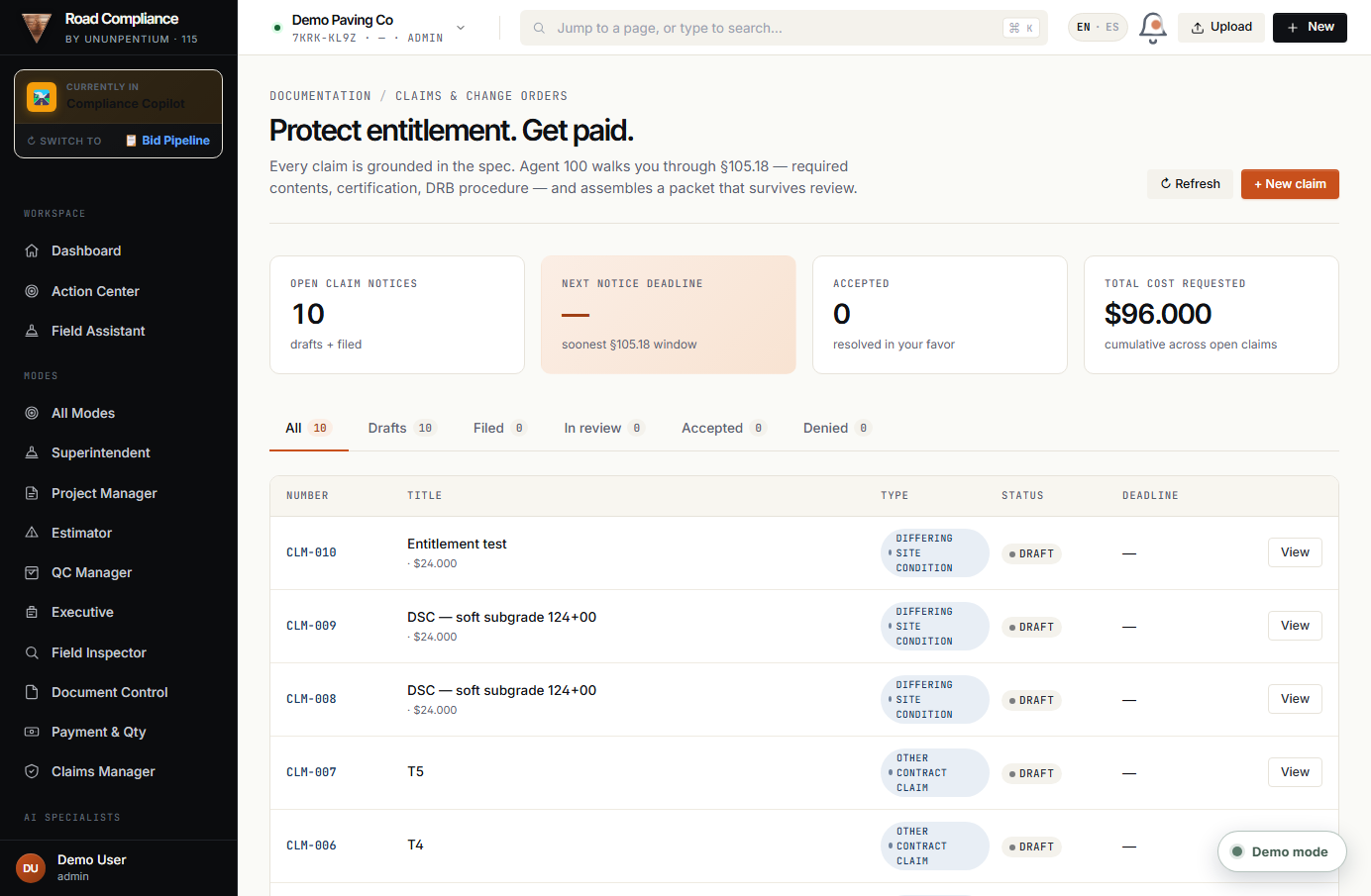
What it's for
The list of all claims and change orders with their type, amount, days, and status. The detail and assembly happen in the Claims Manager mode.
Submittals
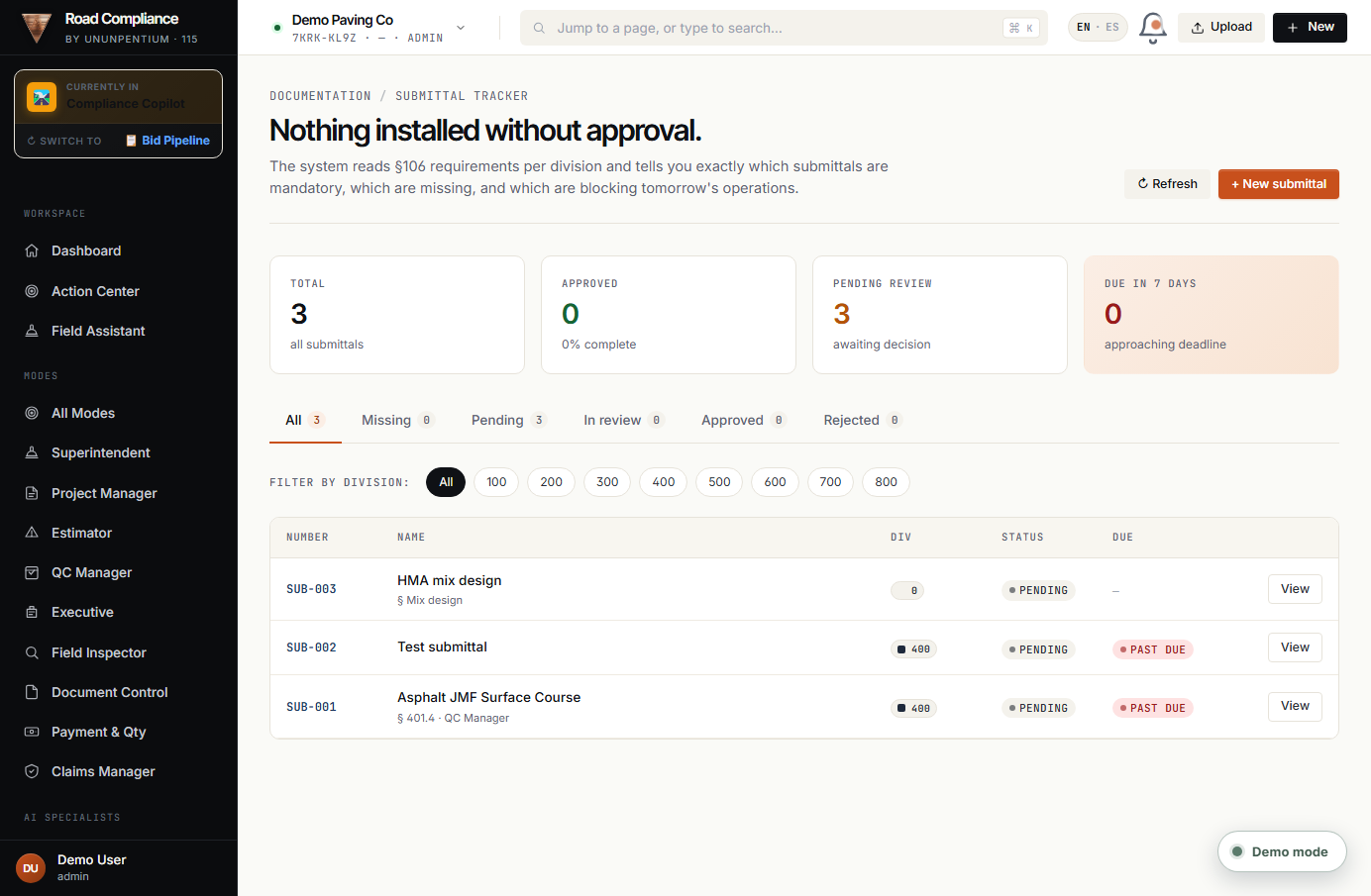
What it's for
Track submittals: what's sent to the engineer/owner for approval (mix designs, materials, shop drawings), with status (pending, in review, approved, rejected) and due date.
Inspections
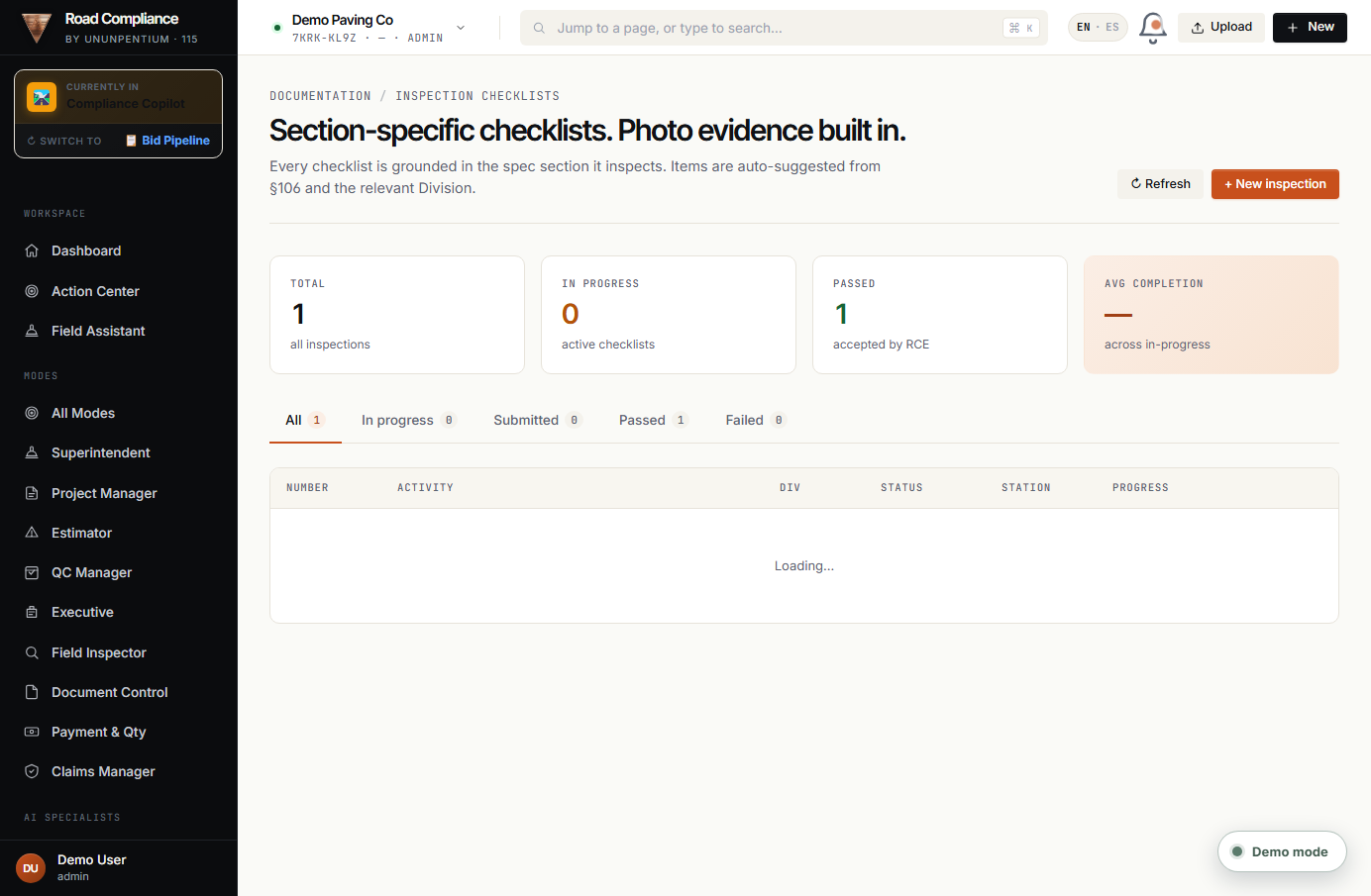
What it's for
View all recorded inspections (created by the Field Inspector and the QC Manager), with activity, station, result, and who performed them.
Part 6 · Operations
Payment (classic view)
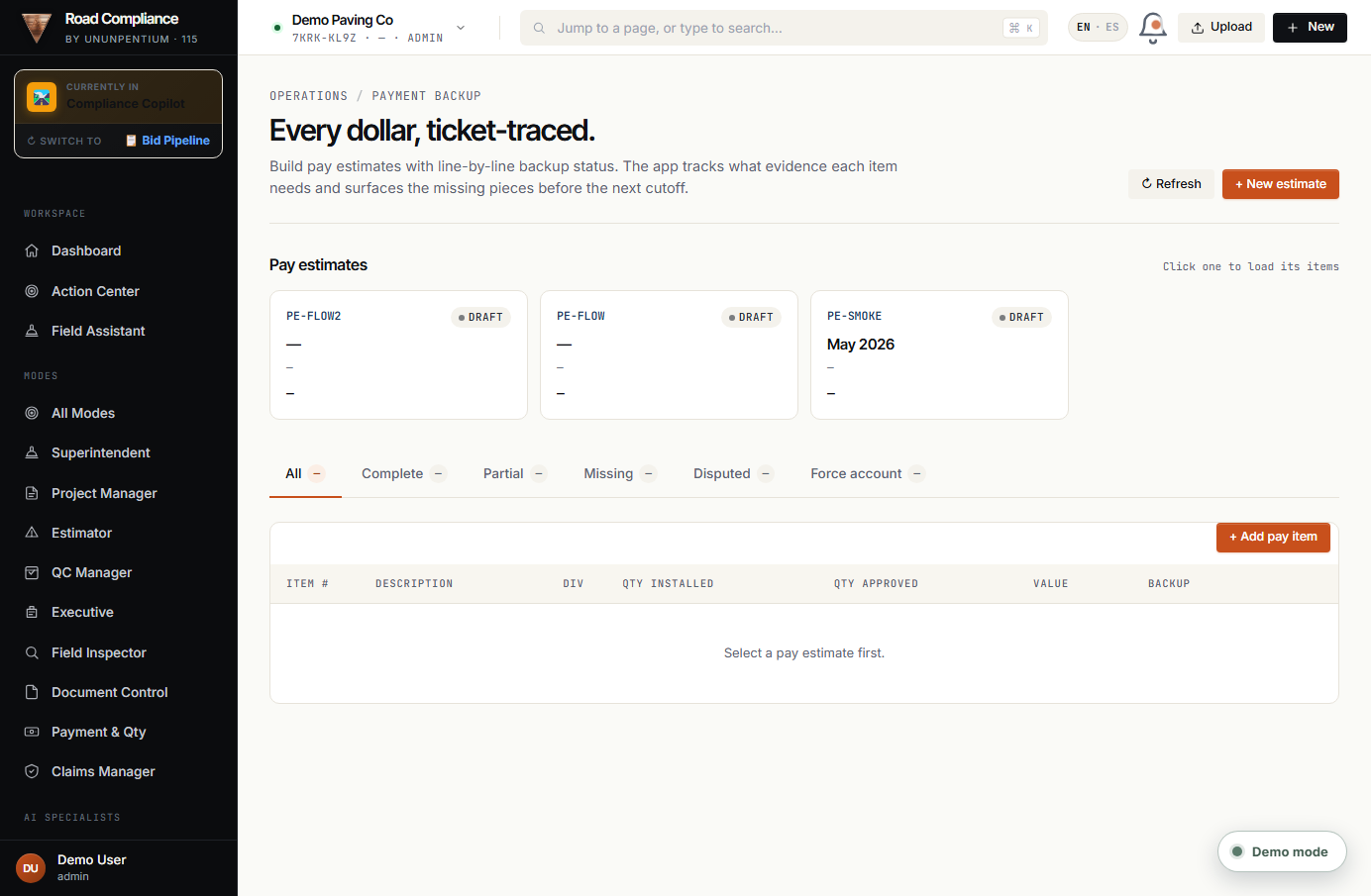
What it's for
The classic payments view: pay estimates and their line items. The rich control with margin and events lives in the Payment & Quantity mode; this is the direct list.
Traffic / MOT
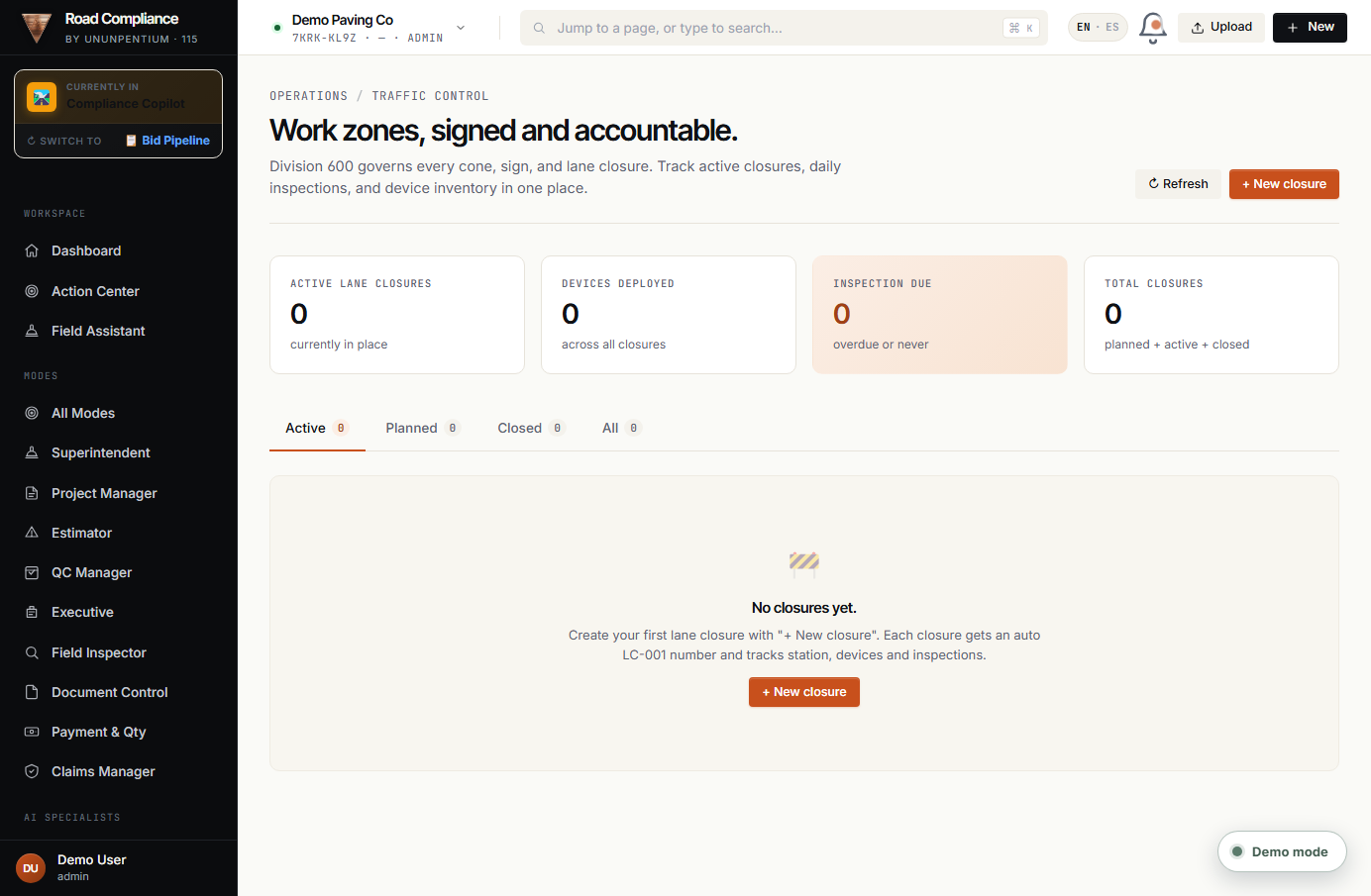
What it is
Maintenance of traffic (MOT, Division 600): lane closures, devices (cones, signs), and work-zone inspections.
What each part does
- 📊 KPIs: active closures, devices, inspection due, total.
- Tabs: Active / Planned / Closed / All.
- "+ New closure": each closure gets an LC-001 number and tracks station, devices, and inspections.
Issues
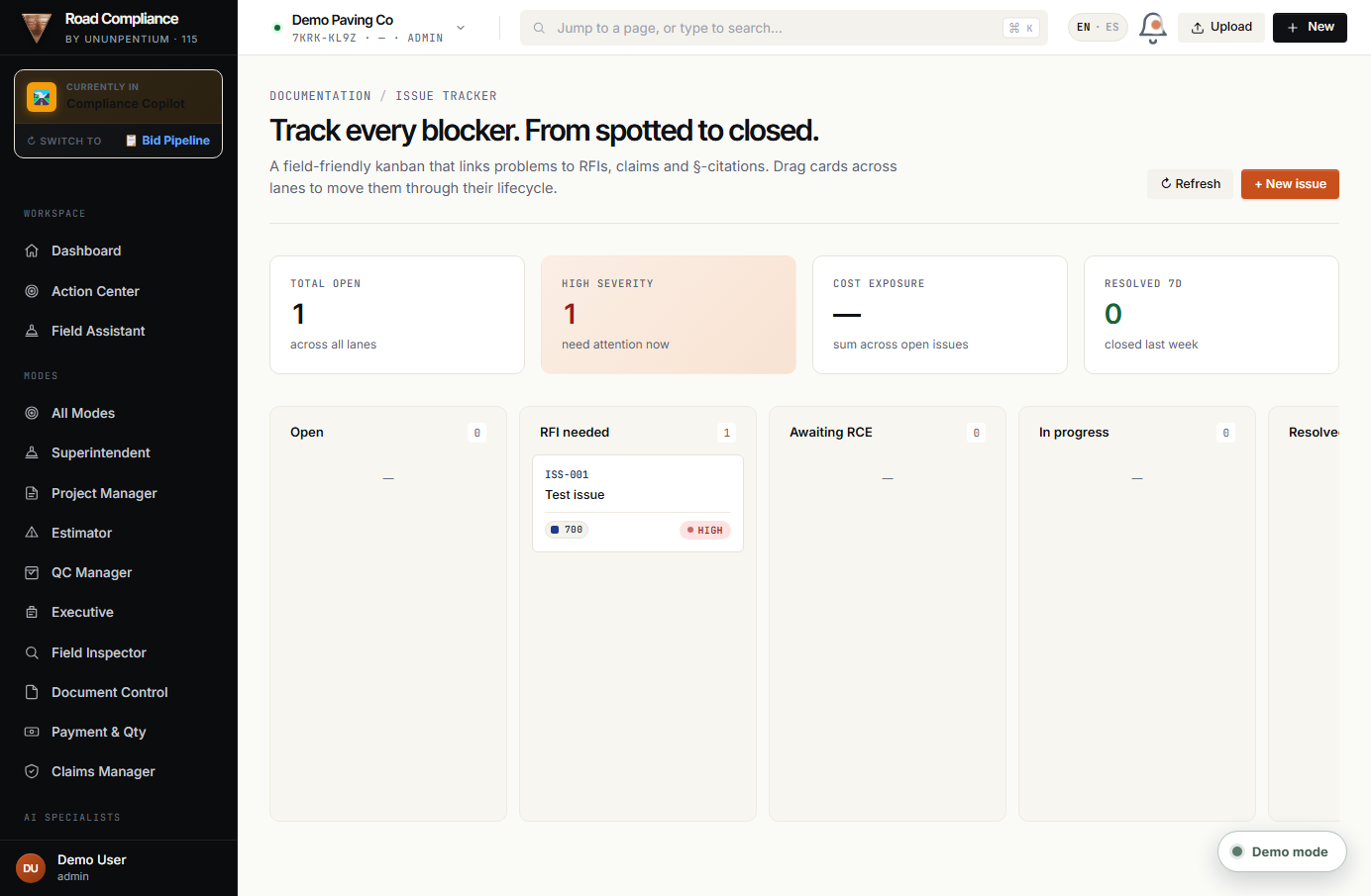
What it's for
View all "issues" (problems, differing conditions, NCRs) in list form, with severity, station, and status. Many come from field events and QC failures.
Evidence
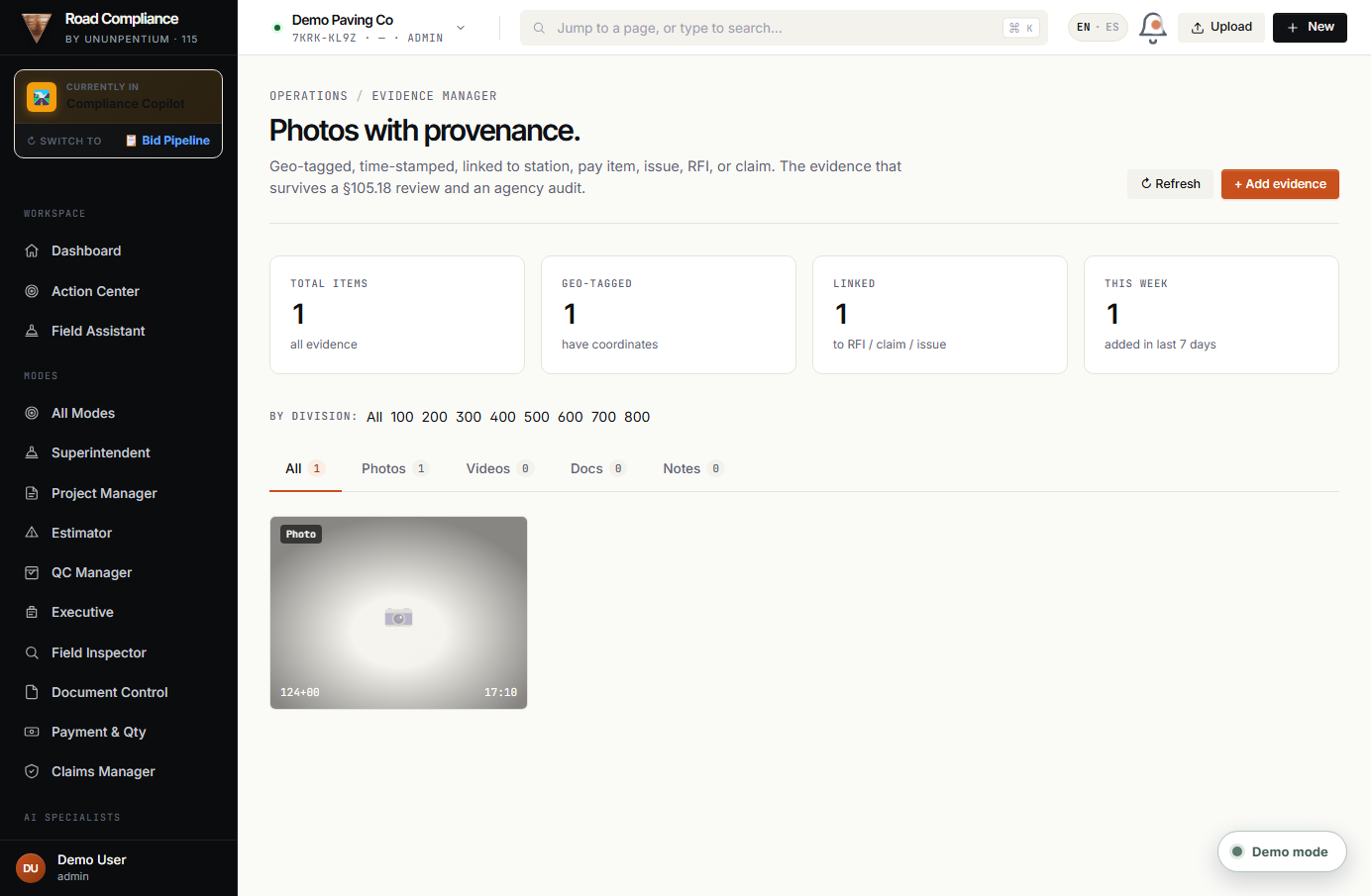
What it's for
Visual evidence: photos and files with location, date, and station, linked to inspections, events, or pay items. It's your proof bank for payments and claims.
Documents (Upload)
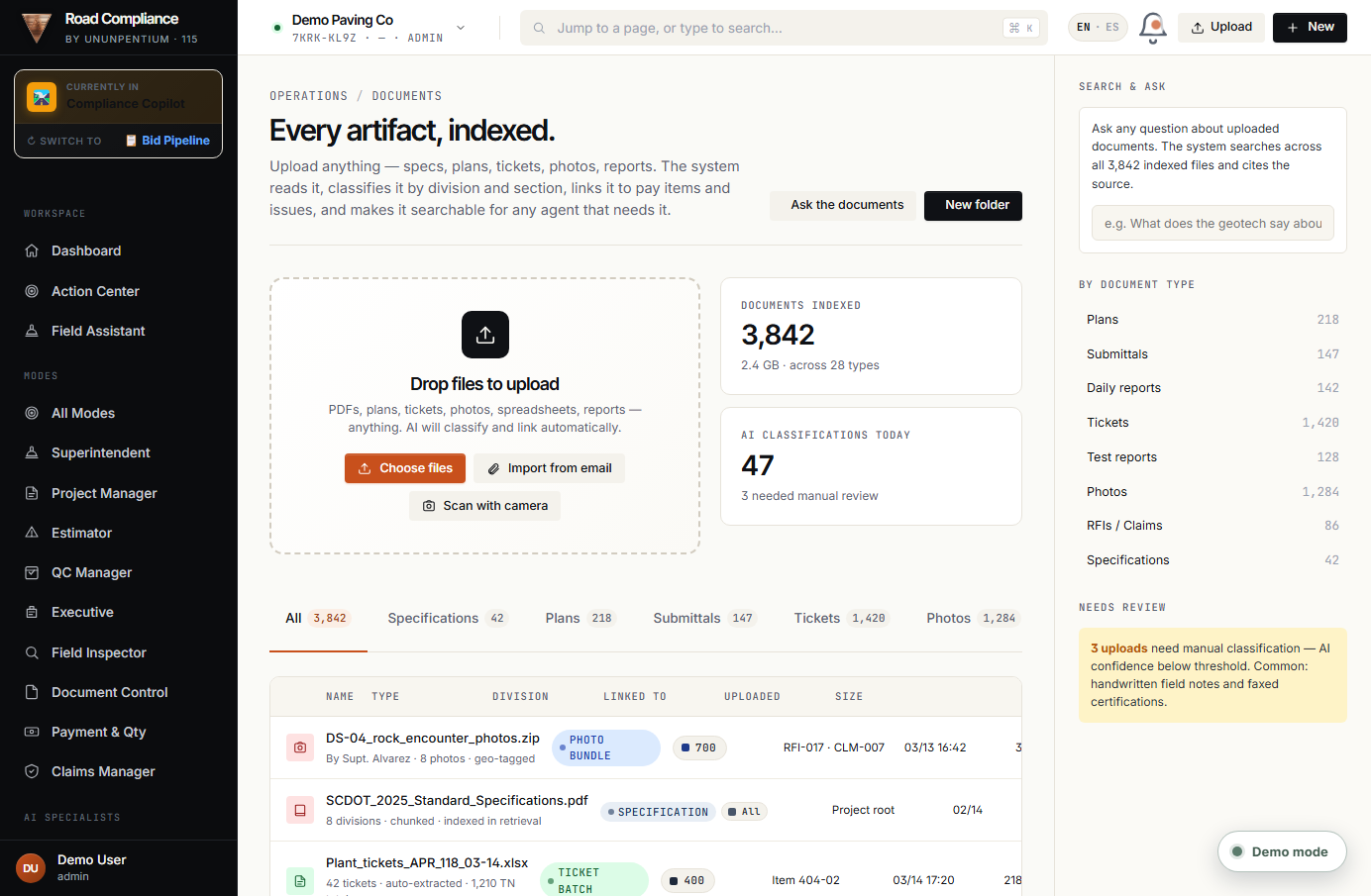
What it's for
Upload documents (PDFs, plans, special provisions, tickets). The app indexes them so the AI can read and cite them. Also reachable from the "Upload" button in the top bar.
Part 7 · Insight
Notifications
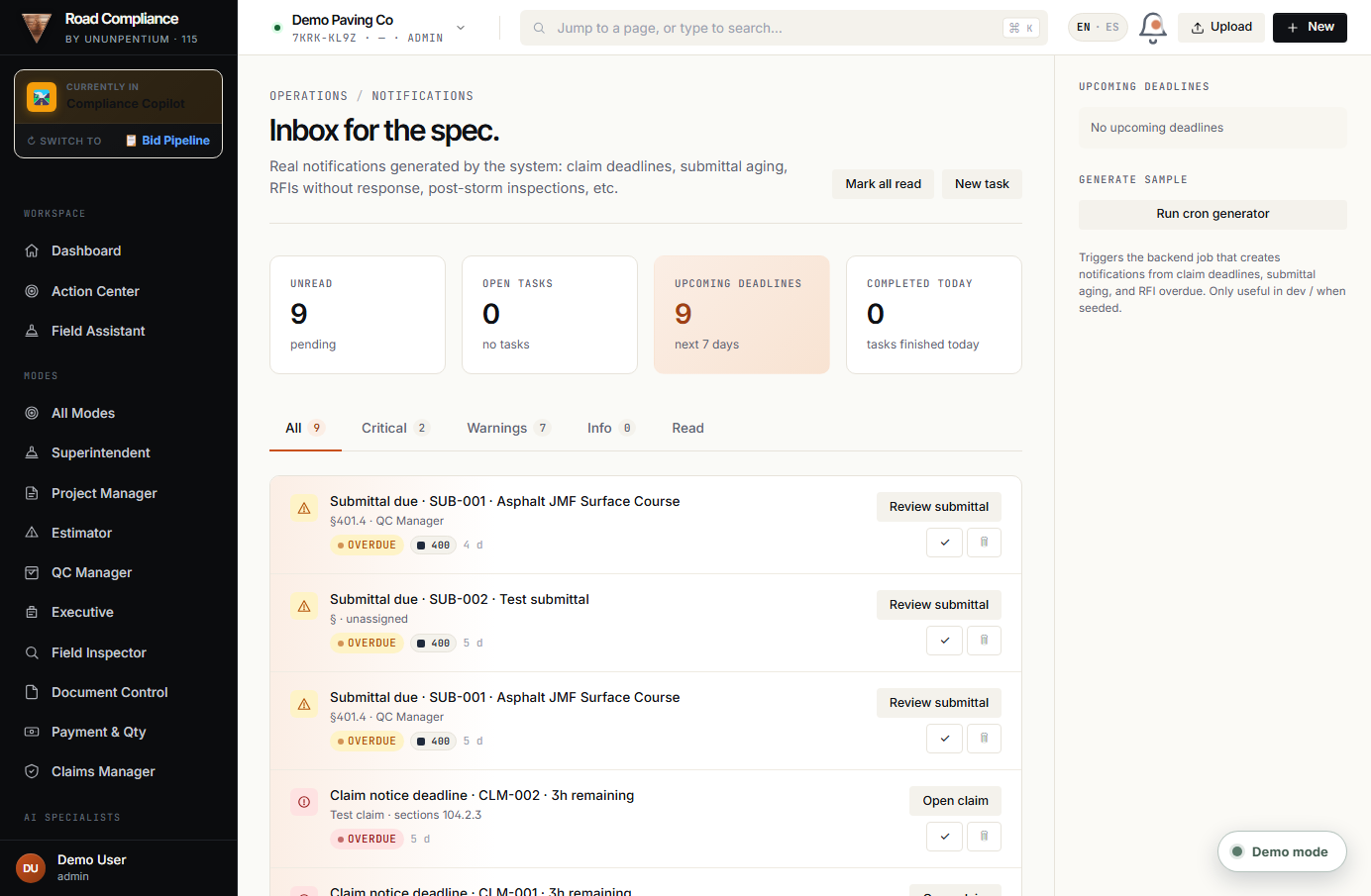
What it's for
All system-generated alerts and notices: claim deadlines, submittals coming due, overdue RFIs, required notices. It's the bell in the top bar, in full-list form.
Audit Log
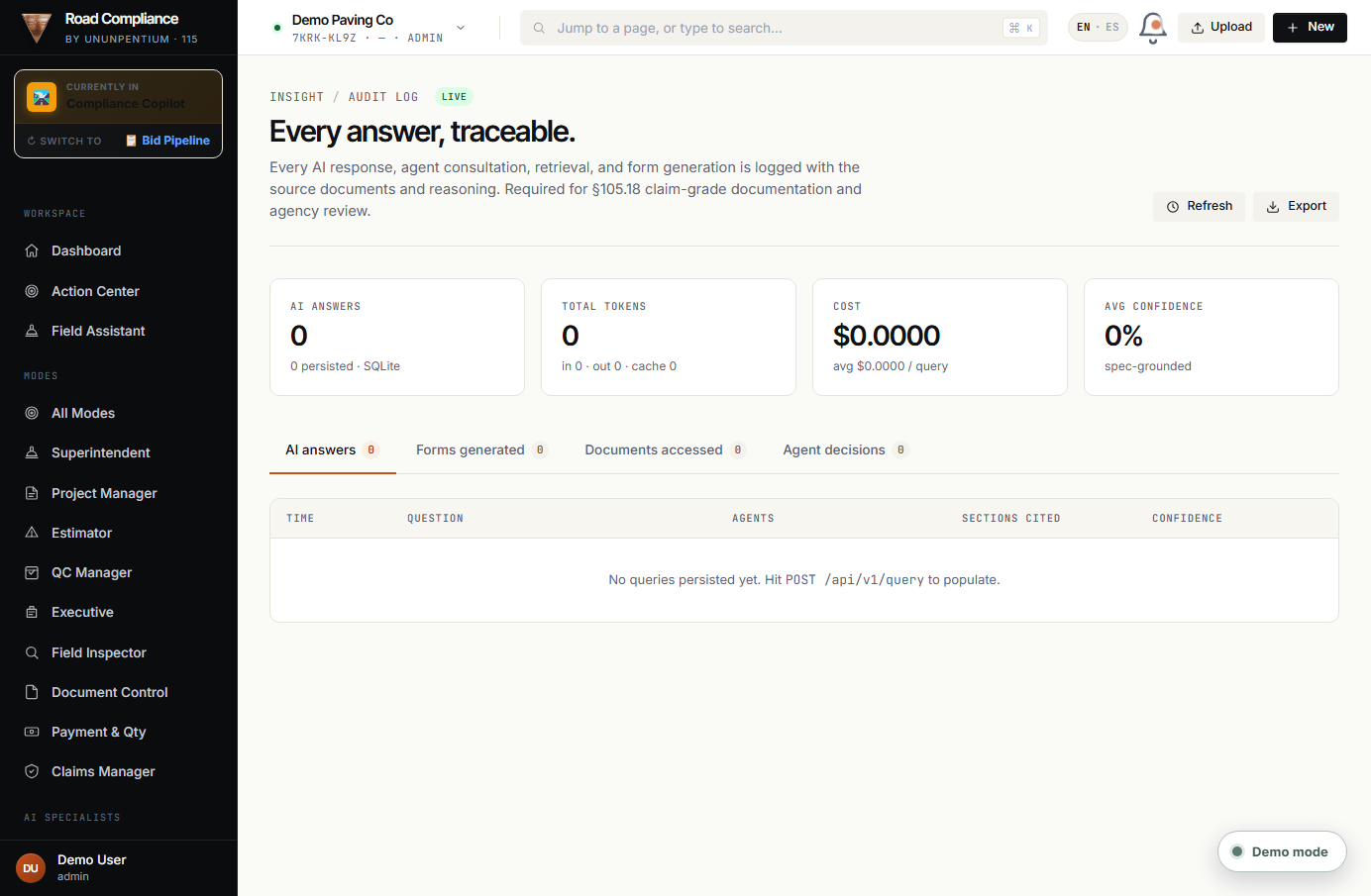
What it is
The audit record: every AI answer, agent consultation, document accessed, and form generated is saved with its sources and reasoning.
What each part does
- 📊 KPIs: AI answers, tokens, cost, average confidence.
- Tabs: AI answers · Forms generated · Documents accessed · Agent decisions.
Company Profile
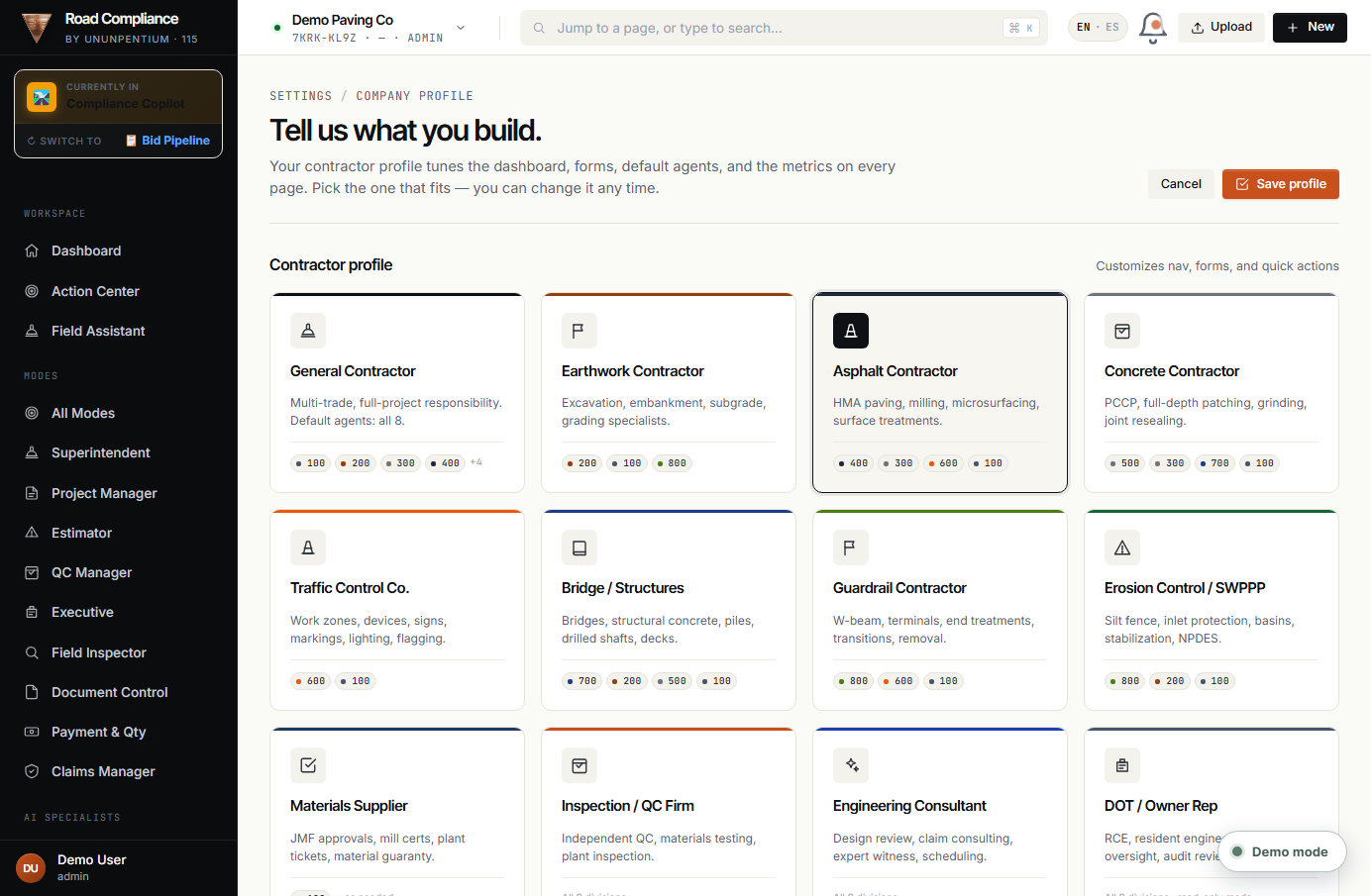
What it is
Your company configuration. It tailors the dashboard and forms to your contractor type.
How to use it
- 1. Pick your type (General, Asphalt, Concrete, Earthwork, Bridge…).
- 2. Fill in: SCDOT prequalification, state, agencies, revenue, specialties.
- 3. "Save profile" → it saves and reloads when you return.
Part 8 · Exportable reports (PDF)
Each mode produces a final document with the same professional design. To generate it: enter the mode → click the export button → a window opens → click "🖨 Print / Save PDF" → save it as a PDF.
| Mode | Report | Button |
|---|---|---|
| Superintendent | Daily Field Log | 📄 Daily Log PDF |
| Project Manager | Weekly DOT / Owner Report | ⬇ Export PDF |
| Estimator | Bid Risk Report | ⬇ Export PDF |
| QC Manager | QC Compliance Report | 📄 QC Compliance PDF |
| Executive | Portfolio Risk Report | ⬇ Export PDF |
| Field Inspector | Daily Inspection Report | 📄 Report PDF |
| Document Control | Document Register & Missing-Docs | 📄 Register PDF |
| Payment & Quantity | Payment Backup Package | 📦 Backup Package PDF |
| Claims Manager | Claim Package (with entitlement) | ⬇ Export PDF |
rbcopilot.com in your browser.Part 9 · Full end-to-end example
Case: soft subgrade appeared and there was extra work.
👷 Superintendent
💵 Force Account "Undercut 120 CY at 124+00". → EVT-001 (Submitted).
🎛️ Project Manager
Action → "Create Claim". EVT-001 → Claim potential, linked.
💵 Payment
The ticket is linked to a pay item; the quantity rolls into installed.
⚖️ Claims
Entitlement checklist + notice deadline → Claim Package PDF.
📊 Executive
Claims exposure rises; the project is classified by risk.
Part 10 · Best practices · Troubleshooting · Glossary
Best practices
- Log the event in the moment (with photo and GPS).
- Use the correct event type so it flows correctly.
- The PM reviews the inbox daily.
- Set the notice deadline on claims as soon as they appear.
- Upload the backup when Document Control asks for it.
- Allow pop-ups for the PDFs.
- Tune the QC values to your special provisions.
Common problems
- Won't load: check internet; use demo/demo.
- "Loading…": the server is "waking up" (5–15 s). Wait and refresh.
- PDF won't open: allow pop-ups.
- No projects: events don't require a project; create one if needed.
- OCR/Auto-extract: future premium feature — manual entry for now.
Glossary
| Term | In plain words |
|---|---|
| Pay item | A contract pay line |
| RFI | Request for information |
| NCR | Non-conformance report |
| Force Account | Extra work billed on time & materials |
| Submittal | Document sent for approval |
| Change Order | A change to the contract |
| Claim | A cost or time claim |
| Notice | Formal notice to preserve the right to claim |
| Pay Estimate | Monthly progress payment estimate |
| Backup | Documentary support to bill |
| Pay Factor | Factor that raises/lowers pay based on quality |
| Entitlement | The right to claim (do you have a basis?) |
| Escalation | Clause that adjusts prices if materials rise |
| MOT | Maintenance of traffic (signage, closures) |
| SCDOT | South Carolina Department of Transportation |
rbcopilot.com (demo mode). Demo access: username demo / password demo.For the bidding side, see the Bid Pipeline guide (a separate world, button at the top left).