Definitive & Beginner-Proof · Bid Pipeline Side
Road Construction Copilot
If you have never used this app, start here. Every screen, every button, every AI agent and every form field — explained step by step, so a complete beginner can read a SCDOT solicitation, run the analysis, and decide go / no-go without help.
Written for absolute beginners · click-by-click · 13 AI agents · all bid screens + the full 28-section / 576-field intake · live captures from rbcopilot.com · demo login: username demo / password demo
0 · Start here (absolute beginners)
What this app is · how to sign in · the big map
1 · The Bid Hub (home screen)
2 · The 13 AI agents — what each one does
3 · Path A — the Readiness Wizard (6 steps)
4 · Path B — the Bid Intake Form
5 · The intake sections — all 28 / 576 fields
6 · Bid Risk Review (the go/no-go)
7 · Historical Bid Intelligence
8 · From Bid to Compliance (the handoff)
9 · A full worked example, start to finish
10 · Best practices · Troubleshooting · Glossary
Part 0 · Start here — for absolute beginners
Read this part once and the rest of the guide will make sense. No construction or software experience assumed.
What is this app, in one breath?
Road Construction Copilot helps a road contractor decide which jobs to bid and at what price, then run the job after winning. It has two "worlds": the Bid Pipeline (everything before you win) and Compliance Copilot (everything after you win). This guide covers the Bid Pipeline.
What is a "bid", in plain words?
A government agency (here, mostly SCDOT — the South Carolina DOT) publishes a road project and asks contractors to submit a sealed price by a deadline (the letting date). The lowest responsible, responsive bidder usually wins. Submitting the wrong price — or missing one required form — costs you the job or money. This app exists to stop both.
The whole idea in one line: upload the SCDOT solicitation → the app reads it for you → 13 AI specialists check eligibility, pricing, DBE, scope, schedule, safety and risk → you get a clear Go / No-Go with the dangers spelled out. If you win, all that data flows into the Compliance side — nothing is retyped.
Step 1 — Sign in
- Open
rbcopilot.com in your browser.
- On the login screen type username demo and password demo, then click Sign In.
- You land on the app. Look at the top-left box labeled "Currently in".
Step 2 — Switch to the Bid Pipeline
- In that top-left box, click Switch to → Bid Pipeline.
- The left sidebar changes to the bidding menu: Bid Hub · New Bid Wizard · Bid Intake Form · Bid Risk Review, plus the numbered intake sections.
- You are now in the Bid Pipeline. Everything below lives here.
The big map — how the pieces fit
HOME
🏠 Bid Hub
Your starting point. Pick a path, or run the whole AI pipeline.
→
CAPTURE
🧭 Wizard or 📋 Intake
Two ways to enter the bid data. Beginners use the Wizard.
→
ANALYZE
🤖 13 Agents
AI specialists read everything and write findings.
→
DECIDE
🎯 Risk Review
Score + Go / No-Go.
→
WIN
🎛️ Compliance
Data hands off to run the job.
💡 Two ways to capture a bid, same destination: the Wizard (Path A) holds your hand through 6 short steps — use it for your first few bids. The Intake Form (Path B) is the full form for when you know the platform. They write to the same place, so you can start in the Wizard and finish in the Form.
Part 1 · The Bid Hub — your home screen
🏠
Bid Pipeline · Home
1 · Bid Hub
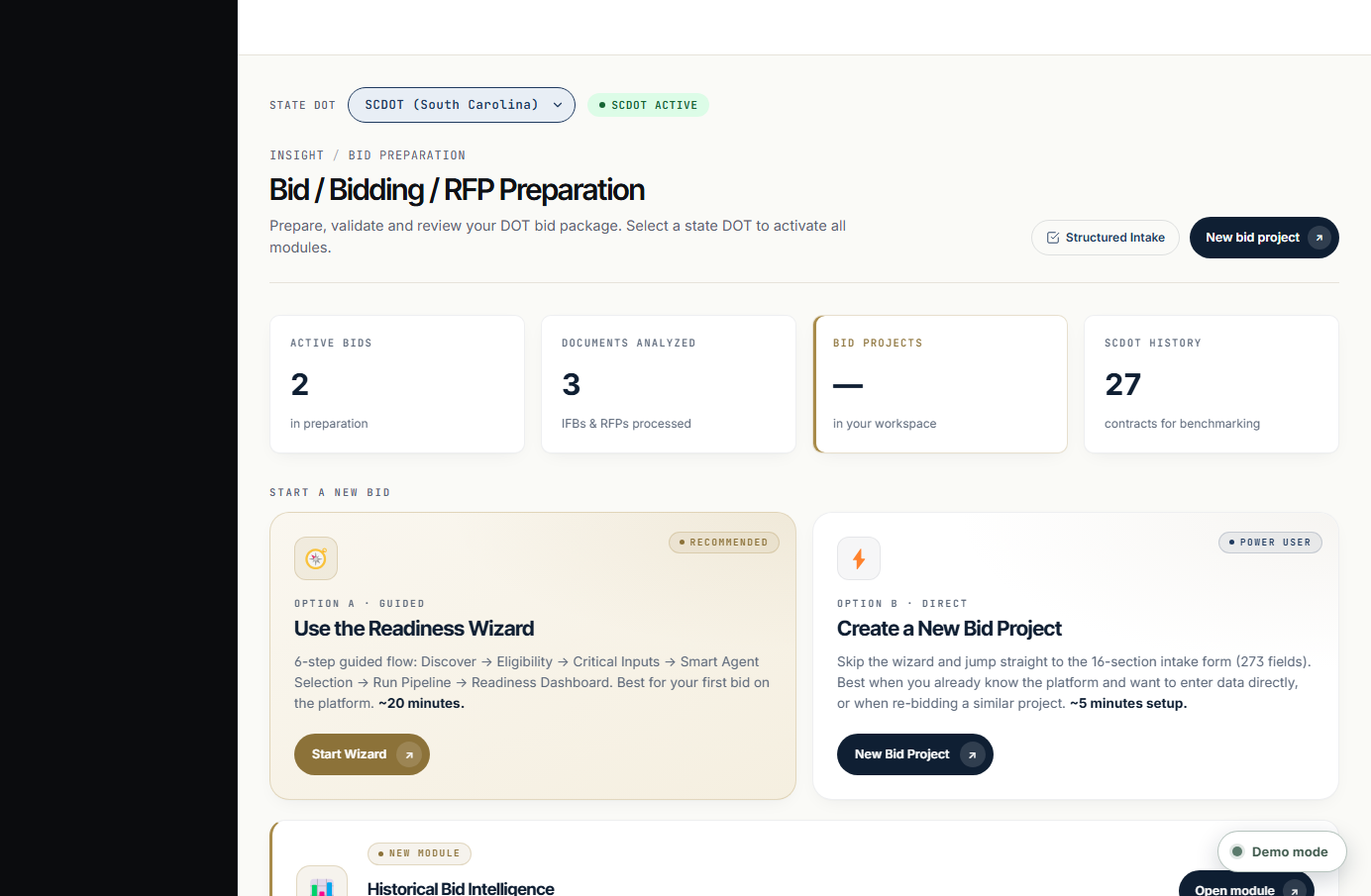
The bidding home page. From here you start a bid, run the AI, benchmark prices, and open any saved project.
What it is
The landing page of the bidding world — "Bid / Bidding / RFP Preparation". It's the hub everything branches from.
What each part does
- 🏛️State DOT selector: pick your agency (e.g. SCDOT) to activate its modules.
- 📊KPIs: active bids, documents analyzed, bid projects, SCDOT history.
- 🧭Use the Readiness Wizard: the guided 6-step path (Option A).
- ⚡Create a New Bid Project: jump straight to the intake form (Option B).
- 📊Historical Bid Intelligence banner: opens the price-benchmarking module in a new tab.
- 📂My Bid Projects + active selector: your saved bids and which one the agents use.
How to use it — step by step
- Pick your agency — at the top, use the State DOT selector and confirm it shows SCDOT — Active (this turns on SCDOT-specific modules).
- Read the four KPIs — active bids, documents analyzed, bid projects in your workspace, and SCDOT history contracts available for benchmarking.
- Choose how to start — click Use the Readiness Wizard (guided, recommended) or Create a New Bid Project (direct to the form).
- Scroll down to see My Bid Projects (open any saved bid) and the Active project for agents selector.
- To run AI now, click Open AI Pipeline to jump to the Orchestrator, or See 13 agents to view the agent grid.
Walkthrough: you're bidding an SCDOT interstate resurfacing. You confirm "SCDOT — Active", see "27 contracts for benchmarking", and click Use the Readiness Wizard.
💡 Detail: The Hub also keeps two legacy modules for reference — Module 1 · IFB/RFP Analyzer (drop a PDF for a quick extract) and Module 2 · Bid Checklist Generator (auto-build a prep checklist by project type). The modern path is the 13-agent pipeline above them.
🎼
Bid Pipeline · Run the AI
1b · The Bid Orchestrator (on the Hub)
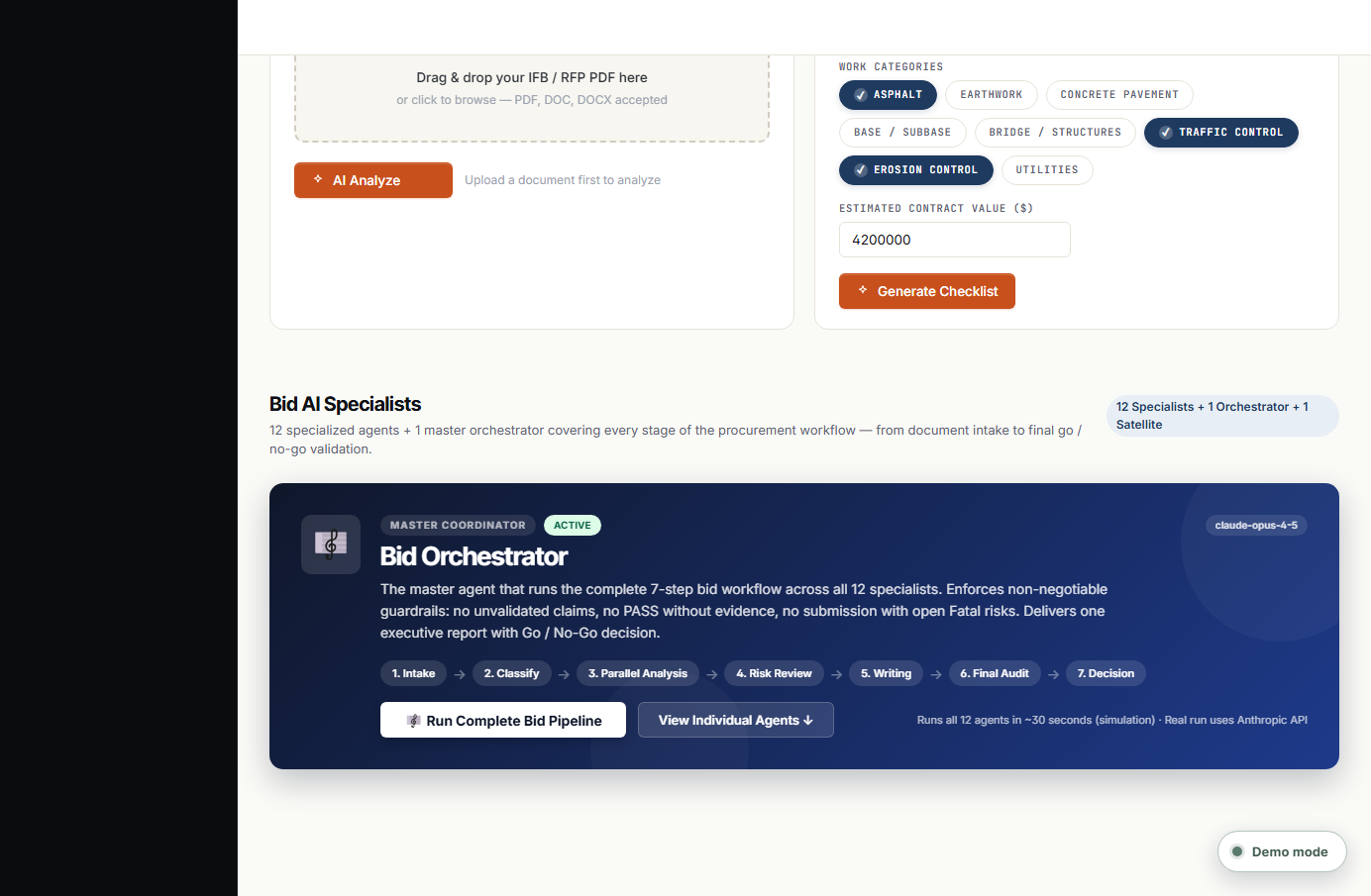
Scroll down the Hub to the dark "Bid Orchestrator" card — this runs the entire 12-agent pipeline with one click.
What it is
The master coordinator. Instead of running 12 agents by hand, you press one button and it runs them in the correct order, then writes a single executive report ending in a Go / No-Go decision.
How to use it — step by step
- Set the active project first (the selector in "My Bid Projects"), or upload documents so the agents have something to read.
- Click Run Complete Bid Pipeline. A live panel slides in showing the 7 phases.
- Watch each agent complete in order (Intake → Classification → Parallel Analysis → Risk → Writing → Final Audit → Decision).
- Read the executive report at the end — project overview, agent findings, critical risks, required corrections, and the final Go / No-Go.
- Prefer to view the team first? Click View Individual Agents to scroll to the 13-agent grid.
💡 Detail: The card header reads "12 Specialists + 1 Orchestrator + 1 Satellite" — that's the 12 pipeline agents, the Orchestrator that runs them, and the on-demand RFI agent (13).
🤖
Bid Pipeline · The team
1c · The 13-agent grid & Agent Outputs
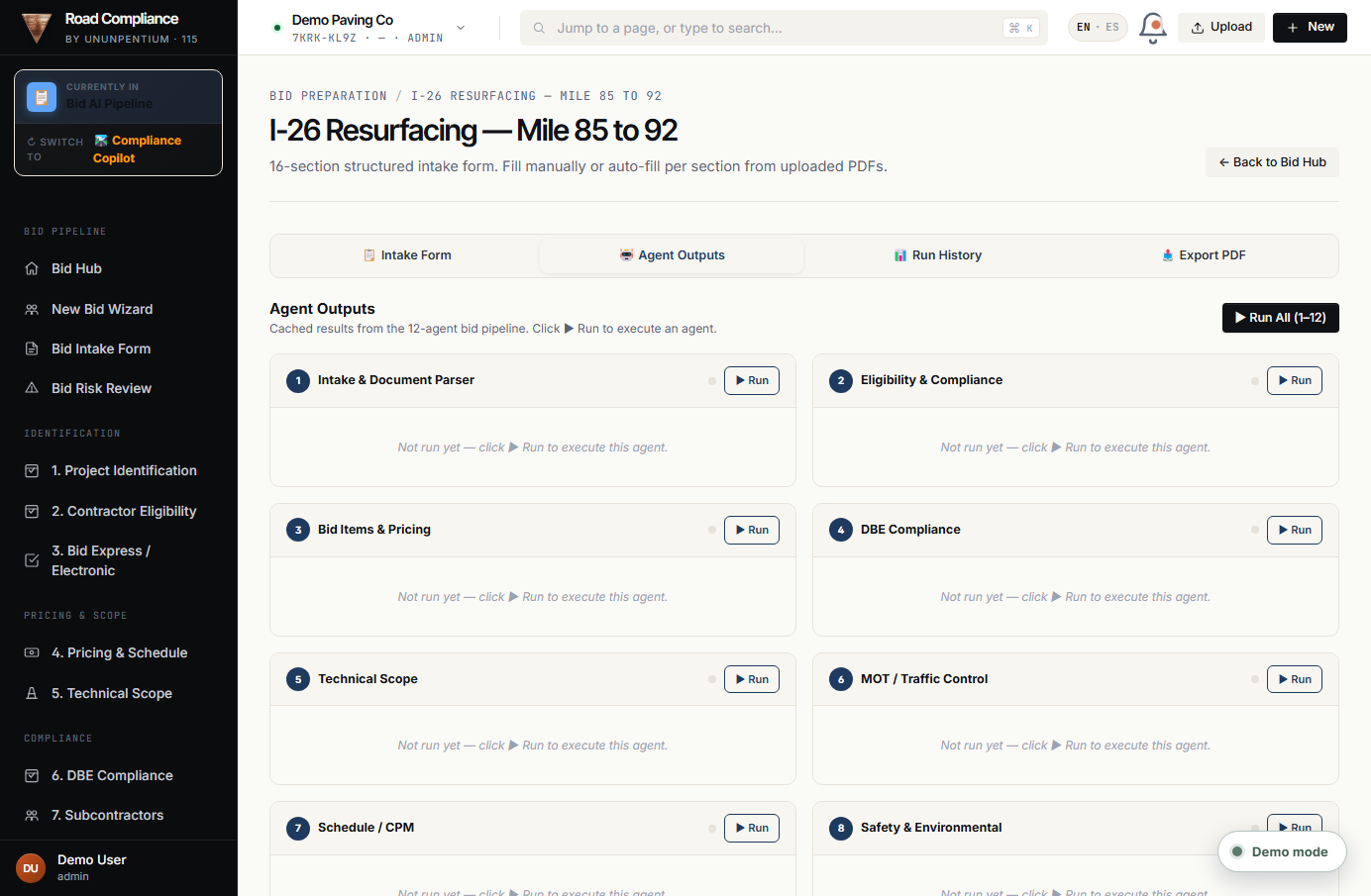
Every agent appears as a card. On the Intake Form's Agent Outputs tab (shown here) each card has its own ▶ Run button and shows the saved result.
What it is
The place to run agents one at a time and read what each produced. The same 13 agents appear on the Hub grid and here on the Intake Form.
How to use it — step by step
- Open a bid project, then click the 🤖 Agent Outputs tab.
- Run everything with ▶ Run All (1–12), or run a single agent with the ▶ Run button on its card.
- Click a card to expand and read that agent's full written output.
- Re-run any agent after you change inputs — the newest output replaces the old one and is logged in Run History.
💡 Detail: Agents read each other's work: e.g. the Risk Reviewer (10) only runs well after 1–9, and the Final Auditor (12) after 1–11. "Run All" handles the order for you.
Part 2 · The 13 AI agents — what each one actually does
An "agent" here is an AI specialist with one job. Think of them as a 13-person bid-prep team that reads your documents and writes findings. 12 of them run in a fixed order (a "pipeline"); the 13th (RFI Drafting) is a helper you call on demand. A 14th, the Orchestrator, is just the master button that runs the 12 in order. You never have to talk to them directly — you press one button.
| # | Agent & role | In pipeline? | Feeds
from | What it does for you |
|---|
| 1 | 📥Intake & Document Parser
Documentary Auditor | Required | — | Reads every uploaded document (IFB, Notice to Contractors, plans, specs, special provisions, addenda, the bid schedule, the engineer's estimate) and returns ONE normalized data package: every critical date, every required form, every missing document, and the first red flags. It always runs first; every other agent consumes its output. |
| 2 | 🛂Eligibility & Compliance
Compliance Officer | Required | 1 | Decides whether you can legally and technically bid this job: SCDOT prequalification, Contractor Performance Score (CPS), SC license, bonding capacity, insurance, debarment, conflicts, certifications, addenda acknowledgments. Verdict: Eligible / Not Eligible / Eligible with Conditions. |
| 3 | 💰Bid Items & Pricing
Senior Estimator | Required | 1, 2 | Reads the Schedule of Bid Items, extracts every pay item, checks the math (qty × unit price = extension), classifies each item, flags unbalanced or zero-priced items, and validates mobilization and the required minor-work groups (traffic control, erosion, drainage, striping). |
| 4 | 🤝DBE Compliance
DBE / Federal Auditor | Required | 1, 2, 3 | Verifies the DBE goal is actually met: each DBE firm's certification status and work codes vs. the items assigned, the 60% supplier crediting rule, trucking rules, signed quotes, Good Faith Effort docs, and Bid Express DBE-list completeness. Returns Compliant / Not Compliant / GFE Required. |
| 5 | 🏗️Technical Scope
Senior Technical Writer / PM | Required | 1, 2, 3 | Turns the plans and specs into an executable scope across 19 standard disciplines, with a major-quantities table, a recommended construction sequence, technical risks, RFIs, and a polished narrative ready for the proposal. |
| 6 | 🚧MOT / Traffic Control
Work Zone Analyst | Optional | 1, 5 | Analyzes Maintenance of Traffic: lane-closure windows, detours, flagging, temporary signs/markings, PCMS, pedestrian/business/emergency access, night work, work-zone devices, MUTCD Part 6 compliance, and the MOT pay items — then drafts a recommended MOT narrative. |
| 7 | 📅Schedule / CPM
Senior Scheduler | Required | 1, 5, 6 | Builds a logical construction sequence and the critical path from contract time (calendar vs working days), milestones, liquidated damages, incentives, and seasonal/weather/lane-closure windows. Tags the contract time as Reasonable / Aggressive / High Risk. |
| 8 | 🦺Safety & Environmental
Senior EHS Auditor | Required | 1, 5 | Covers OSHA 1926 (trenching, fall protection, confined space, crane, silica) and environmental (NPDES, SWPPP, BMPs, wetlands, USACE permits, endangered-species/tree-clearing windows, spill prevention). Flags anything that can trigger stop-work, fines, or rejection. |
| 9 | 🤝Subcontractor & Supplier Manager
Procurement Analyst | Optional | 1, 3, 4, 5 | Compares every sub and supplier quote — extracting included/excluded scope, bid items covered, prices, expirations, and exclusions — and detects scope gaps, dangerous exclusions, quote-vs-item mismatches, and expired quotes. Your #1 defense against a 'scope-gap win'. |
| 10 | 🚨Risk Reviewer
Final Pre-Submission Auditor | Required | 1–9 | Reads every prior agent's output and rates each risk Fatal / Critical / High / Medium / Low with probability, impact, owner, corrective action, and deadline. Verdict: Proceed / Do Not Proceed / Proceed with Conditions. Never softens a critical risk. |
| 11 | ✍️Proposal Writer
Senior Proposal Author | Optional | 1–10 | Drafts proposal text — cover letter, project understanding, methodology per discipline, MOT/safety/QC/schedule/DBE narratives, key-personnel bios, RFIs — using only validated, source-cited data. Inserts [INSERT X] placeholders where data is missing; never invents experience. |
| 12 | 🎯Final Submission Auditor
Last-Mile Submission Gate | Required | 1–11 | Runs a strict 30-item submission checklist (due date/time, platform, forms, unit prices, total, bid bond, addenda, DBE list/quotes/GFE, sub list, certifications, signatures, notary, upload receipt) and marks each PASS / WARNING / FAIL → READY TO SUBMIT / SUBMIT WITH CAUTION / DO NOT SUBMIT. |
| 13 | 📨RFI Drafting
Technical RFI Writer | Satellite · on-demand | 1, 3, 5, 6, 7, 8, 9 | Not part of the linear 1–12 pipeline. Drafts formal, agency-ready RFIs in the 10-field format whenever any upstream agent finds ambiguity, a contradiction, or missing information that the agency must clarify before bid opening. Can be invoked many times per bid. |
🎼 Agent 0 — Bid Orchestrator (Master Coordinator): the single “Run Complete Bid Pipeline” button on the Hub. It runs agents 1→12 in the exact dependency order, hands each one validated inputs, and returns one executive report with a final Go / No-Go. Its guarantees: the Proposal Writer can't write unverified claims, the Final Auditor can't mark PASS without evidence, and submission is blocked while any Fatal risk is open.
The 7-phase pipeline order
1. Intake (Agent 1)
2. Classification (Agents 2–3)
3. Parallel Analysis (Agents 4–9)
4. Risk Review (Agent 10)
5. Writing (Agent 11)
6. Final Audit (Agent 12)
7. Decision (Orchestrator report)
The 3 ways to run agents
- 🧭Wizard, Step 5: the beginner path — pick agents, press Run Pipeline.
- 🎼Hub Orchestrator: the Run Complete Bid Pipeline button runs all 12 at once.
- 🤖Intake Form → Agent Outputs tab: press Run All (1–12), or run one agent at a time with its ▶ Run button.
Good to know
- 💵Each agent run is a real Anthropic AI call — roughly $0.05 and a few seconds.
- 📌Outputs are saved to the bid project and shown in Run History.
- 🔒Agents never invent facts — when data is missing they say so or insert
[INSERT X].
Part 3 · Path A — the Readiness Wizard (recommended for beginners)
The Wizard takes you from "I just received the IFB" to a clear readiness scorecard in about 20 minutes, across 6 steps. A yellow progress bar at the top always shows where you are; you can click any step, go Back, or Skip for now. Open it from the Hub → Use the Readiness Wizard.
①
Wizard · Step 1
3.1 · Discover — tell me about this bid
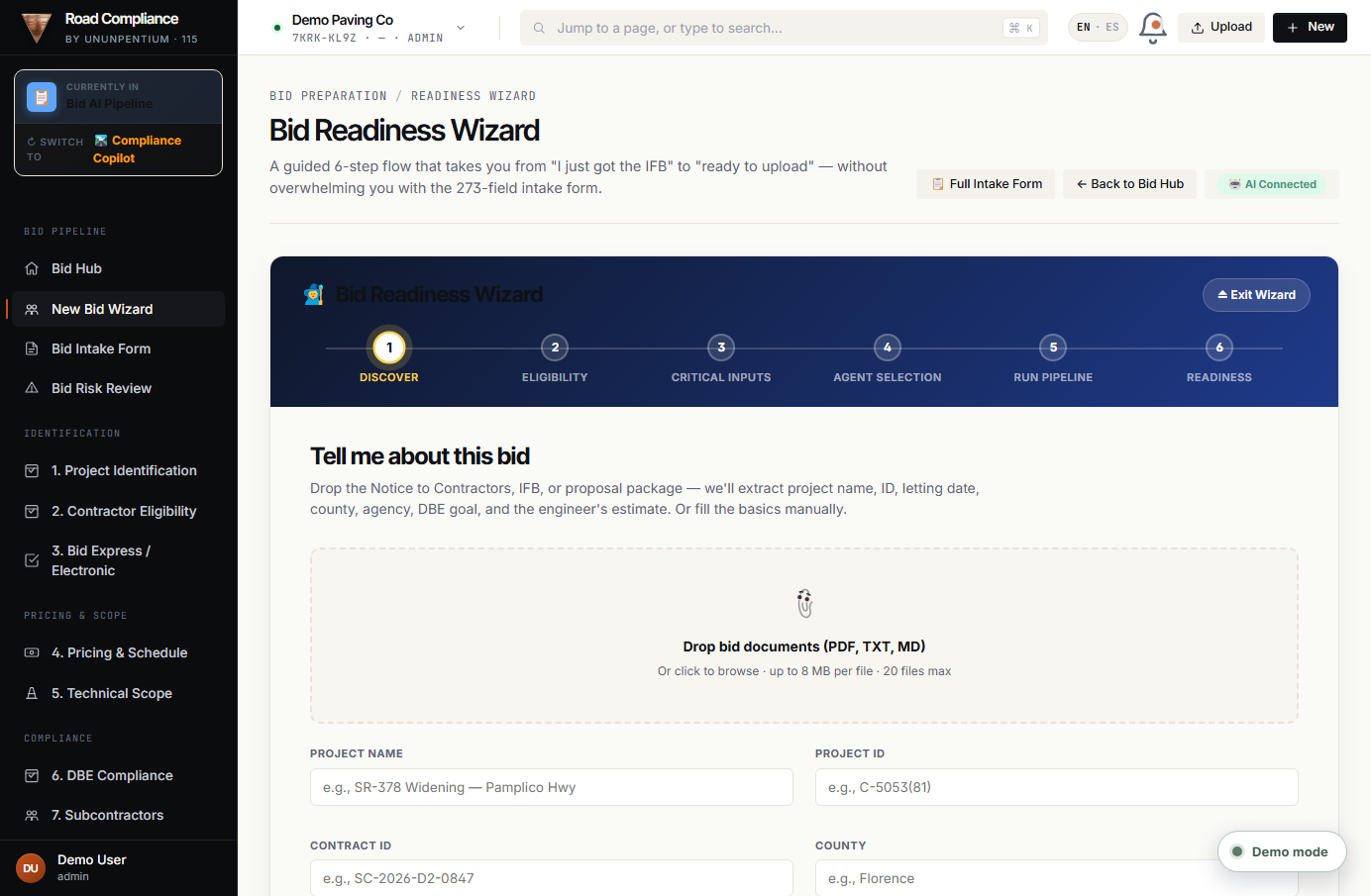
Upload the solicitation and let Agent 1 fill the basics; or type them in.
What it is
The first step. You give the Wizard the documents (or the key facts) so everything downstream has something to work with.
How to use it — step by step
- Drag the Notice to Contractors / IFB / proposal PDF onto the drop zone (or click to browse). PDF, TXT, MD; up to 8 MB each, 20 files max.
- Wait a few seconds — Agent 1 reads the files and auto-fills Project Name, ID, Contract ID, County and Letting Date. A green banner shows how many fields it filled.
- Check each field it filled and correct anything wrong; fill any it left blank.
- Click Continue → (bottom right). If you're logged in, the Wizard quietly creates and saves the bid project here.
Walkthrough: you drop the SCDOT "Notice to Contractors" PDF; Agent 1 fills "SR-378 Widening — Pamplico Hwy", county "Florence", and the letting date — no typing.
💡 Detail: No document yet? You can still type the basics by hand and continue — upload later in the Intake Form.
②
Wizard · Step 2
3.2 · Eligibility — can you legally bid this?
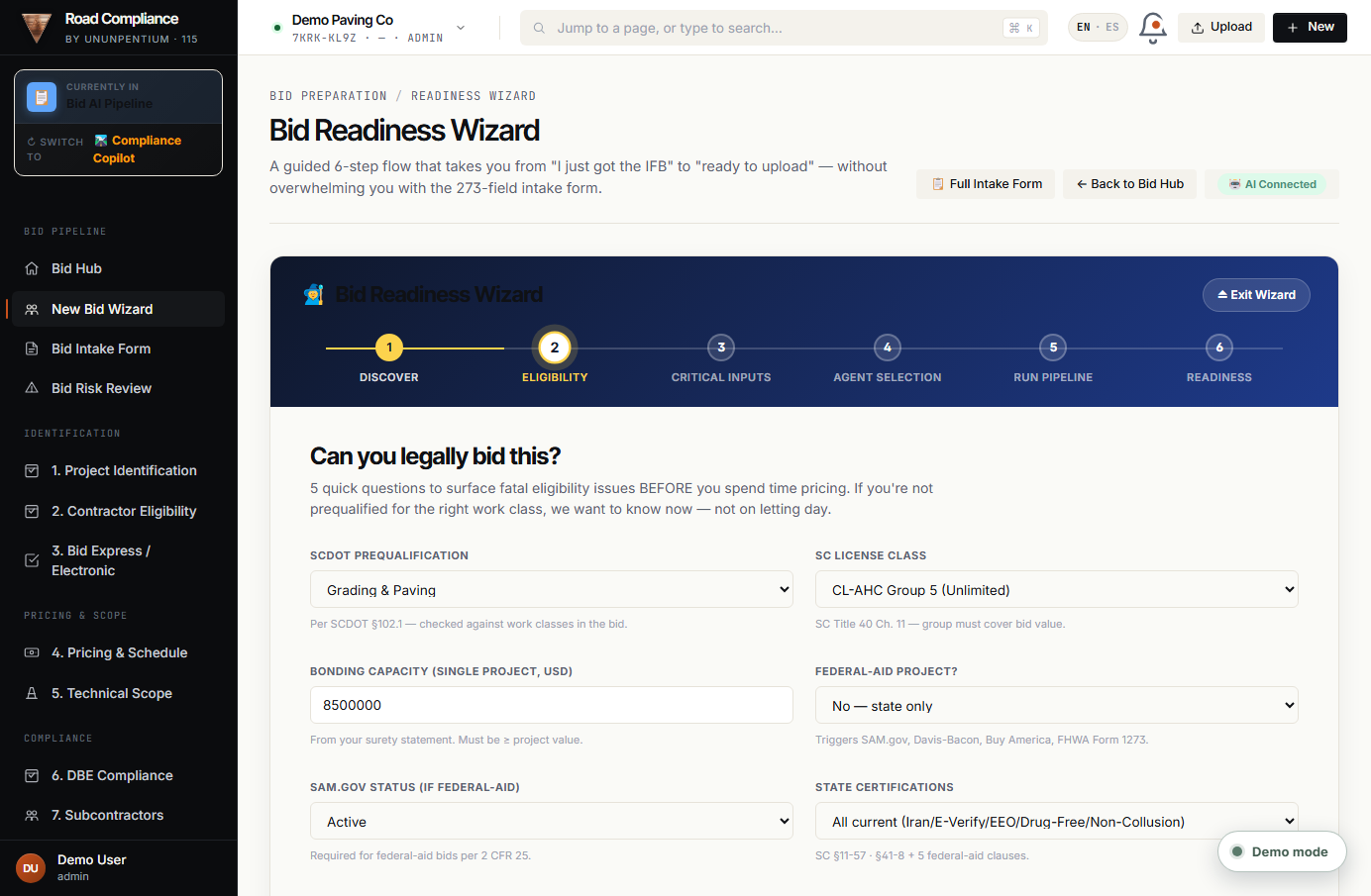
Six quick questions surface fatal eligibility issues before you waste time pricing.
What it is
A fast gate. If you're not prequalified for the right work class, or your bonding is too low, you want to know now — not on letting day.
How to use it — step by step
- Answer the 6 dropdowns/fields: SCDOT Prequalification, SC License Class, Bonding Capacity, Federal-Aid?, SAM.gov status, State Certifications. Each has a hint citing the rule.
- Click 🛂 Run Eligibility Check (Agent 2) (a real AI call, ~$0.05).
- Read the colored verdict: green ELIGIBLE, amber ELIGIBLE WITH CONDITIONS, or red NOT ELIGIBLE.
- Expand "View full output" to see the reasoning, then Continue →.
💡 Detail: A red verdict doesn't lock you out of the Wizard — but treat it as a serious stop sign and resolve it before spending hours on pricing.
③
Wizard · Step 3
3.3 · Critical Inputs — key numbers & dates
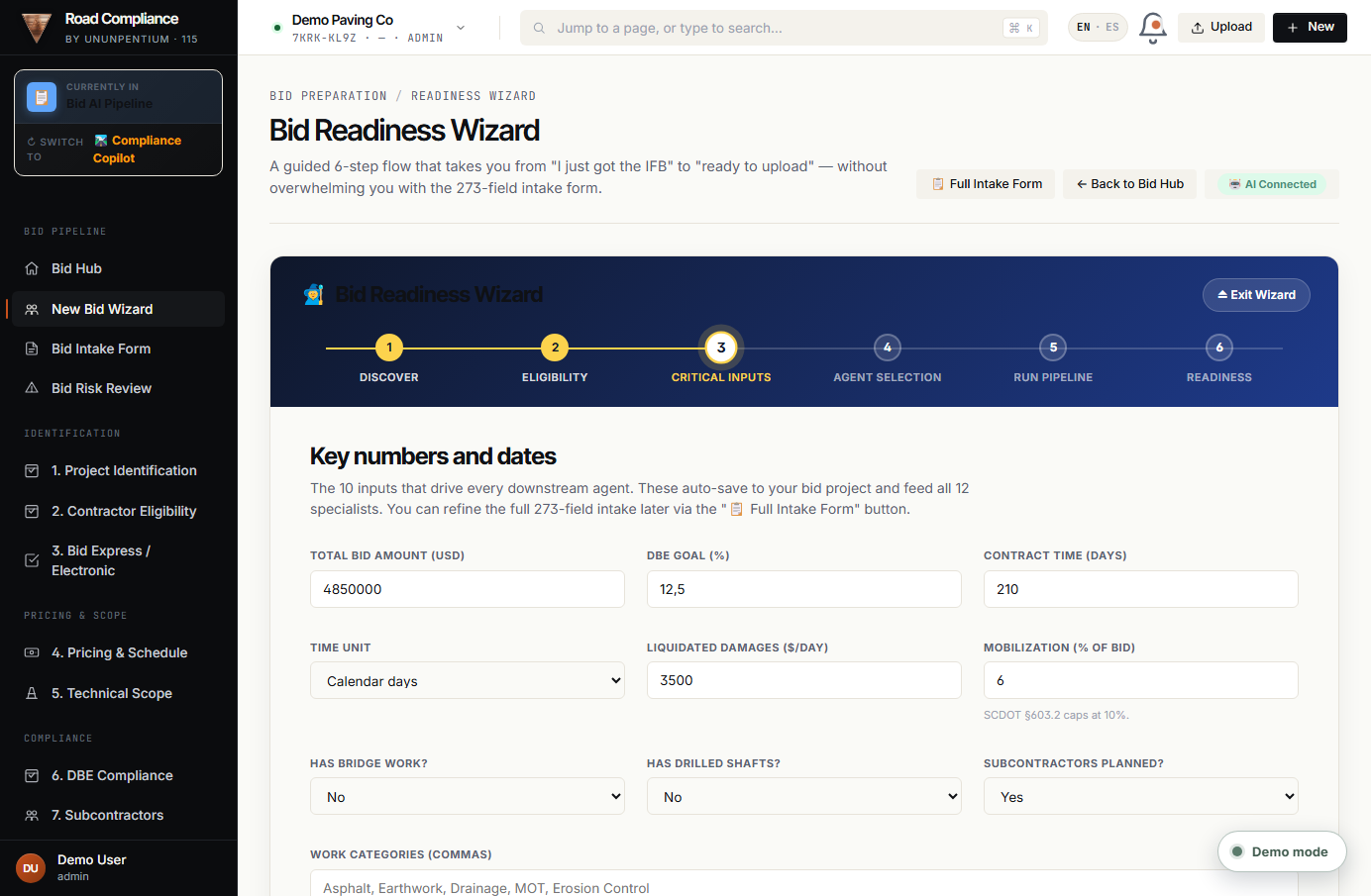
The ~10 numbers that drive every downstream agent.
What it is
The minimum data the specialists need: total bid, DBE goal, contract time, liquidated damages, mobilization %, whether there's bridge / drilled-shaft work, subs planned, and work categories.
How to use it — step by step
- Fill the fields — Total Bid Amount, DBE Goal %, Contract Time + unit (calendar/working days), Liquidated Damages $/day, Mobilization % (SCDOT caps at 10%), bridge / drilled-shaft yes-no, subs yes-no, and a comma list of Work Categories.
- These auto-save to the bid project as you go.
- Click Continue →. You can always refine the full 28-section form later via 📋 Full Intake Form.
💡 Detail: Your answers here decide which optional agents get pre-selected in Step 4 (e.g. saying "bridge = yes" or listing "MOT" turns on the MOT agent).
④
Wizard · Step 4
3.4 · Agent Selection — who should run?
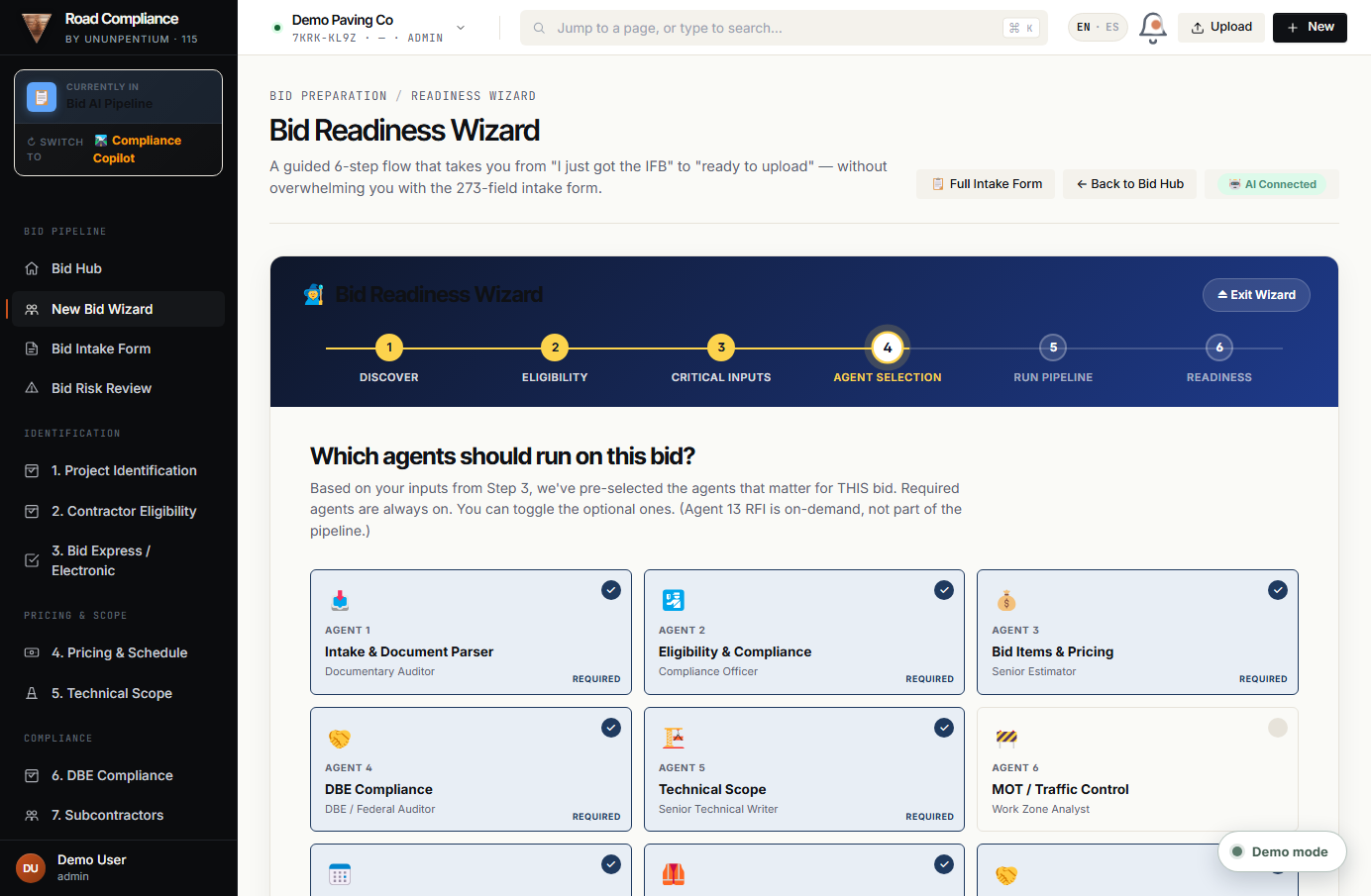
The app pre-checks the agents that matter for THIS bid; you can toggle the optional ones.
What it is
Smart selection. Required agents are always on (you can't uncheck them); optional agents (MOT, Subcontractor, Proposal Writer) are pre-selected based on your Step 3 answers.
How to use it — step by step
- Review the grid — selected agents are highlighted with a ✓. Required ones are labeled "Required".
- Click any optional card to toggle it on/off.
- Check the estimate strip at the bottom: approximate cost, time, and how many agents are selected (e.g. "10/12").
- Click Continue →.
💡 Detail: Agent 13 (RFI) is not in this list — it's on-demand. The pipeline here is the 1–12 set.
⑤
Wizard · Step 5
3.5 · Run Pipeline — let the agents work
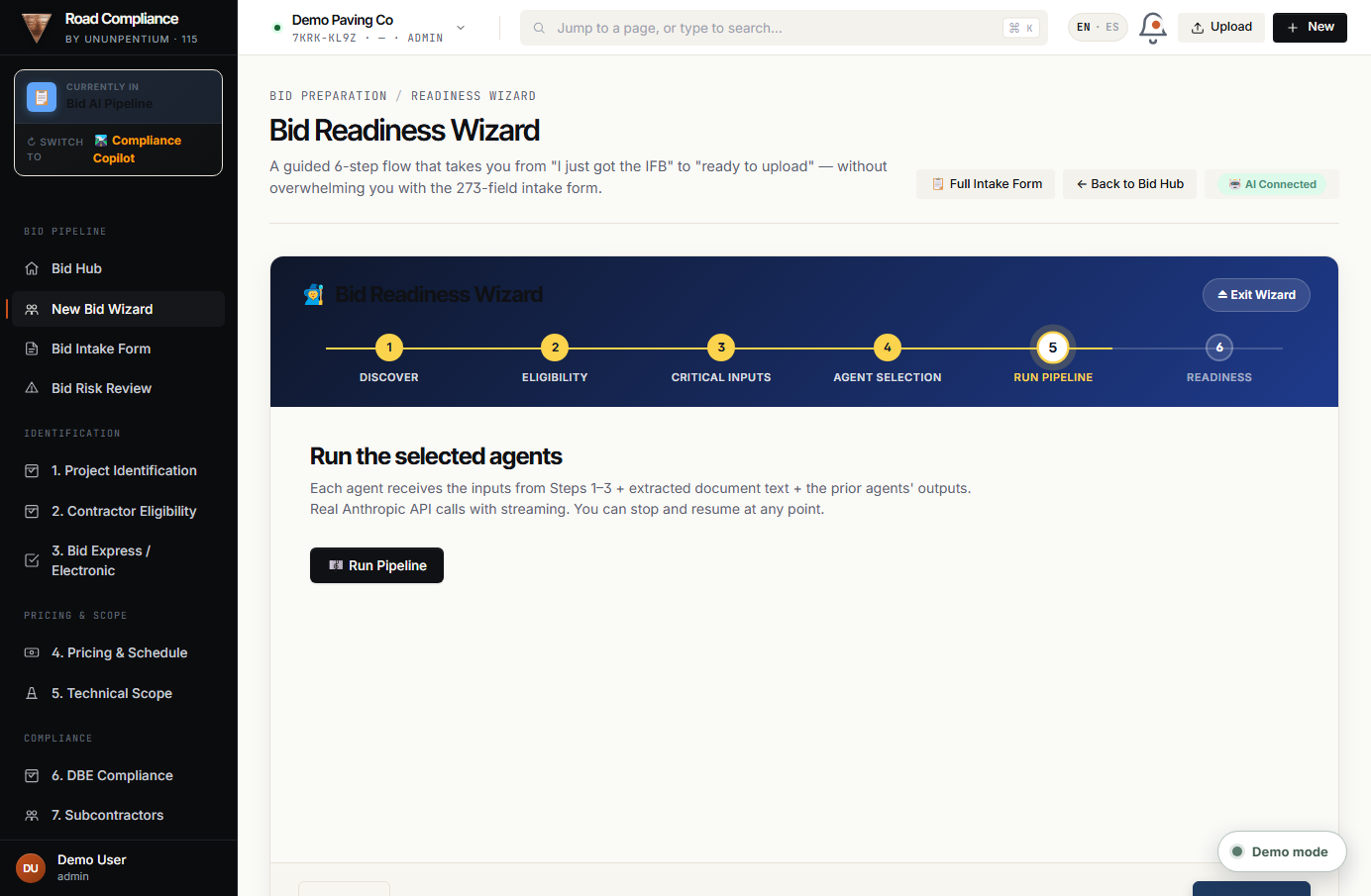
Press one button and watch each agent run in order.
What it is
The execution step. Each agent receives Steps 1–3 inputs + the extracted document text + the prior agents' outputs, and runs as a real streaming AI call.
How to use it — step by step
- Click 🎼 Run Pipeline.
- Watch the rows change PENDING → RUNNING → DONE (with elapsed seconds). A failed row shows a short error and can be re-run.
- Need to pause? Click ⏸ Stop after current — it finishes the running agent then stops.
- When the status reads "Pipeline complete", Continue → to the dashboard.
💡 Detail: You can re-run the whole pipeline after editing inputs — the button becomes "↻ Re-run Pipeline".
⑥
Wizard · Step 6
3.6 · Readiness Dashboard — your go/no-go
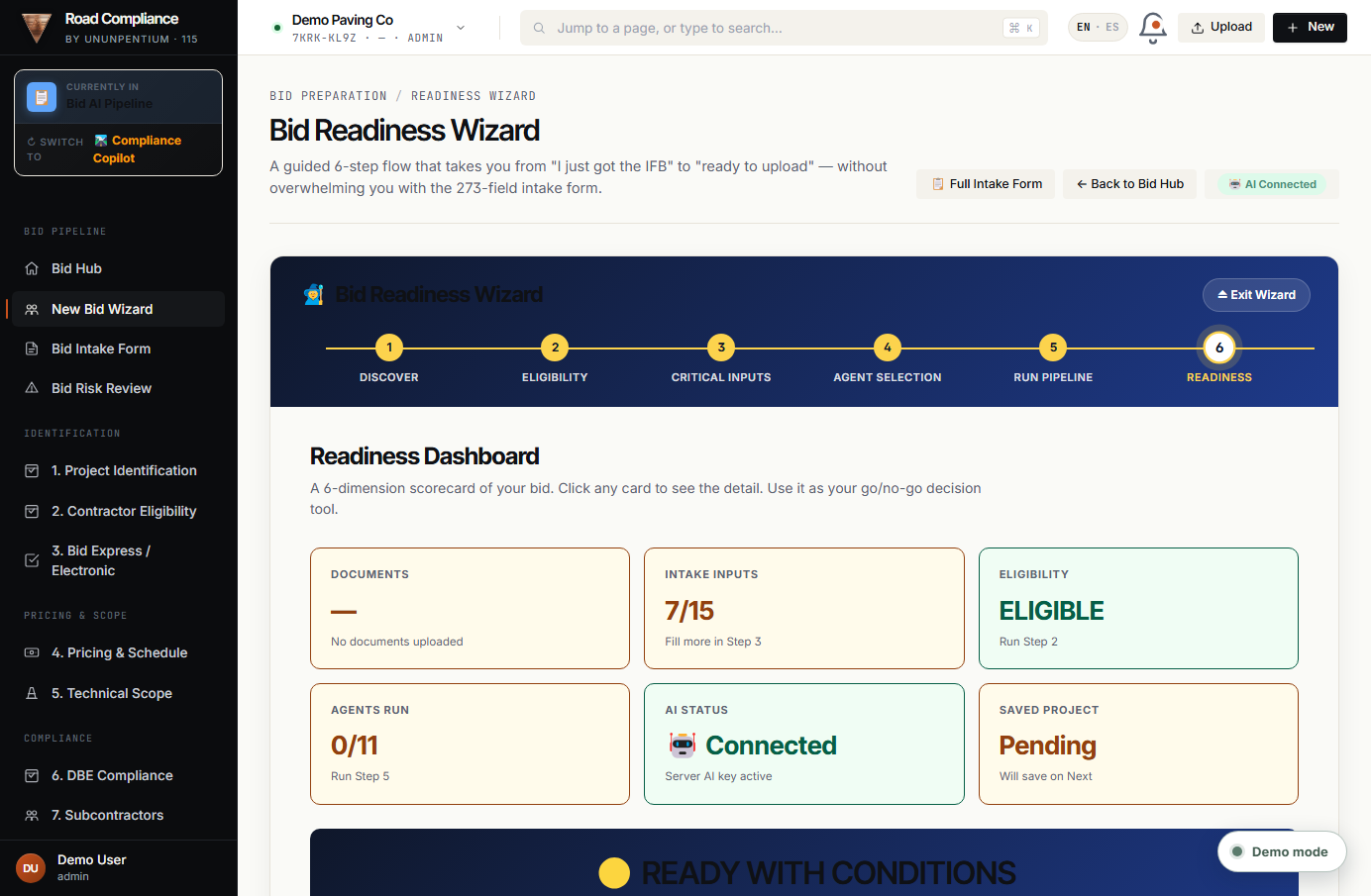
A 6-card scorecard plus one big verdict.
What it is
The decision view. Six cards (Documents, Intake Inputs, Eligibility, Agents Run, AI Status, Saved Project) each turn green / amber / red, and roll up into one banner.
How to use it — step by step
- Scan the 6 cards — green is good, amber needs attention, red is a blocker.
- Read the big verdict: 🟢 READY TO SUBMIT, 🟡 READY WITH CONDITIONS, or 🔴 NOT READY.
- Open the agent outputs below the cards (click any to expand the full text).
- Act: click 📄 Export Bid Package, 📋 Open Full Intake Form to refine, or ← Back to Bid Hub.
Walkthrough: the demo shows Intake Inputs 7/15, Eligibility ELIGIBLE, Agents Run 0/11, AI Connected — rolling up to 🟡 READY WITH CONDITIONS.
💡 Detail: "READY WITH CONDITIONS" means nothing is fatal but some items need attention before letting day — handle the amber cards.
Part 4 · Path B — the Bid Intake Form
The Intake Form is the full source of truth for a bid. It has a tab bar at the top with four tabs — 📋 Intake Form, 🤖 Agent Outputs, 📊 Run History, and 📤 Export PDF. Open it from the Hub → Create a New Bid Project (or click any project in "My Bid Projects").
📋
Bid Pipeline · The core
4.1 · Intake Form — the source of truth
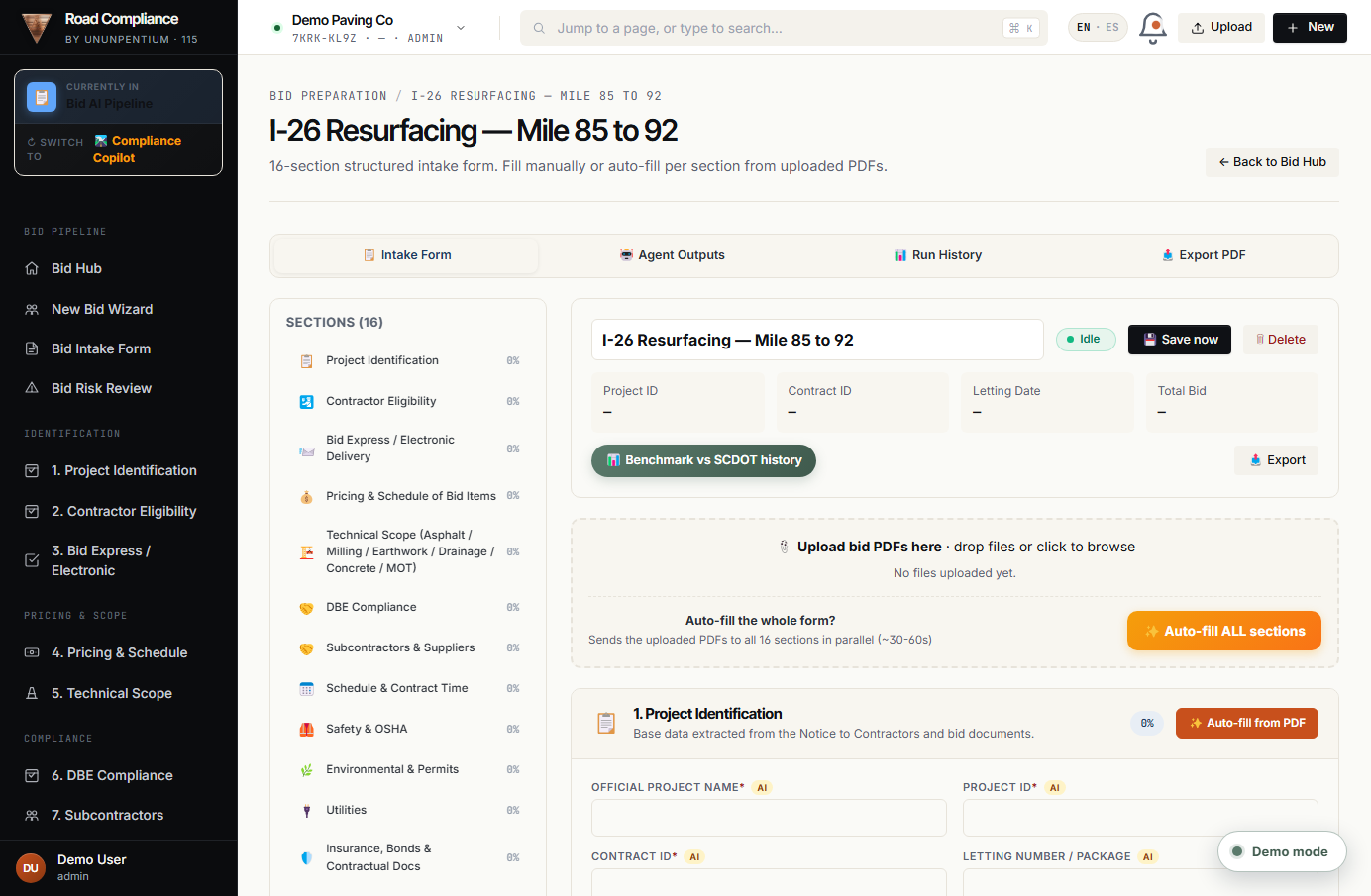
The full structured form. Left: the section navigator with completion %. Right: the project header, upload/auto-fill, and the section cards.
What it is
The single source of truth for the bid. You can fill it manually or auto-fill it from the uploaded PDFs, section by section or all at once.
What each part does
- 🧭Section navigator: jump to any section; shows completion.
- ⬆️Upload + ✨ Auto-fill ALL: read the PDFs into the form.
- 💾Save now / 🗑 Delete: persist or remove the project.
- 📊Benchmark vs SCDOT history: price comparison in one click.
- 📤Export: produce the HTML/PDF bid package.
- 🗂️Tab bar: Intake Form · Agent Outputs · Run History · Export PDF.
How to use it — step by step
- Name the project in the header field, then click 💾 Save now (watch the save chip turn to "Saved"). Sign in first or it won't persist.
- Upload documents — drop PDFs into 📎 Upload bid PDFs here.
- Auto-fill — click ✨ Auto-fill ALL sections (sends the PDFs to every section in parallel, ~30–60s), or use the per-section autofill button on each card.
- Navigate — use the left Sections list to jump; the Overall completion % and "fields filled" update as you go.
- Benchmark — click 📊 Benchmark vs SCDOT history to compare unit prices.
- Export — click 📤 Export (or the Export PDF tab) to produce the bid package.
Walkthrough: you drop the Notice PDF and click Auto-fill ALL sections; the parser pulls the contract ID, county, letting date, DBE goal, pay-item count and completion date into the right fields.
💡 Detail: Autofill from the Notice is deterministic — it reads the document, it doesn't guess — but you always review and can edit every field.
📊
Bid Pipeline · Audit trail
4.2 · Run History tab
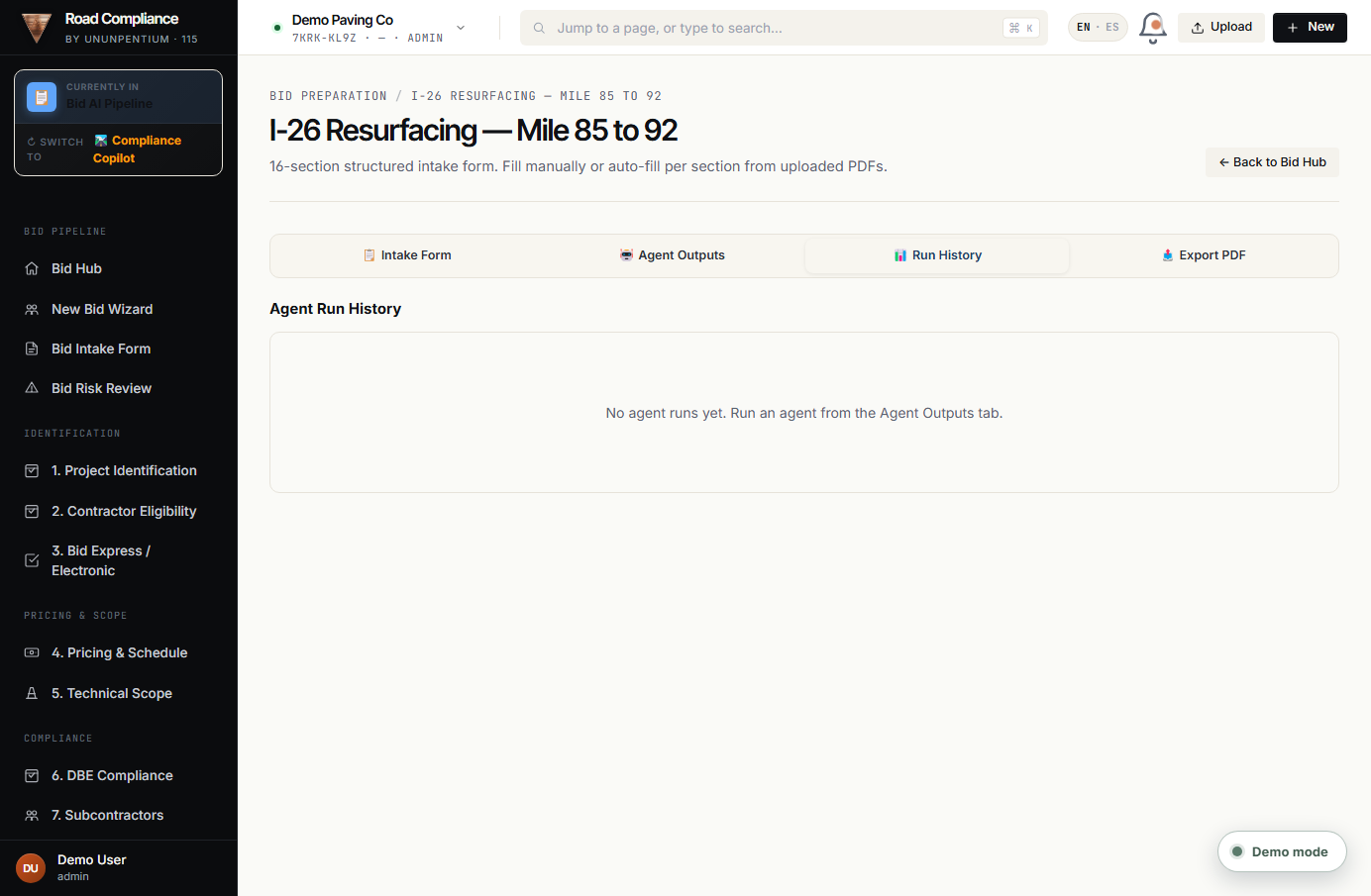
Every agent run is logged here with timestamp, agent, and status — your audit trail.
What it is
A traceability log. Whenever an agent runs (from the Wizard, the Orchestrator, or the Agent Outputs tab), the result is recorded so you can see what was analyzed, when, and by which agent.
How to use it — step by step
- Open the bid project and click the 📊 Run History tab.
- Review the table of past runs (newest first).
- Use it to prove what the AI saw and said at decision time — useful for the bid review meeting.
📤
Bid Pipeline · Output
4.3 · Export PDF
What it is
One click turns the whole bid project into a shareable document.
How to use it — step by step
- Click the 📤 Export PDF tab (or the Export button in the header).
- Allow pop-ups for rbcopilot.com if the browser blocks the new tab.
- Save / print the generated bid package (all sections + agent findings).
💡 Detail: From the Wizard's Step 6 you can also click Export Bid Package for the same result.
Part 5 · The intake sections — every section, every field
Read this once: the form fills its sections from a live "schema". The screen header still says a legacy "16-section / 273-field" label, but the form actually renders 28 sections and 576 fields (the authoritative count). Section numbers run 1–15 then jump to 17–29 — number 16 was retired, so there are 28 sections, not 29. Below is every section with its purpose and the complete list of its fields: * = required, ✨ = can be auto-filled from the uploaded documents.
The intake form has 28 sections and 576 fields total. Below is every section with its purpose and the complete list of its fields. A field marked * is required; ✨ means it can be auto-filled from the uploaded documents.
📋
1. Project Identification
26 fields
Base data extracted from the Notice to Contractors and bid documents.
Official Project Name* ✨Project ID* ✨Contract ID* ✨Letting Number / Package ✨Owning Agency* (select)Procurement Type (select)County* ✨Route / Road / Mileposts ✨Location / Termini ✨ (textarea)Short Scope Description ✨ (textarea)Full Technical Description ✨ (textarea)Bid Opening / Letting Date* ✨ (date)Bid Due Time (EST)* ✨ (time)Submission Platform (select)Electronic Bid? (checkbox)Number of Addenda Issued ✨ (number)Addenda Summary ✨ (textarea)Plans Available Date ✨ (date)Plans Location (URL or platform)Special Provisions LocationPre-Bid Meeting Date/Time/Location ✨Site Visit Required? ✨Question Submission Deadline ✨ (date)Procurement Officer (Name) ✨Procurement Email ✨Procurement Phone ✨
🛂
2. Contractor Eligibility
18 fields
Prequalification, license, bonding capacity, CPS, conflicts.
SCDOT Prequalified? (checkbox)Prequal Work Classifications (textarea)CPS Minimum Required? ✨ (checkbox)Required CPS Score ✨ (number)Contractor's Current CPS (number)SC License NumberSC License Class / GroupSingle-Project Bonding Capacity ($) (currency)Aggregate Bonding Capacity ($) (currency)Can obtain bid bond? (checkbox)Can obtain performance bond? (checkbox)Can obtain payment bond? (checkbox)Debarred/Suspended? (checkbox)Conflicts of Interest (textarea)Inspected plans, specs, and site? (checkbox)Similar Experience Projects (textarea)Key Personnel (PM, Super, Safety, QC) (textarea)Major Equipment Available (textarea)
📨
3. Bid Express / Electronic Delivery
15 fields
Submission platform readiness — usually Bid Express for SCDOT.
Registered on Bid Express? (checkbox)Digital ID active? (checkbox)Proposal file downloaded? (checkbox)All letting files downloaded? (checkbox)DBE.BIN file for this letting? (checkbox)All unit prices loaded? (checkbox)Math validated (qty × price = ext)? (checkbox)Electronically signed? (checkbox)Bid bond attached (electronic)? (checkbox)All addenda acknowledged? (checkbox)DBE List complete on platform? (checkbox)Subcontractor list complete? (checkbox)Federal certifications complete? (checkbox)Test upload performed? (checkbox)Submission confirmation receipt
💰
4. Pricing & Schedule of Bid Items
23 fields
The heart of the offer — pay items, quantities, unit prices, totals.
Total Bid Amount ($)* ✨ (currency)Alternate Bid Total ($) (currency)Number of Bid Items ✨ (number)Mobilization Amount ($) ✨ (currency)Mobilization (% of total bid) (number)Traffic Control Amount ($) (currency)Erosion Control Amount ($) (currency)Total Asphalt Tons (number)Milling SY (number)Base Course (TON) (number)Unclassified Excavation (CY) (number)Drainage Pipe (LF) (number)Striping (LF) (number)Guardrail (LF) (number)Force Account items? (checkbox)Force Account Amount ($) (currency)Has Allowances? (checkbox)Allowances Amount ($) (currency)I/D provisions (textarea)Liquidated Damages ($/day) ✨ (currency)Engineer's Estimate ($) ✨ (currency)Pricing Risk Notes (textarea)Bid Items (Schedule of Bid Items) ✨ (table)
🏗️
5. Technical Scope (Asphalt / Milling / Earthwork / Drainage / Concrete / MOT)
21 fields
Discipline-by-discipline technical inputs.
Asphalt Mix Types (S9.5B, S19B, etc.)PG Binder GradeCompacted Thickness (inches) (number)JMF Lead Time (days) (number)Milling Depth (inches) (number)Milling Area (SY) (number)Clearing & Grubbing (AC) (number)Borrow Excavation (CY) (number)Embankment (CY) (number)Subgrade Stabilization required? (checkbox)Storm Pipe Types (RCP, HDPE, CMP)Drainage Structures (EA) (number)Has Culverts? (checkbox)Has Dewatering? (checkbox)Curb & Gutter (LF) (number)Sidewalk (SF) (number)ADA Ramps (EA) (number)Concrete Class / PSIBridge / Structure Work? (checkbox)Drilled Shafts (LF) (number)Proprietary Products / Sole Source (textarea)
🤝
6. DBE Compliance
18 fields
Disadvantaged Business Enterprise — goal, commitments, GFE.
Has DBE Goal? ✨ (checkbox)DBE Goal (%) ✨ (number)Required DBE Amount ($) [auto-calc] (currency)Committed DBE Amount ($) (currency)Achieved DBE (%) (number)Number of DBE Firms Committed (number)DBE.BIN attached for this letting? (checkbox)DBE List filled in Bid Express? (checkbox)All signed DBE quotes on file? (checkbox)Regular Dealer suppliers counted at 60%? (checkbox)DBE trucking — all DBE-owned trucks? (checkbox)GFE required? (goal not met) (checkbox)GFE 7-criteria documentation complete? (checkbox)DBE firms solicited (number)Outreach evidence (emails, calls) (textarea)Attended pre-bid meeting? (checkbox)Rejected quotes log (with reasons) (textarea)DBE Firms Committed (Bid Express DBE List) (table)
🤝
7. Subcontractors & Suppliers
18 fields
Procurement coordination — quotes, exclusions, coverage.
Self-Perform (% of contract) (number)Number of Subcontractors (number)Subcontractor List (firm, scope, $) (textarea)Supplier List (asphalt, concrete, aggregate, etc.) (textarea)Asphalt Plant (name, plant ID, mix types)Concrete SupplierAggregate SupplierTrucking ProviderGuardrail SubStriping SubMOT / Traffic Control SubErosion Control SubSpecialty Subs (drilled shafts, signals, etc.) (textarea)All quotes received? (checkbox)Dangerous Exclusions (haul, TC, layout, etc.) (textarea)Fuel escalation protection? (checkbox)AC Index protection? (checkbox)Quote expirations tracked? (checkbox)
📅
8. Schedule & Contract Time
14 fields
NTP, milestones, calendar/working days, seasonal restrictions.
Expected NTP Date (date)Contract Time (days)* ✨ (number)Time Unit ✨ (select)Final Completion (date or NTP+N) ✨Intermediate Milestones (with dates/LDs) (textarea)Seasonal Restrictions (paving, seeding) (textarea)Permitted Lane Closure WindowsSchool / Event RestrictionsUtility Coordination Milestones (textarea)Environmental Windows (NLEB, in-stream) (textarea)CPM Schedule Required? (checkbox)CPM Software (select)Update Frequency (select)Construction Sequence Narrative (textarea)
🦺
9. Safety & OSHA
14 fields
OSHA 1926 compliance, plans, certified personnel, hazards.
Safety Plan required? (checkbox)Safety Officer (Name, certification)Night Work? (checkbox)Trenching/Excavation > 5 ft? (checkbox)Confined Space work? (checkbox)Crane / Rigging? (checkbox)Silica / Dust Control plan? (checkbox)Fall Protection (> 6 ft)? (checkbox)Traffic Exposure work? (checkbox)ATSSA-certified Flaggers? (checkbox)Emergency Response Plan? (checkbox)PPE Requirements (textarea)Toolbox Meeting Frequency (select)Hazardous Materials work? (checkbox)
🌿
10. Environmental & Permits
15 fields
NPDES, SWPPP, BMPs, wetlands, species, USACE permits.
NPDES required (≥1 AC disturbed)? (checkbox)SWPPP required? (checkbox)Erosion Control Plan? (checkbox)Wetlands work? (checkbox)Stream Crossings? (checkbox)USACE Permit needed? (checkbox)USACE Permit Type (select)Endangered species restrictions? (checkbox)NLEB tree-clearing window (Apr 1 – Oct 14)? (checkbox)Noise restrictions? (checkbox)Dust Control MethodApproved Disposal SitesSPCC Plan required (>1,320 gal aggregate fuel)? (checkbox)Concrete Washout containment? (checkbox)Environmental Responsible (Name, role)
🔌
11. Utilities
10 fields
Existing utilities, conflicts, SC811, coordination.
Utilities present in ROW? (checkbox)Utility Types (textarea)Pre-construction Relocations? (checkbox)Concurrent Relocations during work? (checkbox)Utility Agreements on file? (checkbox)SUE Data available? (checkbox)SUE Quality Level (select)Known Conflicts (textarea)SC811 calls required? (checkbox)Temporary Services? (checkbox)
🛡️
12. Insurance, Bonds & Contractual Docs
15 fields
Proposal guaranty, P&P bonds, liability insurance, certifications.
Bid Bond % ✨ (number)Surety CompanySurety listed on Treasury Circular 570? (checkbox)Performance Bond % ✨ (number)Payment Bond % ✨ (number)Liability Insurance required? (checkbox)General Liability per occurrence ($) (currency)General Liability aggregate ($) (currency)Auto Liability ($) (currency)Workers Comp active (SC)? (checkbox)Umbrella / Excess ($) (currency)Railroad Protective Liability needed? (checkbox)Builder's Risk needed? (checkbox)SCDOT listed as Additional Insured? (checkbox)Certificates attached? (checkbox)
🇺🇸
13. Federal & Legal Certifications
15 fields
Federal-aid clauses + SC state certifications.
Federal-aid project? ✨ (checkbox)Not debarred / suspended (certified)? (checkbox)Buy America / BABA? (checkbox)Davis-Bacon wages acknowledged? (checkbox)EEO compliant? (checkbox)Title VI / non-discrimination? (checkbox)49 CFR Part 26 DBE compliant? (checkbox)Lobbying certification? (checkbox)Anti-collusion affidavit? (checkbox)Conflict-of-interest certified? (checkbox)Iran Divestment Act (SC §11-57)? (checkbox)E-Verify (SC §41-8)? (checkbox)Drug-Free Workplace? (checkbox)FHWA Form 1273 acknowledged? (checkbox)Audit rights accepted? (checkbox)
🔬
14. Quality Control / QA
17 fields
QCMP, lab certifications, testing frequencies, mix designs.
QC Plan required? (checkbox)QC Manager (Name, NICET level)Certified LabsRequired Submittals (textarea)Material Certifications Required (textarea)Asphalt Tests (density, gradation, binder, etc.)Concrete Tests (slump, air, cylinders)Soil/Aggregate TestsTesting Frequency (per QCMP)Who pays testing? (select)Hold Points (textarea)Inspection Points (textarea)Material Source Approval needed? (checkbox)Asphalt Mix Design Approval needed? (checkbox)Concrete Mix Design Approval needed? (checkbox)Shop Drawings required? (checkbox)As-Built drawings required? (checkbox)
📐
15. Method Statement & Execution Plan
13 fields
Narrative inputs that power Agent 11 (Proposal Writer).
General Construction Methodology (textarea)Mobilization Plan (textarea)Staging Area LocationTraffic Protection Approach (MOT/TCP) (textarea)Public / Residents Access Plan (textarea)Erosion / BMP Plan (textarea)Milling SequencePaving SequenceQC Approach for Asphalt MixUtility Coordination Plan (textarea)Contingency Plan (textarea)Daily Reports / DocumentationCloseout Plan (punch list, as-builts)
🚧
17. MOT / Traffic Control Plan
26 fields
Maintenance of Traffic — lane closures, barriers, attenuators, signage, MUTCD compliance.
Traffic Control (Lump Sum) ✨ (checkbox)Temporary Concrete Barrier (LF) ✨ (number)Temp Concrete Barrier with Anchorage (LF) ✨ (number)Barricade Type 3 (LF) ✨ (number)Portable Terminal Impact Attenuator TL-2 (EA) ✨ (number)Portable Terminal Impact Attenuator TL-3 60mph (EA) ✨ (number)Anchor Kit for Portable Attenuator (EA) ✨ (number)Construction Zone Changeable Message Sign (Trailer) (EA) ✨ (number)Type B Flashing Light (EA) ✨ (number)Law Enforcement Officer (HR) ✨ (number)Temporary Construction Signs Barricade Mounted (SF) ✨ (number)Detour Signs (SF) ✨ (number)Temporary Pavement Markings Total (LF) (number)Removal of Pavement Markings (LF) ✨ (number)Lane Closures Planned (textarea)Night Work Required? (checkbox)Weekend Work Required? (checkbox)Traffic Handling Strategy (textarea)Incident Management Plan (textarea)Flagger Certifications Available? (checkbox)MUTCD Part 6 Compliance Confirmed? (checkbox)Speed Limit Reduction in Work Zone? (checkbox)Reduced Speed Limit (mph) (number)Emergency Vehicle Access Plan (textarea)School Bus Routes Affected? (checkbox)Business / Driveway Access Plan (textarea)
🗓️
18. Pre-Bid Conference & Site Visit
16 fields
Mandatory pre-bid attendance, site walkthrough, question deadlines.
Pre-Bid Conference Mandatory? ✨ (checkbox)Pre-Bid Date / Time ✨Pre-Bid Location ✨Attended Pre-Bid? (checkbox)Attendee Name(s)Pre-Bid Minutes Received? (checkbox)Site Visit Recommended? (checkbox)Site Visit Completed? (checkbox)Site Visit Date (date)Personnel Who Visited (textarea)Site Conditions Noted (textarea)Site Photographs Taken? (checkbox)Question Submission Period Open? (checkbox)Questions Submitted by Us (textarea)Answers Received (Addenda) (textarea)Site-Specific Risks Identified (textarea)
🌉
19. Bridge & Foundation Work
34 fields
Drilled shafts, pile driving, prestressed beams, decks, bearings (only when applicable).
Project Has Bridge Work? ✨ (checkbox)Number of Bridges (number)Removal of Existing Bridge? ✨ (checkbox)Bridge Construction Access Required? ✨ (checkbox)Drilled Shafts? ✨ (checkbox)Drilled Shaft Diameters & Quantities (textarea)Drilled Shaft Setup (EA) ✨ (number)Construction Casing Required? (checkbox)Crosshole Sonic Logging (EA) ✨ (number)Bi-Directional Static Load Testing? ✨ (checkbox)Steel H-Pile Driving? ✨ (checkbox)Steel Pile Types & Lengths (textarea)Pile Driving Setup (EA) ✨ (number)Pile Dynamic Analyzer Test Setup (EA) ✨ (number)Reinforced Pile Tips (EA) (number)Prestressed Concrete Beams? ✨ (checkbox)Prestressed Beam Types & Lengths (textarea)Prestressed Concrete Piling 20" Square (LF) (number)Concrete for Structures Class 4000 (CY) ✨ (number)Reinforcing Steel for Structures (LB) ✨ (number)Hoop Reinforcing Steel (LB) (number)Concrete Bridge Railing Wall (LF) (number)Concrete Bridge Barrier Parapet (LF) (number)42" MASH Concrete Barrier Parapet (LF) (number)Elastomeric Bearings (EA) (number)Compression Seal Joint (LF) (number)Deck Joint Strip Seal (LF) (number)Concrete Overlay Epoxy (SY) (number)Partial Depth Patching of Existing Deck (SY) (number)Grooved Surface Finish (SY) (number)Clean & Seal Transverse Joints (LF) (number)Structural Steel (LB) (number)Foundation Specialty Sub Identified? (checkbox)Foundation Sub Name
🏗️
20. Materials & Equipment Plan
26 fields
Sourcing for asphalt, concrete, aggregates, precast, and major equipment availability.
Distance to Nearest Asphalt Plant (mi) (number)Asphalt Plant (Own or Supplier?) (select)Asphalt Supplier NameHMA Quote Received? (checkbox)Liquid Asphalt Binder PG64-22 SupplierAggregate Supplier (GAB, Maintenance Stone, Rip-Rap)Aggregate Haul Distance (mi) (number)Portland Cement Supplier (for CMRB)Ready-Mix Concrete Supplier (Class 4000)Concrete Haul Time (min) (number)Precast Yard (Prestressed Beams)Precast Quote Received? (checkbox)Reinforcing Steel SupplierRebar Fabrication Lead Time (weeks) (number)Steel Pile SupplierPile Driving Equipment Owned? (checkbox)Drilling Rig Available? (checkbox)Paver Equipment Available (textarea)Milling Machine Available? (checkbox)Compactor Fleet (asphalt, soil) (textarea)Crane Required (Bridge / Drilled Shaft)? (checkbox)Crane (Own or Rent?) (select)Dump Trucks Available (count) (number)Water Trucks Available (count) (number)Asphalt Escalation Clause in Contract? (checkbox)Fuel Escalation Clause in Contract? (checkbox)
👷
21. Workforce & Training
17 fields
Key personnel, on-the-job trainees (FAP requirement), prevailing wage compliance.
Project Manager NamePM Years of Experience (number)Superintendent NameSuper Years of Experience (number)Safety Officer NameSafety Officer CertificationsQC Manager NameForeman Count (number)Equipment Operators (count) (number)General Laborers (count) (number)On-the-Job Trainee Required (FAP)? ✨ (checkbox)OJT Hours - Roadway (HR) ✨ (number)OJT Hours - Bridge (HR) ✨ (number)Davis-Bacon Wage Rate Compliance Plan? (checkbox)EEO Plan Filed? (checkbox)Apprenticeship Program Active? (checkbox)Crew Availability Confirmed? (checkbox)
💥
22. Removal & Demolition
22 fields
Removal of existing pavement, curbs, structures, bridges, guardrail, markings.
Removal & Disposal of Existing Pavement (SY) ✨ (number)Removal & Disposal of Existing Curb (LF) ✨ (number)Removal & Disposal of Existing Asphalt Pavement (SY) ✨ (number)Removal & Disposal of Existing Concrete (CY) ✨ (number)Removal of Existing Bridge? ✨ (checkbox)Removal of Designated Portions of Existing Bridge? (checkbox)Removal of Existing Catch Basin (EA) ✨ (number)Removal of Existing Drop Inlet (EA) ✨ (number)Removal of Existing Manhole (EA) ✨ (number)Removal of Existing Junction Box (EA) ✨ (number)Removal of Existing Guardrail (LF) ✨ (number)Removal of Pavement Markings (LF) (number)Remove & Dispose Semi-Rigid GR Device (LF) ✨ (number)Misc Removal & Disposal Items (count) ✨ (number)Clearing & Grubbing (Acres) ✨ (number)Selected Removal of Marked Trees? ✨ (checkbox)Removal of Structures & Obstructions? (checkbox)Moving Items Count (Utility Pole / Fence / etc.) ✨ (number)Salvage Value Estimated ($) (currency)Disposal Site Distance (mi) (number)Hazardous Material Suspected? (checkbox)Asbestos / Lead Testing Required? (checkbox)
🎨
23. Pavement Markings Detail
28 fields
Temporary, fast-dry, thermoplastic, epoxy, preformed — by line width & color.
Temp Paint 4" White Broken Lines (LF) ✨ (number)Temp Paint 4" Yellow Broken Lines (LF) ✨ (number)Temp Paint 4" White Solid Lines (LF) ✨ (number)Temp Paint 4" Yellow Solid Lines (LF) ✨ (number)Temp Paint 8" White Solid Lines (LF) ✨ (number)Temp Paint 24" White Solid Lines (LF) ✨ (number)Fast-Dry 4" White Solid Lines - Edge Lines (LF) ✨ (number)Fast-Dry 4" Yellow Solid Lines (LF) ✨ (number)Fast-Dry 4" White Broken Lines (LF) ✨ (number)Fast-Dry 4" Yellow Broken Lines (LF) ✨ (number)Thermoplastic 4" White Solid 90 mil (LF) ✨ (number)Thermoplastic 4" Yellow Solid 90 mil (LF) ✨ (number)Thermoplastic 4" White Broken 90 mil (LF) ✨ (number)Thermoplastic 6" White Solid 90 mil (LF) ✨ (number)Thermoplastic 6" Yellow Solid 90 mil (LF) ✨ (number)Thermoplastic 8" White Solid 125 mil (LF) ✨ (number)Thermoplastic 24" White Solid Stop/Diag 125 mil (LF) ✨ (number)Epoxy 6" White Solid - Edge Lines (LF) ✨ (number)Epoxy 6" Yellow Solid (LF) ✨ (number)Epoxy 8" White Crosswalk & Channelization (LF) ✨ (number)Epoxy 12" White Gore Markings (LF) ✨ (number)Permanent Clear Pavement Markers Mono-Dir 4"x4" (EA) ✨ (number)Permanent Yellow Pavement Markers Bi-Dir 4"x4" (EA) ✨ (number)White Single Arrows Thermo 125 mil (EA) ✨ (number)White Word Message 'ONLY' Thermo 125 mil (EA) ✨ (number)Preformed Retroreflective Pvmt Marking T-1 60mil (LF) ✨ (number)Pavement Marking Retroreflectivity Evaluation Required? ✨ (checkbox)Pavement Marking Sub Name
🚰
24. Drainage & Pipe
29 fields
Storm sewer pipes, catch basins, drop inlets, manholes, junction boxes, underdrains.
15" Smooth Wall Pipe (LF) ✨ (number)18" Smooth Wall Pipe (LF) ✨ (number)24" Smooth Wall Pipe (LF) ✨ (number)30" Smooth Wall Pipe (LF) ✨ (number)36" Smooth Wall Pipe (LF) ✨ (number)RC Pipe Culvert Class III/IV (LF) ✨ (number)Horizontal Elliptical RC Pipe HE-III (LF) ✨ (number)Re-Laid Pipe Culvert (LF) (number)Catch Basin Type 1 (EA) ✨ (number)Catch Basin Type 9 (EA) ✨ (number)Catch Basin Type 16 (EA) ✨ (number)Catch Basin Type 17 (EA) ✨ (number)Catch Basin Type 18 (EA) ✨ (number)Drop Inlet 24"x24" (EA) ✨ (number)Drop Inlet 24"x36" (EA) ✨ (number)Manhole (EA) ✨ (number)Junction Box 36"x36" (EA) ✨ (number)Junction Box 48"x48" (EA) ✨ (number)Precast Concrete Riser (LF) (number)Precast Concrete Drainage Base (EA) (number)Aggregate Underdrain (Agg #789) with 4" Perf Pipe (TON) ✨ (number)4" Perforated Pipe Underdrain (LF) (number)Geocomposite Wall Drain (SF) (number)Cleaning Existing Pipe (LF) ✨ (number)Beveling of Pipe End (EA) ✨ (number)10" Pipe Slope Drain (LF) (number)Flowable Fill (CY) ✨ (number)Pipe Additional Foundation Work (LF) (number)Straight Headwall for Circular Pipe (EA) (number)
🪧
25. Signage & Delineators
15 fields
Permanent construction signs, mast arm mounted, ground mounted, delineators.
Permanent Construction Signs Ground Mounted (SF) ✨ (number)Perm Construction Signs Barricade Mounted (SF) (number)Flat Sheet Type III Fixed Size & Msg Sign (SF) ✨ (number)Flat Sheet Type VIII / IX / XI Fluor (SF) ✨ (number)Flat Sheet Type XI Overhead (SF) ✨ (number)Overhead Sign Structure (EA) (number)U-Section Post for Sign Supports 3P (LF) ✨ (number)U-Section Post for Sign Supports 2P (LF) (number)Mounting Assembly for F.S. Sign Erected on Span Wire (EA) (number)F&I Mounting Assembly for F.S. Sign Erected on Mast Arm (EA) (number)Internally Illuminated Street Name Sign (EA) (number)Reflective Sign Post Panels (LF) (number)Guardrail Delineator White (EA) (number)Flexible Delineator Post 4"x12" Type 4 Reflector (EA) (number)2x2 Aluminum Panel Type XI Fluor Yellow (EA) (number)
🚦
26. Traffic Signals & Electrical
36 fields
Signal heads, cabinets, poles, conduit, wire, detection, pedestrian crossings.
Signalized Intersections in Project (count) ✨ (number)1.0" Schedule 80 PVC Conduit (LF) ✨ (number)2.0" Schedule 80 PVC Conduit (LF) ✨ (number)3.0" Schedule 80 PVC Conduit (LF) ✨ (number)2" HDPE Directional Bored (LF) ✨ (number)3" HDPE Directional Bored (LF) ✨ (number)1.0" Galvanized Rigid Conduit (LF) (number)No.14 Copper Wire 4 Conductor Black (LF) ✨ (number)No.14 Copper Wire 4 Conductor Gray (LF) ✨ (number)No.14 Copper Wire 8 Conductor Black (LF) ✨ (number)No.14 Copper Wire 8 Conductor Gray (LF) ✨ (number)No.14 Copper Wire 12 Conductor Black (LF) ✨ (number)No.14 Copper Wire 1-Conductor for Loop (LF) ✨ (number)Sawcut for Loop Detector (LF) ✨ (number)Electrical Service for Traffic Signal (EA) ✨ (number)13"x24"x18"D Flush Underground Enclosure (EA) ✨ (number)17"x30"x24"D Flush Underground Enclosure (EA) ✨ (number)Steel Strain Pole 13"x28' (EA) (number)Steel Strain Pole 13"x30' (EA) (number)Steel Strain Pole 13"x32' (EA) (number)Design, F&I Steel Pole with Mast Arm + Foundation (EA) (number)10' Break-Away Aluminum Pedestal Pole and Base (EA) ✨ (number)12" 3-Section Signal Head (EA) ✨ (number)12" 4-Section Signal Head (EA) ✨ (number)12" 5-Section Signal Head (EA) ✨ (number)1-Way 1-Section Hand/Man Emblem Pedestrian Signal (EA) ✨ (number)Pedestrian Push Button Solid State w/ Tone (EA) ✨ (number)Audible Pedestrian Push Button Station APS (EA) (number)F&I Video Detection Camera (EA) (number)Radar for Stop Bar Detection (EA) (number)Radar for Setback Detection (EA) (number)Controller 332/336 Cabinet Assembly Base Mounted (EA) ✨ (number)Backplate w/ Retroreflective Borders (EA) ✨ (number)Single Luminaire including Arms (EA) (number)Loop Detector Amplifier 2-Channel (EA) (number)Electrical / Signal Sub Name
🌧️
27. Erosion Control / SWPPP
34 fields
Silt fence, sediment tubes, inlet filters, hydraulic erosion control, riprap.
SWPPP Required? ✨ (checkbox)NPDES Construction Permit Required? (checkbox)Disturbed Area (Acres) (number)Silt Fence (LF) ✨ (number)Replace/Repair Silt Fence (LF) ✨ (number)Removal of Silt Retained by Silt Fence (LF) ✨ (number)Sediment Tubes for Ditch Checks (LF) ✨ (number)Cleaning Silt Basins (CY) (number)Inlet Filter Type E (CB Type 1) (EA) (number)Inlet Filter Type E (CB Type 16) (EA) (number)Inlet Filter Type E (CB Type 17) (EA) (number)Inlet Filter Type E (CB Type 18) (EA) (number)Inlet Filter Type D2 (EA) (number)Inlet Filter Type F Weighted (LF) (number)Cleaning Inlet Structure Filters (EA) ✨ (number)Turf Reinforcement Matting Type 1/2/3 (MSY) ✨ (number)Temporary Erosion Control Blanket ECB (MSY) ✨ (number)Hydraulic Erosion Control Product Type 1 (Acre) ✨ (number)HECP Type 3 (Acre) ✨ (number)HECP Type 4 (Acre) (number)Rip-Rap Class A (TON) ✨ (number)Rip-Rap Class B (TON) ✨ (number)Rip-Rap Class C (TON) ✨ (number)Geotextile for Erosion Control Under Riprap (SY) ✨ (number)Stabilized Construction Entrance (SY) ✨ (number)Waterproofing Second Method (SY) (number)Aggregate No.5 or 57 for Erosion Control (TON) (number)Permanent Sediment Control Structure (EA) (number)Concrete Washout (EA) (number)Permanent Grassing (Acres) ✨ (number)Temporary Grassing (Acres) (number)Mowing (Acres) (number)Fertilizer Nitrogen (LB) (number)Erosion Control / SWPPP Sub Name
🌳
28. Landscaping & Aesthetics
20 fields
Trees, mulch, sod, ornamental fencing, gateway walls, site lighting (for Enhancement projects).
Project Has Landscaping Work? ✨ (checkbox)Landscaping Items Count ✨ (number)Trees to Plant (count) (number)Shrubs to Plant (count) (number)Groundcover Plants (count) (number)Double-Shredded Hardwood Mulch (SF) ✨ (number)Root Barrier (LF) (number)Sodding (MSY) ✨ (number)Seeding Bermuda Unmulched (MSY) (number)Compost (CY) (number)Selective Watering (GAL) (number)Ornamental Steel Picket Fence 42"/48" (LF) ✨ (number)Gateway Wall (EA) (number)Site Electrical and Lighting - Complete? (checkbox)Bench Steel Outside (EA) (number)Permanent Concrete Bollard (EA) (number)Wood Fencing (LF) (number)Signage Installation for Architectural Sign? (checkbox)Landscape Sub NamePlant Warranty Period (months) (number)
🚨
29. Risks & Red Flags
21 fields
Auto-validated by Agent 10 — these are manual overrides / notes.
Missing mandatory bid items? (checkbox)Unit prices outside historical range? (checkbox)Math errors detected? (checkbox)Addenda unacknowledged? (checkbox)Bid bond problem? (checkbox)Not prequalified for scope? (checkbox)CPS minimum unmet? (checkbox)DBE goal unmet? (checkbox)DBE work code mismatch? (checkbox)Supplier credit overstated (60% vs 100%)? (checkbox)Signed quotes missing? (checkbox)Scope gaps between bid items and quotes? (checkbox)Dangerous quote exclusions? (checkbox)LDs high vs schedule? (checkbox)AC/fuel escalation risk uncovered? (checkbox)Utility risk not costed? (checkbox)Permits not considered? (checkbox)Railroad / Bridge / Water work special considerations? (checkbox)Insurance requirements > current policy? (checkbox)Post-bid documents with tight deadlines? (checkbox)Additional Risk Notes (textarea)
💡 Detail: the last section, “Risks & Red Flags” (29), is what feeds the Bid Risk Review and the final verdict — mandatory pre-bid, railroad coordination, drilled shafts, lump-sum dominance, missing escalation clause, high DBE goal, and so on.
Part 6 · Bid Risk Review — the go/no-go screen
🎯
Bid Pipeline · Decide
6 · Bid Risk Review
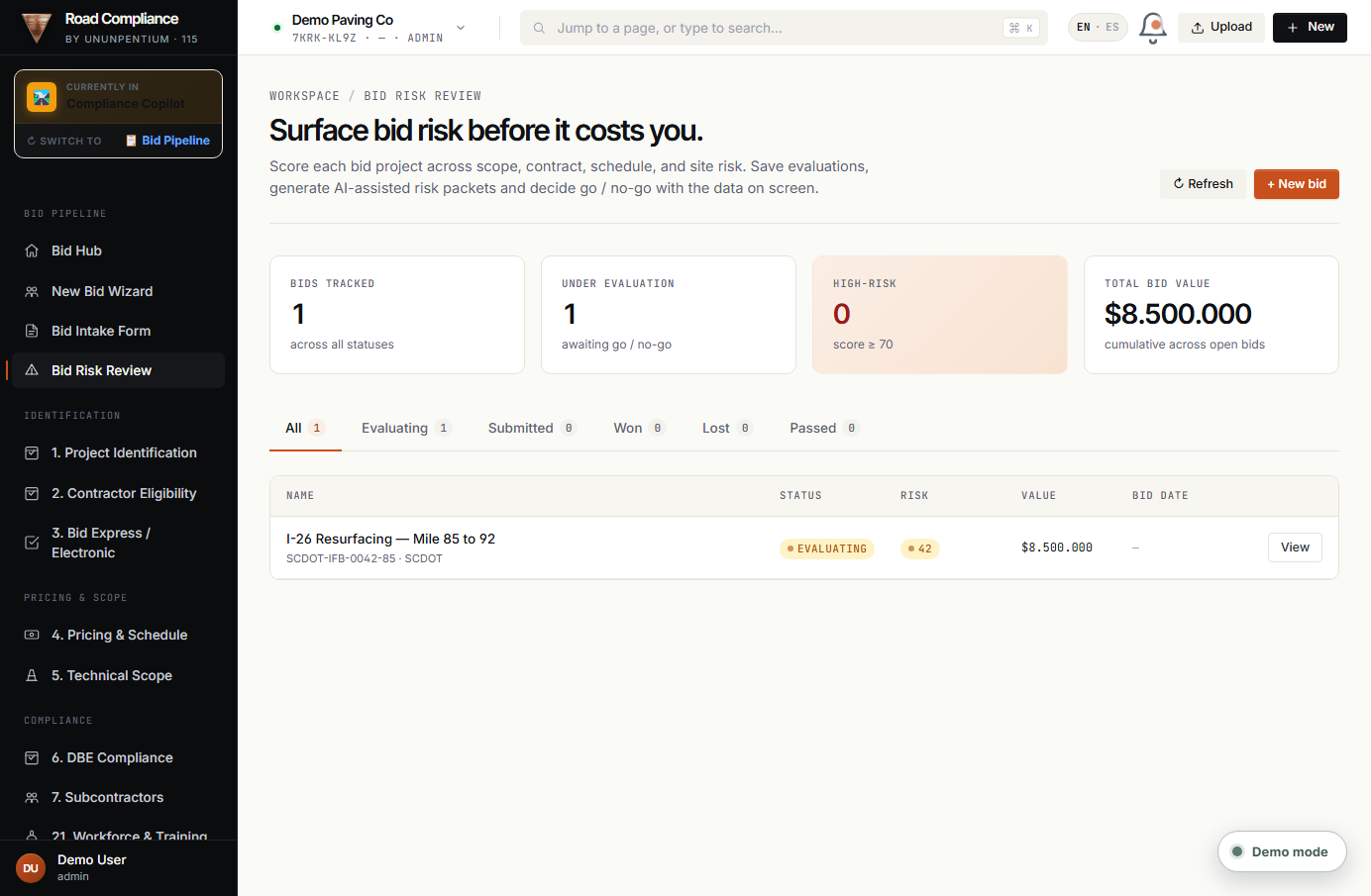
Score each bid across scope, contract, schedule and site risk, then decide go/no-go.
What it is
The decision dashboard for all your bids. Each bid gets a risk score; you filter by status, open a bid, generate an AI risk packet, and move it through its lifecycle.
How to use it — step by step
- Scan the KPIs — bids tracked, under evaluation, high-risk (score ≥ 70), total bid value.
- Filter with the status tabs: All · Evaluating · Submitted · Won · Lost · Passed.
- Open a bid by clicking View in the table (name, status, risk score, value, bid date).
- In the detail panel, use the buttons: Edit, ✨ Generate risk packet (AI), Mark submitted, Mark won, Mark lost, or Delete.
- Decide: a score under 70 isn't flagged high-risk — pursue with a normal margin; a high score means dig into the sub-scores first.
Walkthrough: the table shows "I-26 Resurfacing — Mile 85 to 92" as Evaluating, risk 42, value $8,500,000. Under 70, so not high-risk — pursue with a normal margin.
💡 Detail: The risk score combines four sub-scores (scope, contract, schedule, site). The companion Estimator Mode on the Compliance side turns this into a Go / Caution / No-Go verdict with a recommended margin and a one-click Bid Risk Report PDF.
Part 7 · Historical Bid Intelligence — price benchmarking
📊
Bid Pipeline · Benchmarking
7 · Historical Bid Intelligence
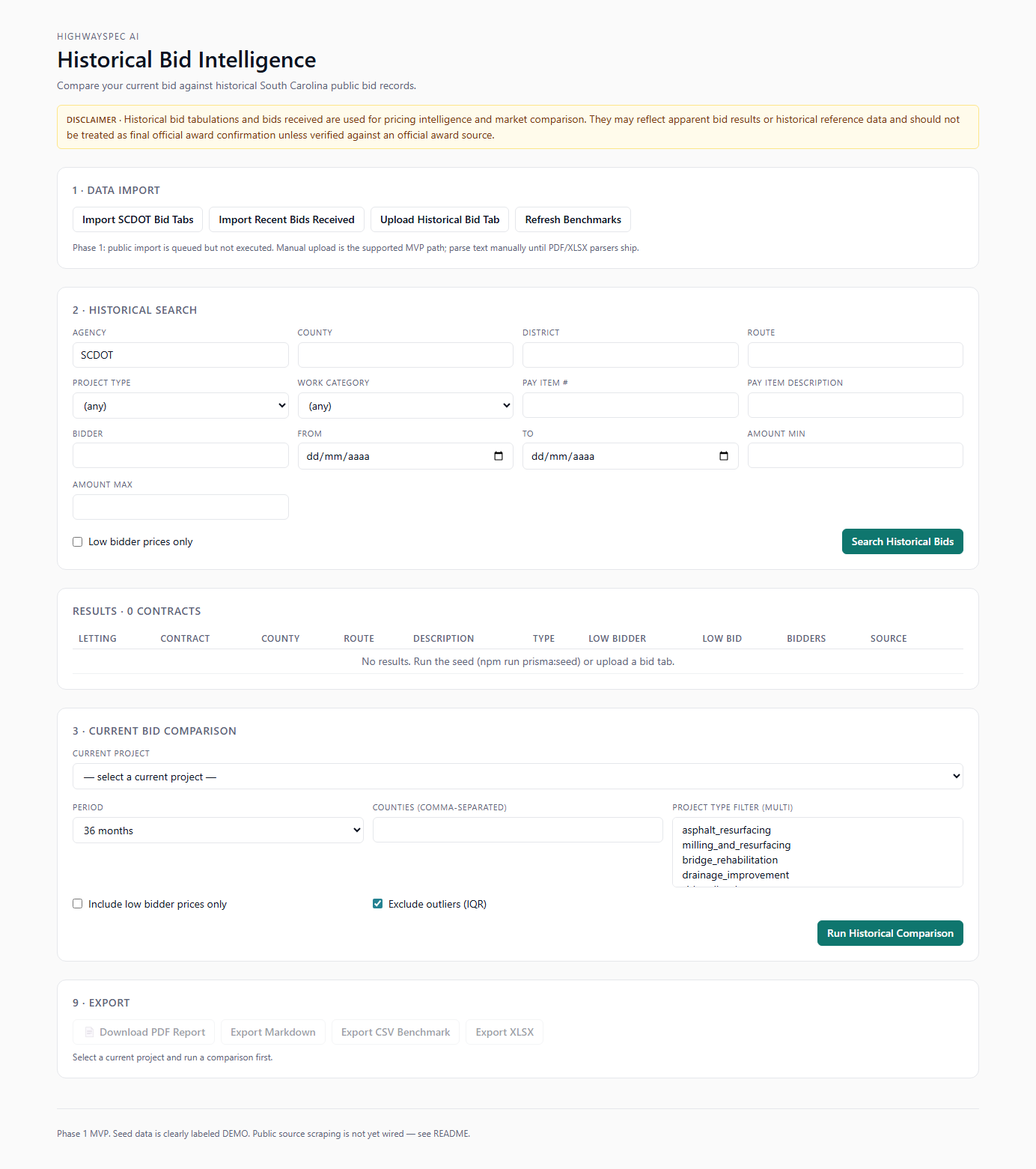
Compare your unit prices against historical SCDOT bid tabulations so you neither leave money on the table nor bid too low.
What it is
A separate module (opens in its own tab from the Hub banner, or via the Benchmark button on the Intake Form). It searches past SC public-agency bid tabs and shows the price band per pay item.
How to use it — step by step
- Open it — from the Hub click Historical Bid Intelligence → Open module (new tab), or click 📊 Benchmark vs SCDOT history on the Intake Form.
- 1 · Data Import — load source data with Import SCDOT Bid Tabs, Import Recent Bids Received, Upload Historical Bid Tab, or Refresh Benchmarks.
- 2 · Historical Search — filter by Agency, County, District, Route, Project Type, Work Category, Pay Item # / description, Bidder, date range and amount, then click Search Historical Bids.
- 3 · Current Bid Comparison — pick your current project, a look-back period (e.g. 36 months), counties and project-type filters, optionally Exclude outliers (IQR), then click Run Historical Comparison.
- Export — download the result as PDF, Markdown, CSV Benchmark, or XLSX.
Walkthrough: before locking the HMA surface unit price, you compare against the last 27 SCDOT contracts and confirm your $/ton sits inside the P10–P90 band.
💡 Detail: A yellow disclaimer reminds you these are historical/apparent results for pricing intelligence — verify against an official award source before treating any number as final.
Part 8 · From Bid to Compliance — the handoff
Capturing the bid in detail pays off the moment you win: the bid project, its pay items, DBE goal, schedule and risk flags carry over to the Compliance side, where the same data drives field operations, payments and claims. Nothing is retyped.
BID
📋 Intake
Capture the solicitation: pay items, scope, risk.
→
DECIDE
🎯 Risk + Estimator
Score the risk; Go / No-Go + recommended margin.
→
WIN
🏆 Award
Mark the bid Won.
→
EXECUTE
🎛️ Compliance
Pay items, DBE, schedule and risks feed the live job.
In one line: the Bid Pipeline decides whether and at what margin to bid; the Compliance side then runs the job and protects that margin. Same platform, same data. To switch sides, use the button at the top-left ("Currently in → Switch to").
Part 9 · A full worked example — bidding a real job, start to finish
Let's bid the sample project that ships with the demo — “I-26 Resurfacing — Mile 85 to 92” (SCDOT-IFB-0042-85, ~$8.5M) — from zero. Follow along on your own screen.
- Sign in & switch — log in with demo / demo, then top-left Switch to → Bid Pipeline.
- Confirm your agency — on the Bid Hub, check the State DOT selector shows SCDOT — Active and note the KPIs (active bids, history contracts).
- Start the Wizard — click Use the Readiness Wizard.
- Step 1 · Discover — drag the Notice/IFB PDF into the drop zone. Watch Agent 1 auto-fill the project name, ID, county and letting date. Fix anything it couldn't read.
- Step 2 · Eligibility — answer the 6 questions (prequal, license, bonding, federal-aid, SAM, certs) and click Run Eligibility Check (Agent 2). Read the colored verdict.
- Step 3 · Critical Inputs — enter total bid, DBE %, contract time, LDs, mobilization %, bridge / drilled-shaft yes-no, work categories.
- Step 4 · Agent Selection — the app pre-checks the agents that matter; leave the required ones on, toggle optional ones, check the cost/time estimate.
- Step 5 · Run Pipeline — click 🎼 Run Pipeline and watch each agent go PENDING → RUNNING → DONE. You can Stop after current any time.
- Step 6 · Readiness — read the 6-card scorecard and the big verdict: READY / READY WITH CONDITIONS / NOT READY. Click Open Full Intake Form to refine, or Export Bid Package.
- Refine in the Intake Form — open the 📋 Intake Form, upload all PDFs, press ✨ Auto-fill ALL sections, then review each of the 28 sections. Press 💾 Save now.
- Benchmark prices — click 📊 Benchmark vs SCDOT history (or open Historical Bid Intelligence) and confirm your unit prices sit inside the historical band.
- Decide — open Bid Risk Review, read the score and sub-scores, click ✨ Generate risk packet, and make the call. If you pursue, eventually Mark won when the award comes in — and the job moves to Compliance.
Part 10 · Best practices · Troubleshooting · Glossary
Best practices
- Upload the full document set (IFB, plans, proposal, estimate) before auto-filling.
- Always review auto-filled fields — the parser is strict, but you own the numbers.
- Fill the “Risks & Flags” section honestly — it drives the verdict.
- Benchmark prices in Historical Bid Intelligence before locking the bid.
- Use the Wizard for your first bids, the direct Intake Form once you know it.
- Run the full pipeline and keep the Risk Reviewer + Final Auditor outputs for the bid review.
Common problems & fixes
- “Sign in to save”: you're not logged in — your data won't persist. Log in first.
- Autofill left a field blank: the value wasn't in the document, or the PDF is a scan — type it manually.
- An agent says FAILED: press ↻ Re-run; if it persists the document text may be too short — upload more.
- “Loading intake schema…” stuck: wait a few seconds and refresh.
- No bid in the Risk list: create one with the Wizard or New bid project first.
- PDF / module won't open: allow pop-ups for
rbcopilot.com (Historical Intelligence opens in a new tab).
Glossary — every term a beginner will hit
| Term | In plain words |
|---|
| IFB / RFP | Invitation for Bids / Request for Proposals — the solicitation document |
| Notice to Contractors | SCDOT document announcing the project and its terms |
| Letting date | The day bids are opened |
| Prequalification | SCDOT approval to bid certain work classes / amounts |
| CPS | Contractor Performance Score — your SCDOT report card |
| Pay item | One priced line of the bid (e.g. HMA surface / ton) |
| Unit price / extension | Price per unit; extension = qty × unit price |
| Unbalanced bid | Pricing some items high and others low to game cash flow — a red flag |
| Bid bond | Guarantee you'll honor your bid if awarded |
| Performance / Payment bond | Guarantees you'll finish and pay subs/suppliers |
| DBE | Disadvantaged Business Enterprise — a participation goal you must hit |
| GFE | Good Faith Effort — proof you tried to meet the DBE goal if you fell short |
| Bid Express | The electronic platform SCDOT uses to receive bids |
| Buy America / BABA | Federal requirement to use domestic steel / iron |
| Davis-Bacon | Federal prevailing-wage rules on federal-aid jobs |
| Liquidated damages (LD) | Daily penalty for finishing late |
| Escalation clause | Adjusts prices if fuel / asphalt costs rise |
| MOT | Maintenance of Traffic (work-zone traffic control) |
| CPM | Critical Path Method — the schedule technique SCDOT may require |
| NPDES / SWPPP | Stormwater permit / Stormwater Pollution Prevention Plan |
| JMF | Job Mix Formula — the approved asphalt recipe |
| Go / No-Go | The decision to pursue or pass on a bid |
| P10–P90 | Historical price band (10th to 90th percentile) |
| SCDOT | South Carolina Department of Transportation |
| Agent | An AI specialist with one job; 13 of them analyze your bid |
| Orchestrator | The master button that runs all 12 pipeline agents in order |